View modes & sorting
Each panel can show its folder in whichever layout suits the job: a detailed list with columns, a compact multi-column list of names, an icon grid, a gallery of large thumbnails, or a folder tree. You can also sort the list by name, extension, size, or date, choose exactly which columns appear, and turn on natural (numeric) sorting so names with numbers line up the way you'd expect. View mode, sort order, and columns are set per panel, so the two sides can look completely different.
Switch the view mode
- Click the panel you want to change so it becomes active.
- Open the View menu and pick a mode: Full (Details) for the column list, Brief (Columns) for a dense multi-column list of names, Icons for an icon grid, Thumbnails (Gallery) for large previews, or Tree for a folder tree.
- To flip quickly through the modes without opening the menu, press Cmd+Shift+M. Each press moves to the next mode.
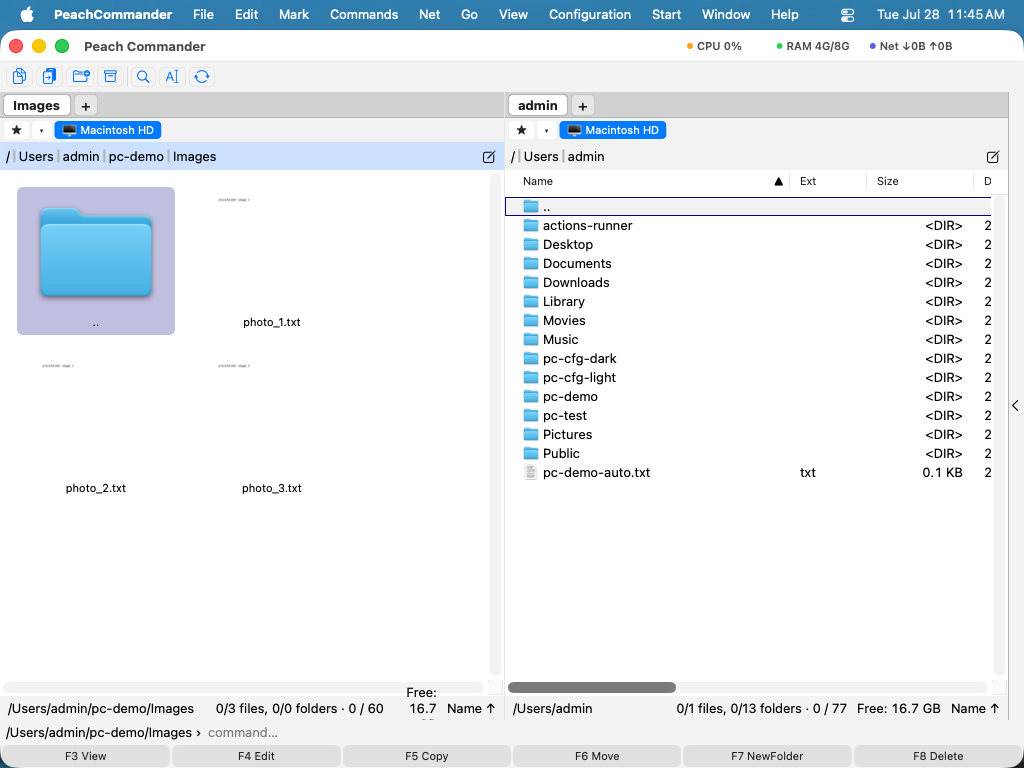 (Figure: The same folder shown as a detailed list, a brief column list, an icon grid, and a gallery of thumbnails.)
Sort the file list
- In Details view, click a column header (Name, Ext, Size, or Date) to sort by it. A small arrow in the header shows the current sort column and direction.
- Click the same header again to reverse the order.
- You can also choose View > Sort By and pick Name, Extension, Size, Date, or Unsorted.
Folders always sort together at the top, ahead of files, and the .. entry that takes you up one level stays pinned first. Sorting by name or extension defaults to ascending (A to Z); sorting by size or date defaults to newest or largest first.
Choose which columns appear
- Choose Configuration > Columns….
- Turn columns on or off and set their order. Available columns include Name, Ext, Size, Date, Attr (attributes), Tags, and Comment.
- Apply your changes. Columns affect the active panel's Details view.
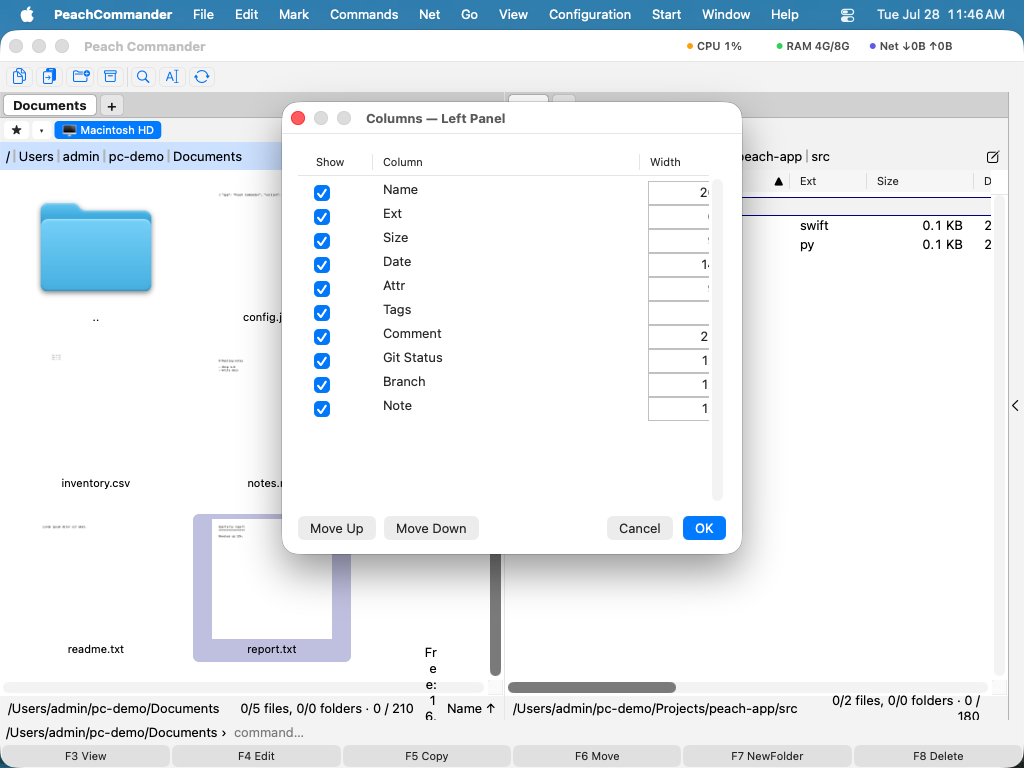 (Figure: Choose which columns show in the Details view and set their order.)
Shortcuts
| Action | Shortcut |
|---|---|
| Cycle through view modes | Cmd+Shift+M |
| Brief (columns) view | Ctrl+F1 |
| Full (details) view | Ctrl+F2 |
| Thumbnails (gallery) view | Ctrl+Shift+F1 |
| Tree view | Ctrl+F8 |
| Sort by name | Ctrl+F3 |
| Sort by extension | Ctrl+F4 |
| Sort by size | Ctrl+F5 |
| Sort by date | Ctrl+F6 |
Tips
- Natural (numeric) sorting is on by default, so
file2comes beforefile10instead of after it. You can switch it off in Settings (Cmd+,) on the Display page. - If you use macOS keyboard navigation (System Settings > Keyboard), the Ctrl+F1 to Ctrl+F8 row belongs to the system — focusing the menu bar, the Dock, the toolbar — and never reaches Peach Commander. Switch the key scheme to macOS in Settings and the view modes are on Cmd+1, Cmd+2, and Cmd+3, with sorting on Alt+Cmd+1 to Alt+Cmd+4.
- You can widen or narrow a column in Details view by dragging the divider between column headers.
- View mode, sort order, and column choices are remembered per panel, so you can keep one side as a detailed list and the other as a gallery of photos.
- The keyboard is the same in every mode: type to jump to a file, Ctrl+S to filter, Space or Insert to mark — and a marked file is shown in the marked colour in the grids as well. Only the arrows differ, because there they move by cell: within a column in Brief view, across the grid in Icons and Gallery.