Attributes & permissions
Peach Commander lets you inspect and change the low-level metadata of files and folders that Finder keeps mostly out of reach: POSIX read/write/execute permissions, the owner and group, the modified and created dates, macOS flags such as hidden and locked, and extended attributes. You can also edit a file's access control list (ACL) for fine-grained per-user or per-group rules, create links and aliases that point at other items, and attach your own comments. These tools are aimed at power users who need precise control over how items behave and who can touch them.
Change attributes
- Select one or more items in the active panel.
- Choose File > Change Attributes….
- Set what you need: toggle the read/write/execute boxes for owner, group, and everyone (or type an octal value directly), change the owner or group, flip the hidden or locked flags, and set the modified or created date. Use Use current for the current time, or copy a date from another file.
- To apply the same change through a folder's contents, turn on the recursive option and choose whether it affects files, folders, or both.
- Click OK to run the change. Recursive changes run as a background task with a progress bar.
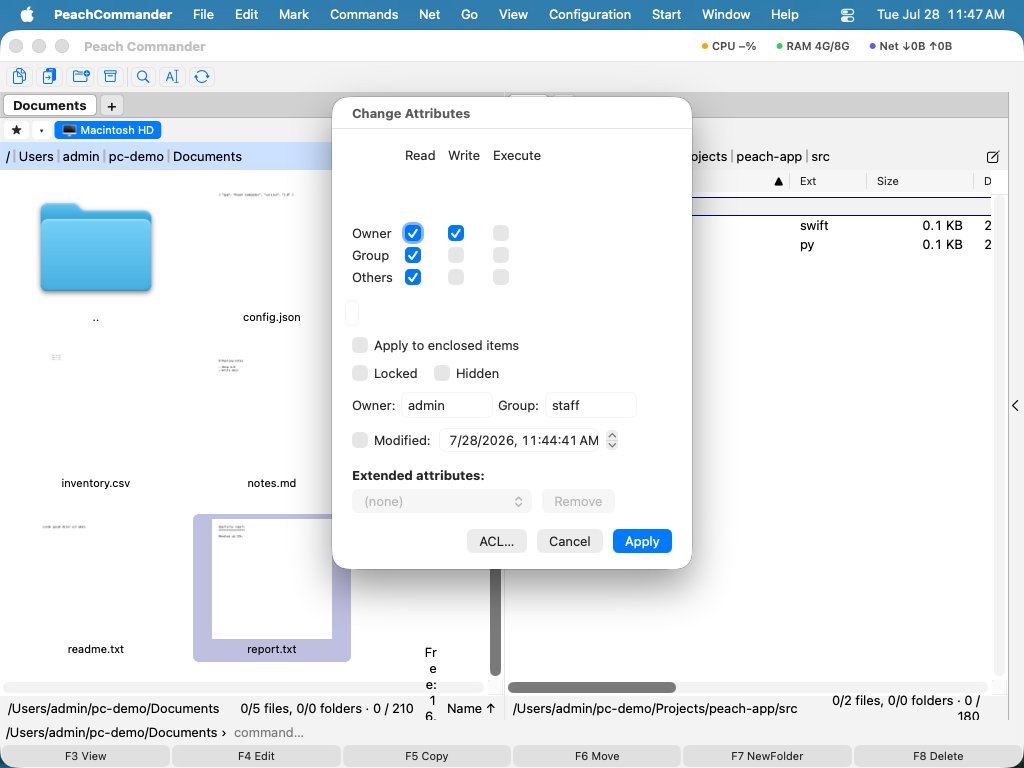 (Figure: The Change Attributes dialog. Mixed values across a multi-file selection show as a dash until you set them.)
Edit an ACL
For rules beyond the basic owner/group/everyone model, edit the item's access control list.
- Open File > Change Attributes… and open the ACL editor from there.
- Each row is one rule: the user or group it applies to, whether it allows or denies, and which permissions (read, write, delete, and so on) it grants.
- Add, remove, or edit rows, then save to write the list back to the item.
Create links, aliases, and comments
- File > Create Symbolic Link… makes a symbolic link (symlink) that points at the item under the cursor by path.
- File > Create Hard Link… makes a hard link to the same file data. Hard links work only for files on the same volume.
- File > Create Alias… makes a macOS alias that Finder can also follow.
- File > Edit Comment… (Ctrl+Z) opens a text editor for a per-file comment. Comments can be shown in their own column and in status tips.
Shortcuts
| Action | Shortcut |
|---|---|
| Edit Comment | Ctrl+Z |
Notes
- Changing the owner or group usually requires privileges you don't have as a normal user; when that happens the change is reported as failed rather than applied, and the rest of your changes still go through.
- Comments are stored in a
descript.ionfile alongside your items and can also be kept as Finder comments, depending on your settings. Both are read when displaying a comment. The format is the one Total Commander and several other file managers use, so a comment you write here is readable there. - A comment follows the file. Copy, move or rename an item and its comment goes with it — to the target folder's
descript.ionon a move or copy, and to the new name on a rename, including when you undo the rename. Appending one file onto another is the exception: the file that stays keeps its own comment, because it is still that file. - Comments with line breaks and comments in UTF-16 are read and written the way Total Commander does: a line break is stored as
\nfollowed by the two marker bytes TC registered for it, and a file that was UTF-16 stays UTF-16 when you edit one comment in it. Without that marker a\nin somebody's comment is two characters they typed, and it is left alone. - If you have the Notes plugin switched on, its sidebar shows and edits the same comment above the note's text, so the two are not separate places to write about the same file.
- A symbolic link and an alias both point at a target, but a symbolic link stores a plain path while an alias stores a macOS reference that keeps working if the target is moved or renamed. A hard link is a second name for the same file data, not a pointer.