Renaming many files
The Multi-Rename Tool renames a whole batch of files in one pass. Instead of editing names one at a time, you describe the change once — a naming pattern, a search-and-replace, a numbering scheme, or a change of letter case — and Peach Commander applies it to every selected file. A live preview shows exactly what each file will be called before anything happens, and a single Undo puts the original names back if the result is not what you wanted.
Rename a batch of files
- Select the files you want to rename (see Selecting files). Only the selected items are affected.
- Choose Commands > Multi-Rename Tool…, or press Ctrl+M.
- Build your rename rule using the fields described below. The preview grid updates as you type, showing each Old name next to its New name.
- Check the preview. A row shown in a highlight color flags a name that cannot be used (for example, a duplicate or an illegal name) so you can adjust the rule.
- When the preview looks right, click Start. If you change your mind, click Undo to restore the original names.
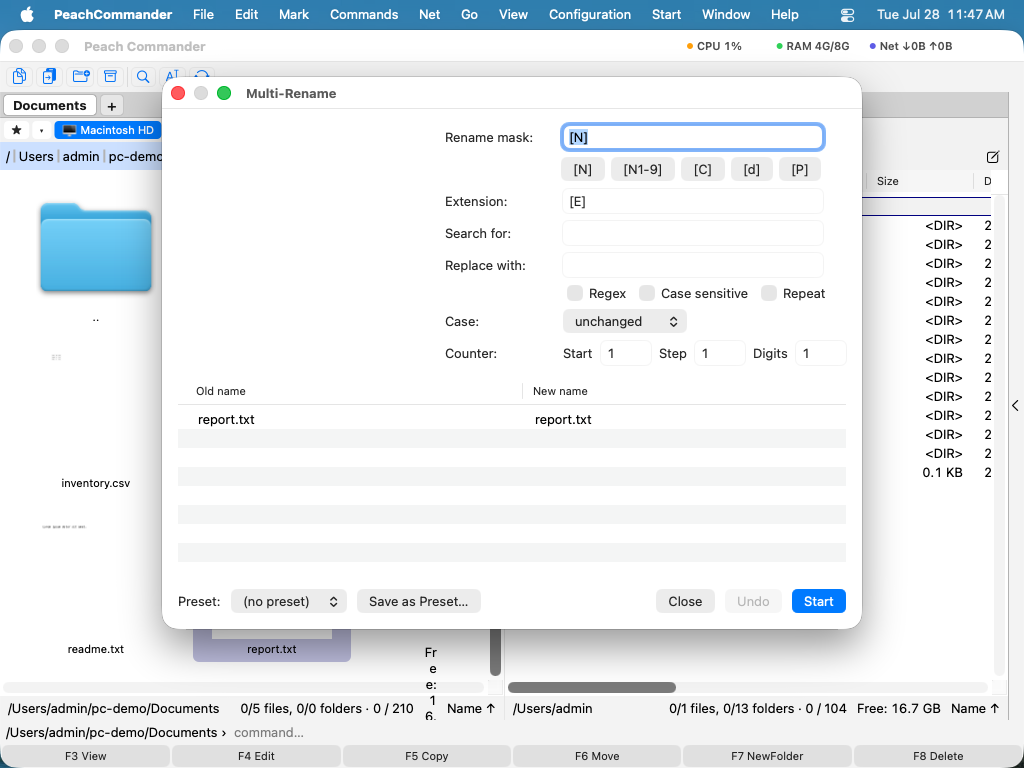 (Figure: The preview grid updates live as you edit the rename rule; nothing is changed on disk until you click Start.)
Building the rename rule
- Rename mask and Extension — patterns that build the new name and extension. Use the quick-insert buttons, or type placeholders directly:
[N]for the original name,[N1-9]for a range of characters from it,[C]for the counter,[d]for date and time parts, and[P]for the parent folder name. - Search for / Replace with — replace text inside the names. Turn on Regex for pattern matching, Case sensitive to match exact letter case, and Repeat to replace every occurrence.
- Case — convert names to lowercase, UPPERCASE, First letter capitalized, or Every Word capitalized.
- Counter — set the Start number, the Step between files, and how many Digits to pad to (for example, 001, 002, 003) wherever
[C]appears.
Shortcuts
| Action | Shortcut |
|---|---|
| Open the Multi-Rename Tool | Ctrl+M |
| Apply the rename | Return |
| Close the window | Esc |
Tips
- Nothing is written to disk until you click Start, so you can experiment freely with the rule and watch the preview.
- After a run, Undo reverses the rename in one step.
- Save a rule you use often as a Preset, then pick it from the preset menu next time to fill in all the fields at once.
- To rename a single file, or to rename files as you move them, use in-place rename or the move dialog instead (see Moving & renaming).