Opening files & folders
Peach Commander opens files and folders straight from either panel, using the same apps and system features you already rely on in Finder. Press a key to open the item under the cursor in its default app, or right-click to reach a full menu of actions — open with another app, reveal the item in Finder, share it, or open a Terminal window right where you are standing.
Open an item
- Click a file or folder in a panel to put the cursor on it (the highlighted row).
- Press Enter (or double-click).
- A folder opens in the same panel.
- A file opens in its default macOS app — the same app Finder would use.
- An archive (such as a .zip) opens as a folder so you can browse inside it.
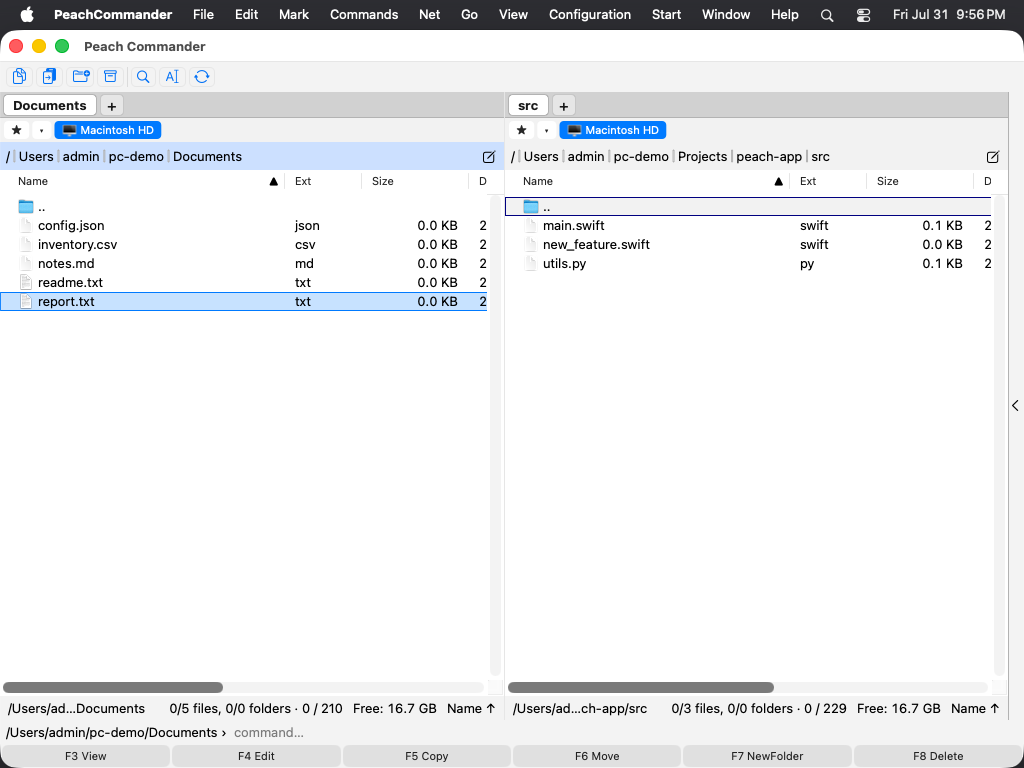 (Figure: Put the cursor on any item, then press Enter to open it.)
Open with another app, reveal, or share
Right-click a file (or press Shift+F10) to open the item's menu, then choose:
- Open or Open in Default App — open the file as Enter would.
- Open With — pick any installed app that can open this file, or choose Other… to browse for one.
- Quick Look — preview the file without opening an app.
- Reveal in Finder — show the file selected in a Finder window.
- Share… — send the file through the macOS Share sheet.
The menu also merges the standard macOS Services for the selected file, and adds Tags so you can apply the usual Finder color tags.
Open a Terminal in the current folder
Choose Open Terminal Here from the File or Commands menu (Cmd+Option+T) to open a Terminal window already pointed at the active panel's folder.
Shortcuts
| Action | Key |
|---|---|
| Open item under cursor | Enter |
| View file (viewer) | F3 |
| Edit file | F4 |
| Quick Look preview | Cmd+Y |
| Get Info / properties | Option+Enter |
| Open item's menu | Shift+F10 or right-click |
| Open Terminal here | Cmd+Option+T |
Notes
- "Default app" means the app macOS is set to use for that file type; change it in the file's Get Info panel, exactly as in Finder.
- Reveal in Finder, Share…, and Open With ▸ Other… apply to items on your Mac's disk. They are not available for items inside an archive or on a remote (FTP/SFTP) connection.
- Right-clicking a running process (in a process view) shows a shorter, process-specific menu instead of the file actions.