The log viewer
Put the cursor on a log file and choose View as Log… to open it in a window built for logs rather than for text: one row per line, the level of each line recognised and coloured, a filter, and a tail that keeps up while the file is still being written.
It is a plugin, so you can turn it off or remove it in Configuration ▸ Plugins…. Without it, F3 shows a log the way it shows any other text file.
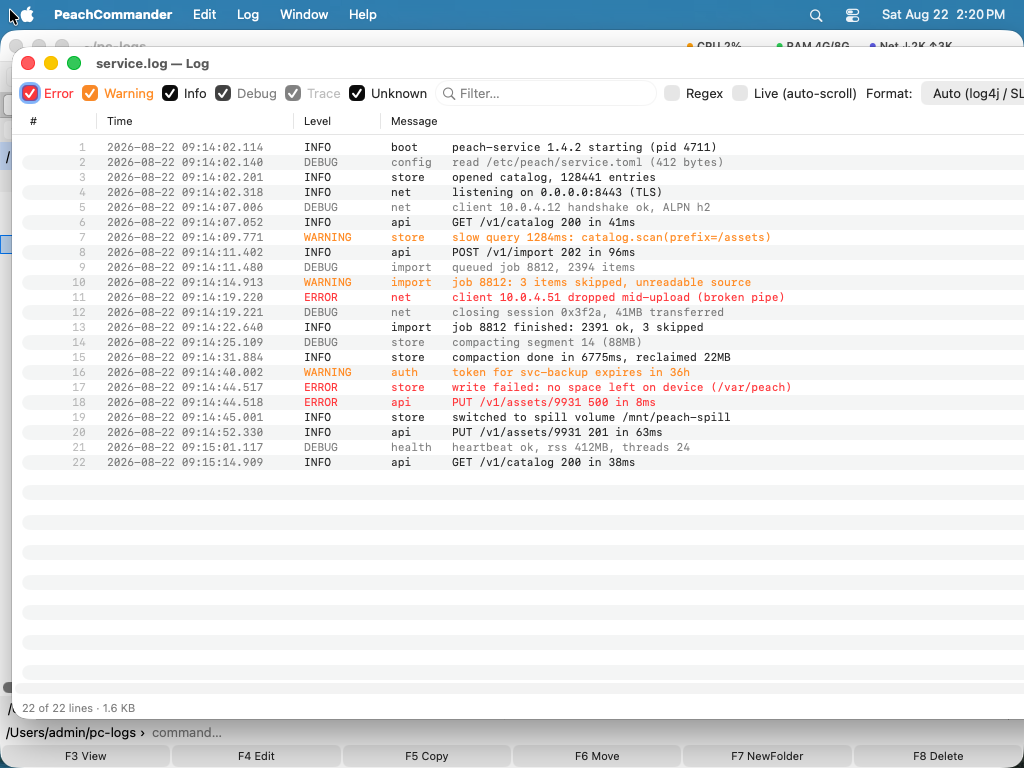 (Figure: each level gets its own colour, and the view keeps following the file.)
Why it opens instantly
The file is memory-mapped and only an index of where each line begins is built, in the background. Nothing is loaded into memory as text until it is on screen, and only the lines actually visible are decoded. A multi-gigabyte log opens as fast as a small one, and scrolling to the end does not read the middle.
Levels and colour
Each line is classified — Error, Warning, Info, Debug, Trace, or Unknown when the format gives nothing away — and coloured accordingly. The default colours follow the light or dark appearance; set your own in the plugin's settings and yours are used instead.
The Level column lets you see at a glance where the errors sit, and the filter field narrows the list to what you are looking for. Turn on Regex to filter with a regular expression instead of plain text.
Following a file that is still growing
Switch on Live (auto-scroll) and the window follows the end of the file as new lines arrive: the index is extended over the appended bytes rather than rebuilt, so this stays cheap no matter how long the file gets. Scroll up and you are reading history; the tail keeps running underneath.
Finding your way around
| Find… | Search the messages; Find (mark & jump)… marks every hit so you can step between them |
| Go to Line… | Jump to a physical line number |
| Go to Date/Time… | Jump to the first line at or after a timestamp, e.g. 2024-01-15 10:23:45 |
Copying is aware of what a log line is: Copy Line takes the line under the cursor, Copy Entry (all lines) takes the whole entry when one entry spans several lines — a stack trace, for instance — and Copy Selected Lines takes exactly what you selected.
Formats
log4j, log4net and CSV are built in, and the format is detected automatically; the window shows which one it settled on. When your logs are none of those, add your own under Log Formats in the settings: a regular expression with named groups for the parts that matter.
(?<time>…) (?<level>…) (?<msg>…)
A line the expression does not match still appears — it is simply classified as Unknown rather than dropped, because a log you cannot read is worse than a log without colours.
Display
Show line numbers and Word wrap long lines are in the settings. The detail area below the list always shows the full text of the selected entry, wrapped, whatever the list is doing.