Favorites & hotlist
Favorites (the directory hotlist) are quick shortcuts to folders you open all the time. Instead of clicking through the same path over and over, you save it once and jump straight back to it from a short menu — from either panel, at any time. You can keep a flat list or group related folders into submenus (for example, all your project folders under one "Projects" heading).
Open the favorites menu
- Make the panel you want to navigate the active one (click in it).
- Press Ctrl+D, or choose Go > Directory Hotlist….
- The favorites menu pops up next to the panel. Click a folder to open it there.
Your first nine favorites are numbered in the menu, so you can pick them by pressing 1 through 9 as soon as the menu is open.
Add the current folder
- Open the folder you want to remember in the active panel.
- Press Ctrl+D to open the favorites menu.
- Choose Add Current Directory. The folder is added to the bottom of the list and is available immediately.
Organize your favorites
- Open the favorites menu and choose Organize Hotlist….
- In the window that opens, edit each favorite's Title and Path directly in the table. Double-click a cell to change it.
- Drag rows to reorder them — the order here is the order they appear in the menu.
- Use the buttons to add a new favorite or a separator line.
- To group favorites into a submenu, put a backslash in the title: a favorite titled
Projects\Websiteappears under a Projects submenu as Website. You can nest several levels this way. - Close the window to save. Your favorites are remembered between launches.
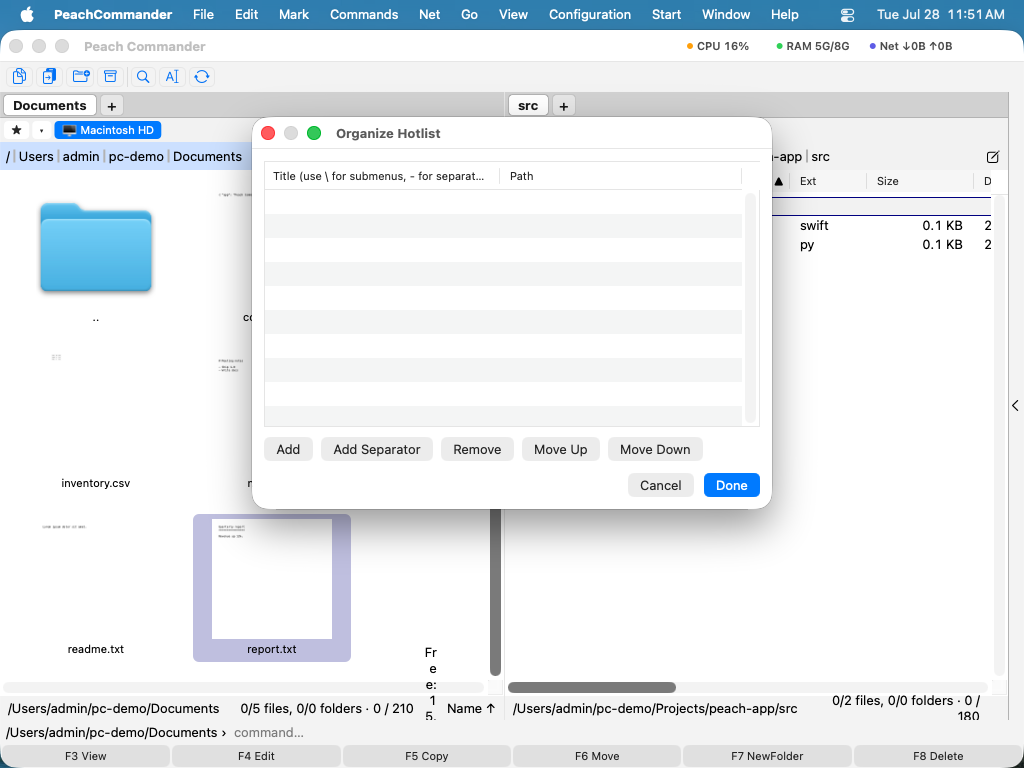 (Figure: The Organize Hotlist window — edit titles and paths, reorder rows, and use backslashes in a title to build submenus.)
The star chip
Above each panel's file list is a small ★ chip. Click it to open a menu of common locations (Home, Desktop, Downloads, and so on) followed by your favorites. It is a fast way to reach a favorite without switching which panel is active first — the folder opens in that panel. The same menu has a Directory Hotlist… entry that opens the organizer.
Shortcuts
| Action | Shortcut |
|---|---|
| Open the favorites menu | Ctrl+D |
| Add the current folder | Ctrl+D, then Add Current Directory |
| Pick one of the first nine favorites | 1–9 (while the menu is open) |
Notes
- A title of a single dash (
-) creates a separator line in the menu, handy for splitting groups apart. - Favorites are shared by both panels — the same list appears wherever you open the menu.
- The menu shows number shortcuts (1–9) only for the first nine favorites; the rest are still there and clickable, just without a number.