Tutorial: Speed up repetitive actions
If you find yourself doing the same few things over and over — opening a folder in Terminal, running a favorite tool on the selected files, jumping to a project directory — you can put each of them one click or one keystroke away. Peach Commander gives you three complementary ways to do this:
- The button bar — a strip of icon buttons across the top of the window.
- The Start menu — your own personal menu in the menu bar.
- Custom shortcuts — rebind any command to the keys you like.
This tutorial walks through all three with real examples. By the end you'll have a button that opens the current folder in Terminal, a Start-menu entry that runs a tool on your selected files, and a shortcut of your own.
Three ways here, and two more elsewhere. This tutorial is about wiring up the commands, programs and folders you already use so they run instantly, which covers most day-to-day repetition. For repeating a sequence of file actions, see Macros; for running an AppleScript or JavaScript of your own, see Automation. Peach Commander still does not record or replay clicks — a macro is a list of file actions, not a recording of the mouse.
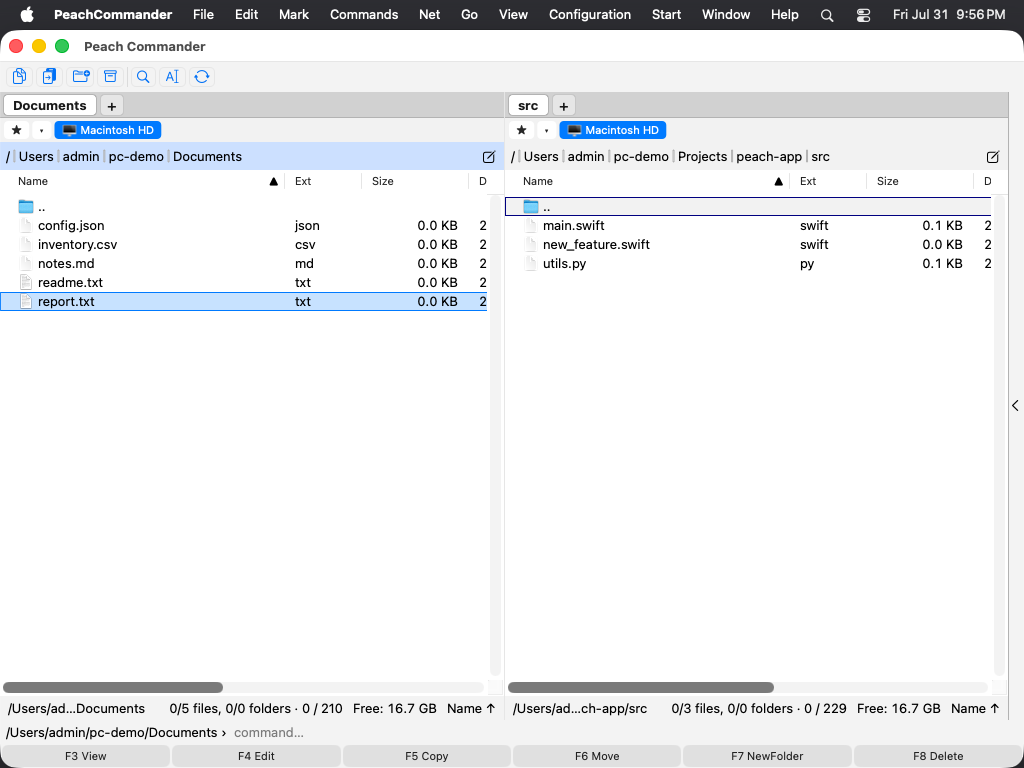 The button bar sits above the two file panels; each button runs one action you define.
Part 1 — Add a button that opens the current folder in Terminal
We'll add a button that launches Terminal already pointed at whichever folder the active panel is showing.
- Choose Configuration > Customize Toolbar…, or right-click the button bar and choose Edit Button Bar….
- Click + to add a new button. It appears in the list on the left; select it so its form shows on the right.
- In Command, type the path to the launcher:
open. - In Parameters, type
-a Terminal %P. The%Pplaceholder is replaced with the active panel's folder when the button runs. - In Caption, type
Terminal Here. This is the label and tooltip. - For Icon, pick an SF Symbol such as a terminal glyph, or use Terminal's own icon. Turn on icon-only if you'd rather not show the caption.
- Click Save. The strip reloads immediately, and your new button appears at the end.
Click the button: Terminal opens in the current folder. Navigate to a different folder, click again, and it follows you there.
About the placeholders. Buttons that call external programs understand several placeholders, filled in the moment the button runs:
| Placeholder | Means |
|---|---|
%P |
The active panel's folder |
%N |
The file under the cursor |
%S |
All selected files |
%T |
The other panel's folder |
So a button with Command open and Parameters -a Preview %S opens every selected file in Preview at once.
For the full set of options — separators, sub-bars, dragging files onto a button, and the vertical layout — see The button bar.
Part 2 — Add a Start-menu entry that runs a built-in command
The button bar is great for tools you reach for by mouse. The Start menu is better when you want a named list of your own commands in the menu bar, each with an optional shortcut. Here we'll give the built-in "compare by contents" command its own menu entry and key.
- Choose Start > Change Start Menu…. The first time, Peach Commander creates your user-commands file with a commented example and opens it.
- Add one section for the command. Each section is a name in square brackets followed by a few simple keys:
[Compare Contents]
menu=Compare Files by Contents
cmd=cm_CompareFilesByContent
key=C+S+K
- menu — the title shown in the Start menu.
- cmd — what to run. Here it's a built-in command (built-in commands start with
cm_), but it could just as easily be a program path, an app, or a folder to jump to. - key — an optional shortcut.
C+S+Kmeans Control+Shift+K. Leave it out if you don't want one. - Save the file. The Start menu refreshes on its own the next time Peach Commander becomes active (click into the app), so your entry appears right away.
Open the Start menu and you'll see Compare Files by Contents, ready to run — or just press its key.
A second example — run a program on your selection. Start-menu entries take the same placeholders as buttons. To add an entry that opens the selected files in your editor of choice:
[Edit Selection]
menu=Edit Selected Files
cmd=/Applications/BBEdit.app
param=%S
Entries appear in the same order as in the file, so put your most-used commands at the top. To learn how to jump to folders and chain your own commands, see The Start menu & custom commands.
Part 3 — Rebind a keyboard shortcut
Maybe you want one of these actions — or any of the roughly 150 built-in commands — on a key that suits you. Peach Commander lets you rebind anything on top of whichever scheme you use.
- Choose Configuration > Edit Shortcuts….
- Type part of the command's name in the search field, then select its row. For our example, search for
compare. - Click Record… and press the combination you want, for example Control+Shift+K.
- It's assigned immediately. If that combination was already used by another command, a notice tells you which one it was taken from, so you can decide whether to reassign it.
- Close the editor. Your change is saved automatically.
Use Clear to remove a command's shortcut, or Restore Defaults to discard all your changes and return to the current scheme's original keys.
Two schemes to start from. If you're new to shortcuts, first pick the scheme closest to your habits on the Keys page in Settings (Cmd+,) — TC Classic (Ctrl-based, the default) or macOS Native (Cmd-based). Your personal rebindings layer on top and survive switching schemes. Full details are in Keyboard & shortcuts.
Not sure which command to bind? Choose Configuration > Command Browser…, search by name or description, and double-click to run a command on the active panel. It's the quickest way to discover what's available before you assign a key.
Which tool should I use?
| You want to… | Use |
|---|---|
| Click an icon to run something | A button bar button |
| A named entry in the menu bar, optionally with a key | A Start menu command |
| Press a key to trigger any built-in command | A custom shortcut |
| Pass the folder, cursor file, or selection to an external program | Placeholders (%P, %N, %S, %T) in a button or Start entry |
| Repeat a whole sequence of file actions | A macro — walked through in its own tutorial |
| Run an AppleScript or JavaScript of your own | The Scripting plugin |
All three can call the same things — built-in commands, external programs and apps, and folders — so mix and match freely.
For power users: the automation hook
Preview builds include a testing hook used to drive the app non-interactively during development and QA. Launching the app with the -AutomationScript argument (pointing at a small script of connect / dump / cmd verbs) lets a test harness open connections, dump panel state, and run commands without clicking.
This hook is aimed at developers writing automated tests, not at everyday automation — it isn't a supported way to script your daily workflow, and it may change or disappear between builds. For repeatable everyday tasks use the button bar, the Start menu and custom shortcuts covered above, plus Macros for a sequence and Automation for your own scripts.
Where things are saved
- Your button bar is stored in a standard button-bar file that's compatible with Total Commander, so bars you already have can be reused.
- Your Start-menu commands and custom shortcuts are saved automatically as part of your settings — there's nothing to export by hand.
Next steps
- The button bar — separators, sub-bars, overflow, and dropping files onto buttons.
- The Start menu & custom commands — jumping to folders, chaining commands, and replacing the whole menu bar.
- Keyboard & shortcuts — schemes, the shortcuts editor, and the command browser.
- Turn what you just did into a macro — the next step up: repeating a whole sequence, not one command.