The main window
Peach Commander shows two file lists side by side so you can see where files are coming from and where they are going at the same time. Most of your work happens in these two panels; the bars around them let you switch drives, jump to a folder, and run the common file commands without leaving the keyboard. This tour names each part of the window so the rest of the help makes sense.
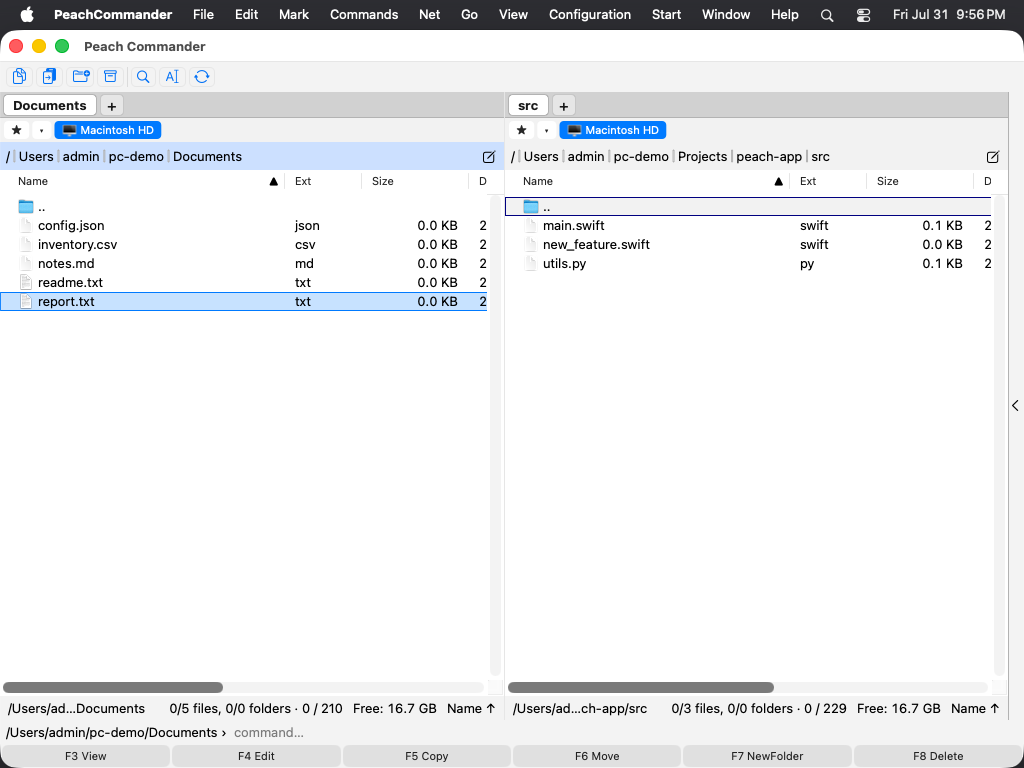 (Figure: The main window — two panels with the button bar, drive bar, and path bars above and the function-key bar below.)
The two panels and the active panel
The window is split into a left panel and a right panel, each showing the contents of one folder. Only one panel is active at a time: it shows the cursor (a highlighted row) and its path bar is drawn with a colored background. Commands like copy and move always act on the active panel and send files to the other one.
- Click anywhere in a panel to make it active, or press Tab to switch between them.
- Use the arrow keys to move the cursor up and down the active panel.
- Press Enter on a folder to open it, or on
..at the top of the list to go up one level.
Bars around the panels
- Button bar (top): a row of flat buttons for frequent commands. Click a button to run its command; right-click a button to edit the bar.
- Drive bar: one button per available disk or volume, each with its free space. Click a volume to switch that panel to it; right-click one to eject it, which is offered for removable volumes and mounted disk images and greyed out for the startup disk and network shares. Plugins can contribute drives of their own — the Task Manager is one — and they behave like any other volume: the panel switches to it, its button stays selected, and the tab is named after the drive. Each button carries the volume's own icon — the one Finder shows — so a hard disk, a USB stick, a mounted disk image and a network share are told apart at a glance. A connection you open — an FTP or SFTP site, or a WebDAV server — gets a button of its own for as long as it lasts: click it from either panel to go back to that server, and right-click it to disconnect.
- Path bar: shows the current folder as a clickable breadcrumb. Click a segment to jump straight to that folder, or click the path to type a location.
- Status bar (below each list): a running summary of the panel — how many files and folders are selected and their total size.
- Command line (bottom): a text field where you can type a shell-style command that runs in the current folder.
- Function-key bar (very bottom): six buttons labeled F3 View, F4 Edit, F5 Copy, F6 Move, F7 NewFolder, and F8 Delete. Click a button or press the matching key.
 (Figure: The drive bar — one button per volume, with remaining free space; right-click a volume to eject it.)
Shortcuts
| Action | Shortcut |
|---|---|
| Switch active panel | Tab |
| Open folder / item under cursor | Enter |
| Go up one folder | Backspace |
| View file | F3 |
| Edit file | F4 |
| Copy to other panel | F5 |
| Move / rename to other panel | F6 |
| New folder | F7 |
| Delete (to Trash) | F8 |
Notes
- The function-key bar re-labels itself live when you hold a modifier. Holding Shift, for example, changes F6 to a rename-in-place action, so the buttons always show what the keys will do right now.
- Almost every bar can be shown or hidden. Look under the View and Configuration menus to turn the button bar, drive bar, command line, or function-key bar on and off, or to stack the two panels top and bottom instead of side by side.
- On many Mac keyboards the F-keys act as media and brightness controls by default. Hold the Fn key together with F3-F8, or turn on "Use F1, F2, etc. keys as standard function keys" in System Settings, to use them directly.