
Peach Commander
The fast, keyboard-driven, dual-panel file manager for macOS — one app that replaces a drawer full of file utilities.
Before it works fully — two one-time steps
- Allow the first launch. macOS 15 and later: double-click, dismiss the warning, then System Settings ▸ Privacy & Security ▸ Open Anyway. macOS 13–14: right-click the app ▸ Open.
- Answer the folder prompts once. The first time Peach Commander looks at your Desktop, Documents or Downloads, macOS asks for each one. Allow them and it stays quiet from then on.
Peach Commander is not signed with an Apple Developer ID and not notarized — that is a paid yearly certificate this project does not have, so macOS cannot vouch for who built it. Since 0.9.2 the bundle carries a free ad-hoc code seal, which is what macOS needs in order to remember a folder permission. The seal says nothing about origin, so the first step stays. See the installation guide for the full walk-through.
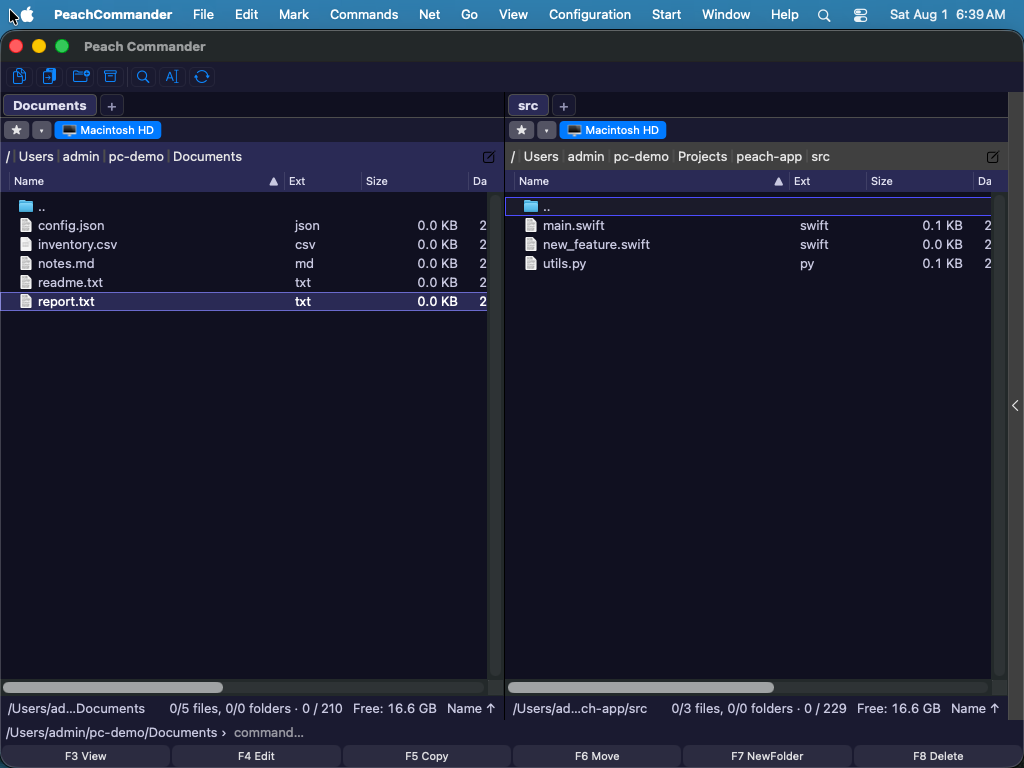
Peach Commander puts two folders side by side and every operation under your fingertips. Copy with F5, move with F6, switch panels with Tab, and reach roughly 150 named commands without ever lifting your hands from the keyboard. It is built in the Total Commander tradition and made for people who move a lot of files — and it wires that workflow straight into the Mac you already use. Hit a remote server, crack open an archive, and rename a thousand files at once, all inside one native window.
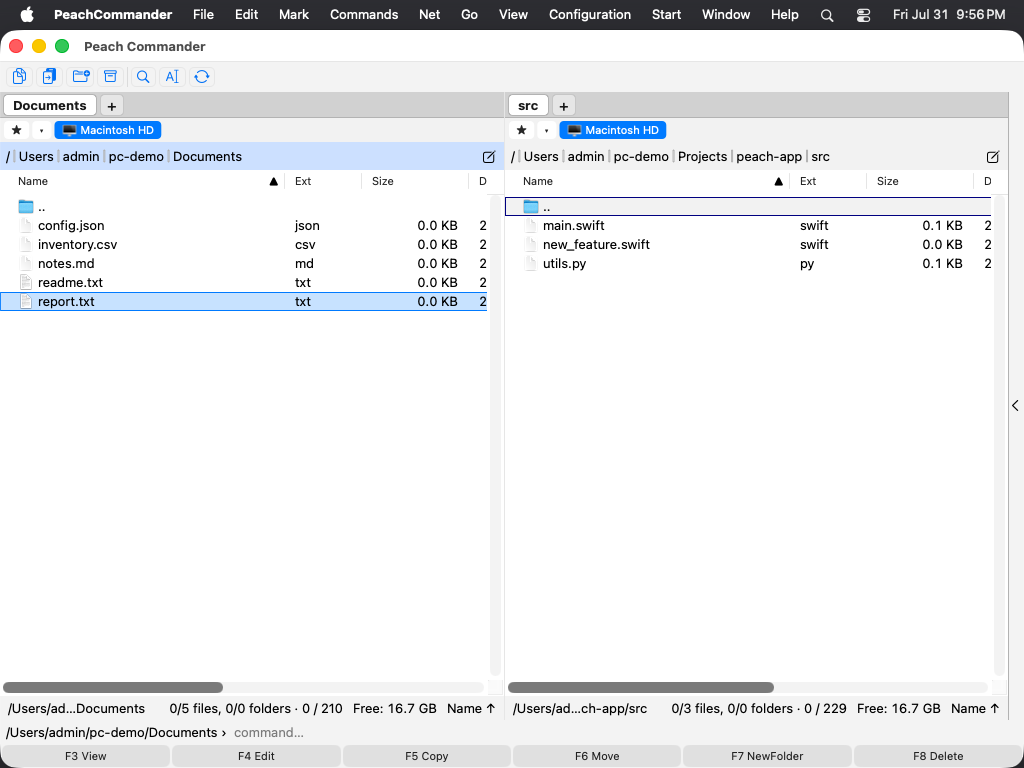 Two folders side by side — the whole workflow lives in one window, and the keyboard drives all of it.
New in 0.9.3 · 25 September 2026
Markdown and HTML as PDFs, from the renderer that already draws them — and the five ways an SFTP site could be left unable to log in at all.
wincmd.ini, and see what maps one-to-one — and what macOS does differently.
Start the switch →
New to two-panel managers
Why two panels?
What the second panel is for, what the function keys do, and the five minutes it takes to stop reaching for the mouse.
Take the tour →
Building something
Write a plugin
Five kinds of plugin over one C11 ABI — archives, file systems, viewers, columns, and whole docked views.
Read the SDK →
Fast on huge folders
Bulk metadata reads, streaming views, and clone-copy on APFS — low memory use even in directories with tens of thousands of files.
Keyboard-first
Around 150 named commands, all searchable and rebindable, in two schemes: TC-classic or macOS-native.
Do it once, then repeat it
Macros turn a sequence of file actions into one button — built out of what you just did, and shown to you as a readable plan before they run.
Remote as local
FTP, FTPS, SFTP/SCP, WebDAV, and SOCKS5 built in — a server browses exactly like a folder on your Mac.
Archives as folders
Step into zip, 7z, tar, and rar. Edit in place, pack with AES-256, split into volumes.
Genuinely native
Real AppKit with Quick Look, Finder tags, Services, and the Share sheet — not a web view in a window.
Seventeen plugins included
Git, a real terminal, a disk-usage map, process list, uninstaller, log and CSV viewers — in the box, not on a shop page.
Seventeen plugins, already in the box
Plugins here are not a promise about what you could build — they are what you get. Seventeen ship inside the app, fourteen of them switched on the moment you launch it, and every one can be switched off again in Configuration ▸ Plugins…. Nothing to download, nothing to buy.
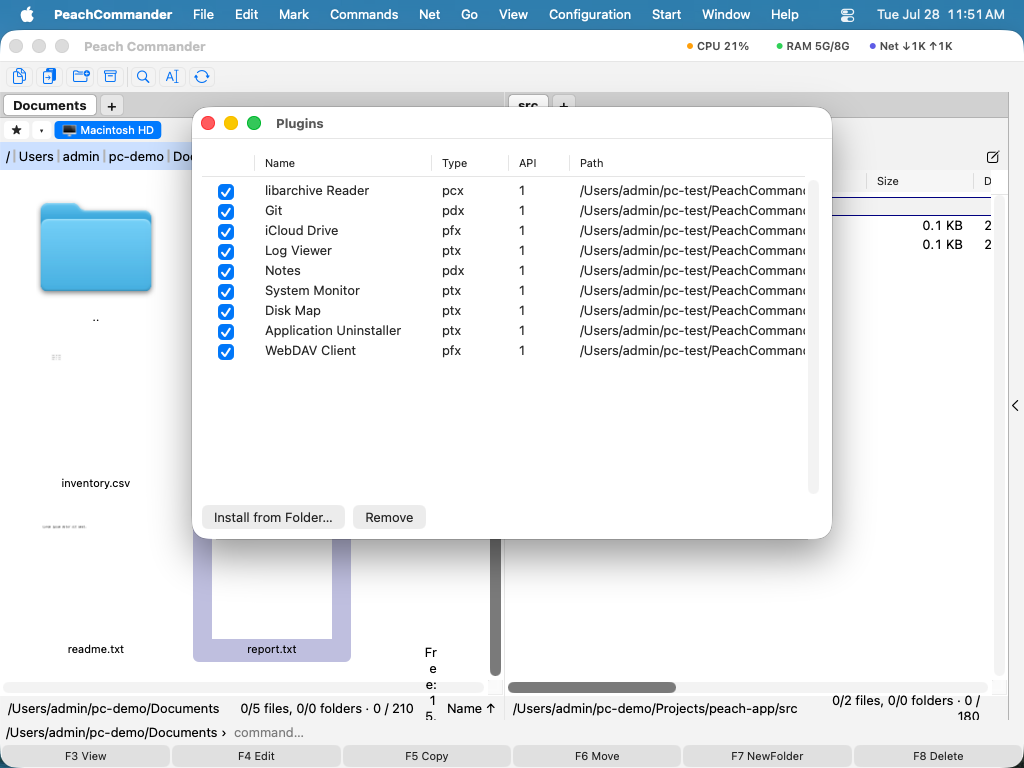 Every one of them arrives with the app, and each is independently switchable.
Five of them are easier shown than described:
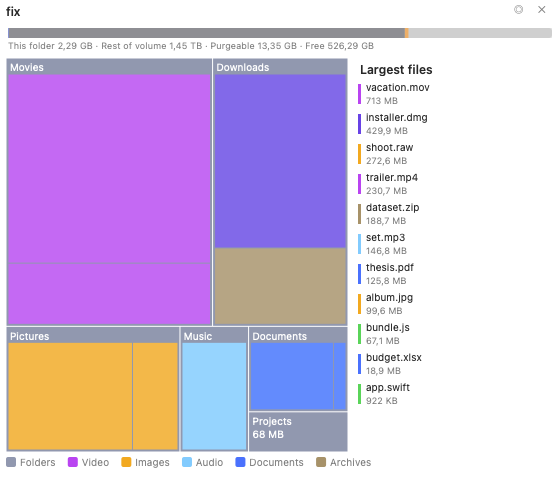 Disk Map — where the space actually went.
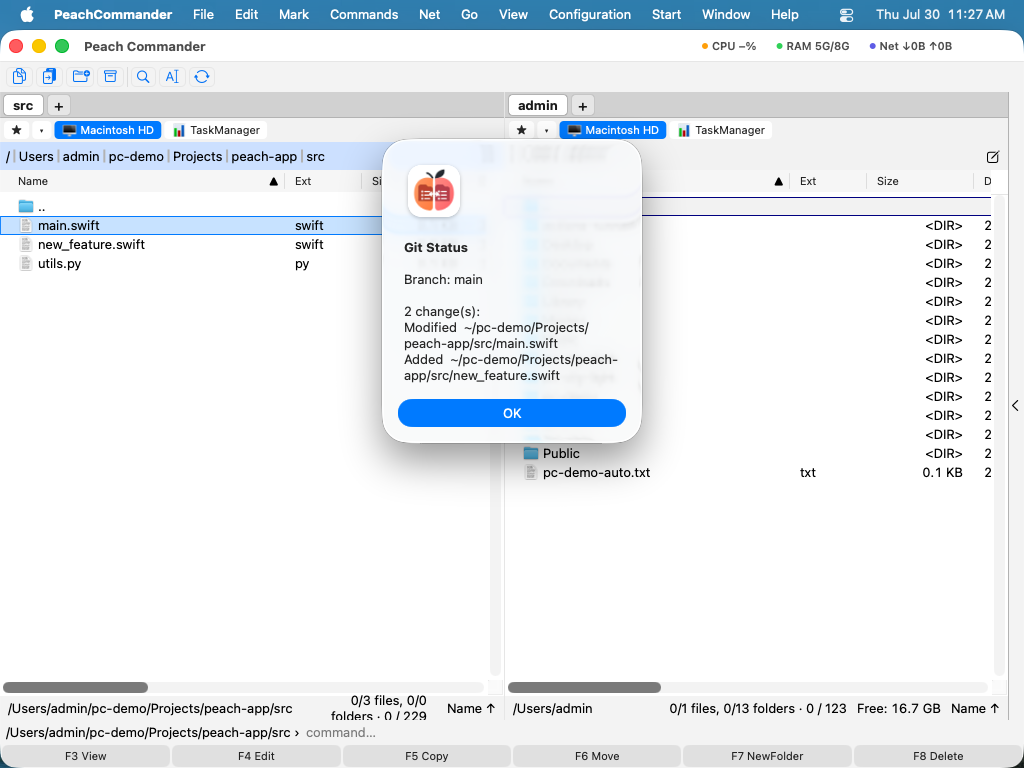 Git — status and branch as ordinary panel columns.
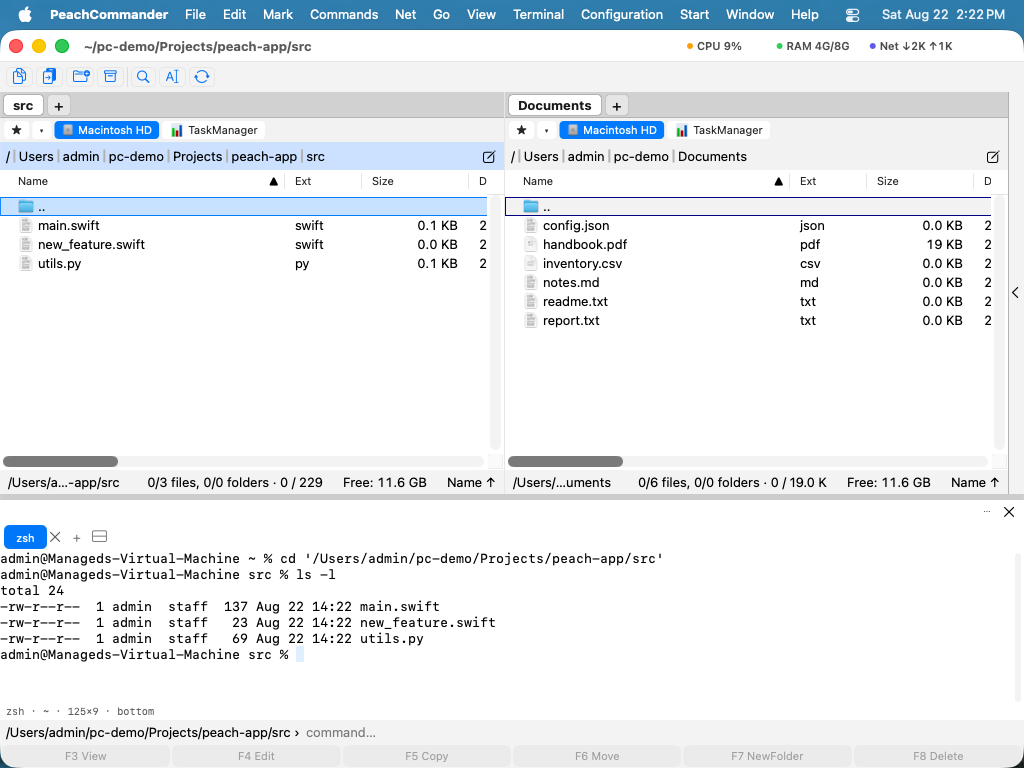 Terminal — one command puts the shell where you are looking.
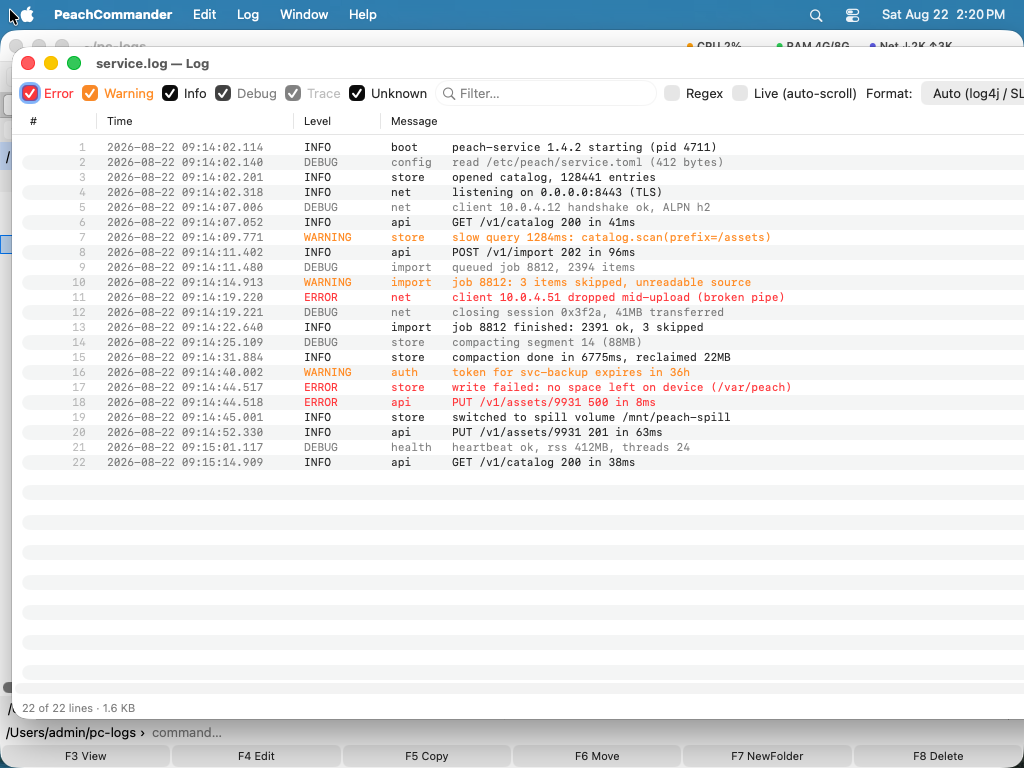 Log Viewer — levels coloured, and it keeps tailing while you read.
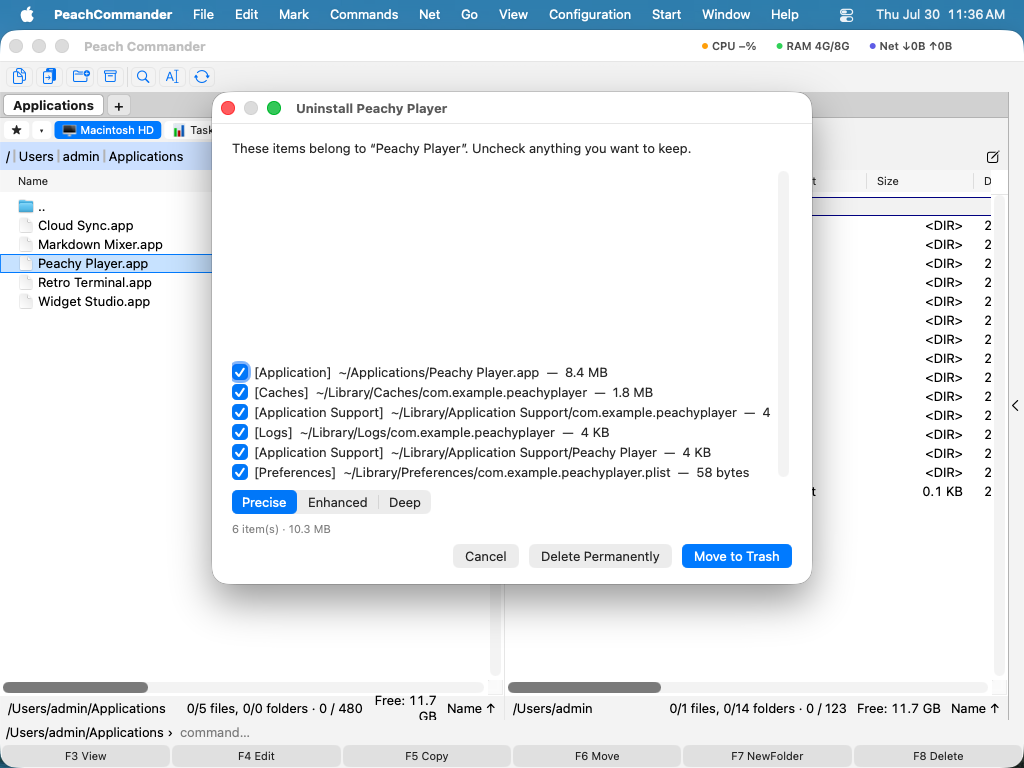 Uninstaller — the leftovers, with sizes, before anything goes.
Two panels, driven by the keyboard
Source and target are always in view, and there is a command for everything. You never hunt through nested windows or drag across desktops — you press a key and it happens.
Line up your Downloads folder on the left and a project folder on the right, select a batch of files with the arrow keys, hit F5 to copy or F6 to move, and press Tab to flip focus and keep going. Prefer muscle memory from another tool? Switch to the TC-classic key scheme or stay on the macOS-native one, and rebind anything you like.
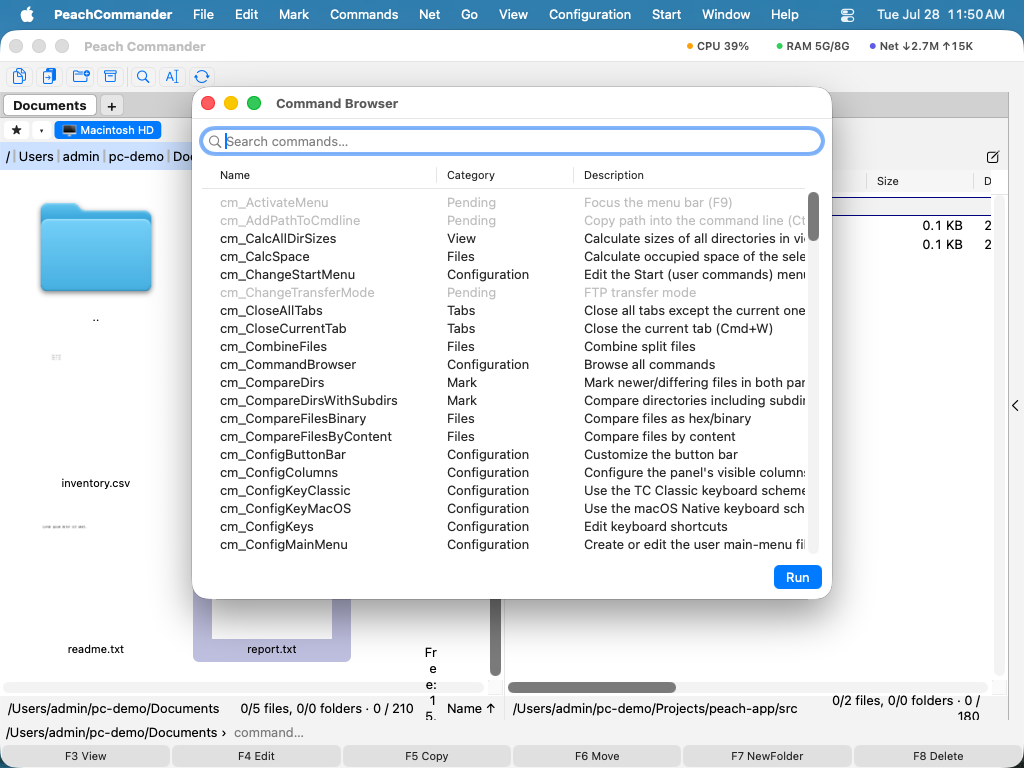 Around 150 named commands — every action is searchable, runnable, and bindable to a key.
The network is just another folder
FTP, FTPS (explicit and implicit), SFTP/SCP over libssh2, WebDAV, and SOCKS5 proxying are all built in — remote servers browse, copy, and edit exactly like local directories. A wget-style HTTP(S) downloader with resume rounds it out.
Point the left panel at a production SFTP host and the right at a local project, then copy a release straight across with F5 as if both were folders on your Mac — no separate client, no context switch. Need a single file off the web instead? The downloader fetches it and resumes if the connection drops.
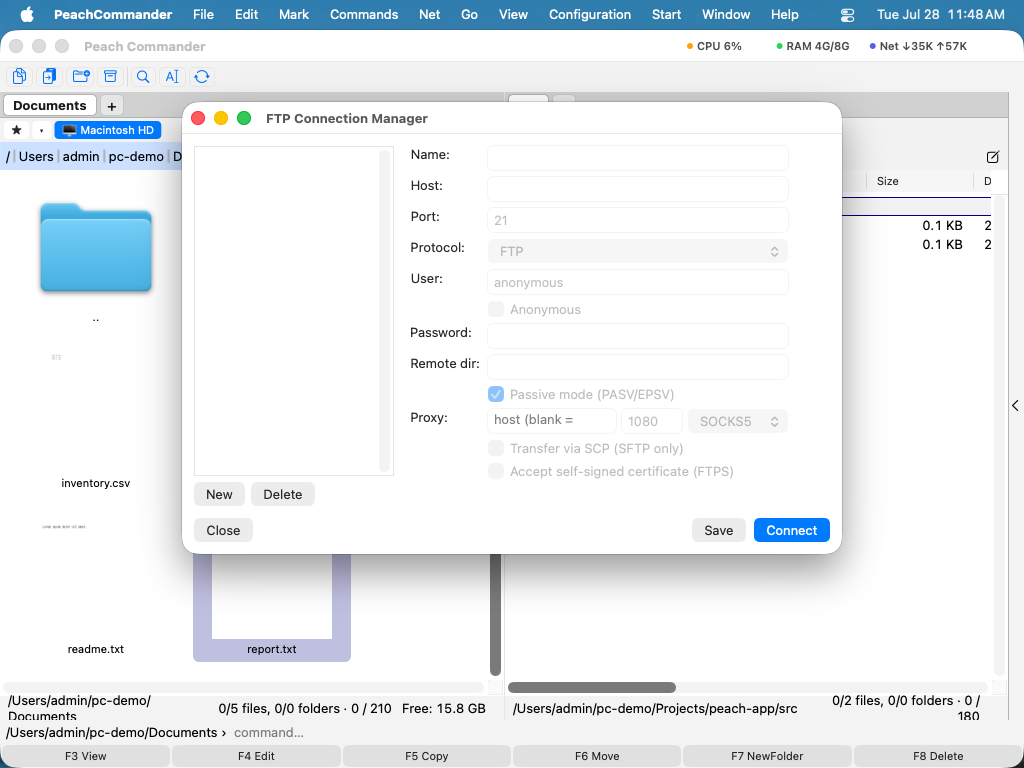 Saved connections for FTP, FTPS, SFTP/SCP, WebDAV, and SOCKS5 — pick one and it opens as an ordinary panel.
Archives you can walk into
Zip, 7z, tar (.gz/.bz2/.xz), and rar open like directories: step inside, copy files out, pack new ones, or edit a zip in place — with AES-256 encryption and split volumes.
Press Enter on a .zip to browse it, drag a corrected file in, and the archive updates in place — no unpack-edit-repack detour. Packing a release is just as direct: select files, open the pack dialog, and choose AES-256 encryption or split volumes when you need them.
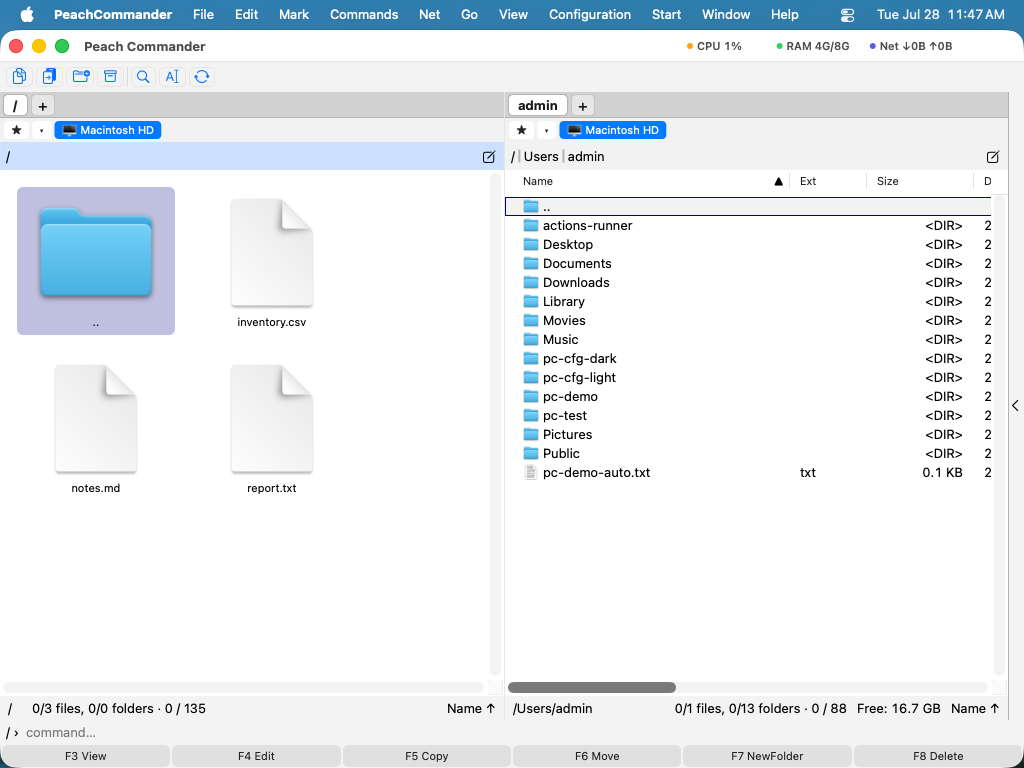 Step into a zip, 7z, tar, or rar and navigate it exactly like a normal directory.
Search that actually finds it
Content and full-text search uses memory-mapped scanning — uncapped for local substring search — with regex, whole-word, hex, and encoding-aware modes. Filter by size, date, and attributes; search inside archives; tap into Spotlight; and save your searches as templates.
Search a source tree for a regex pattern, restrict it to files modified this week over a certain size, and have it look inside zipped backups too — then store that query as a template you rerun each release.
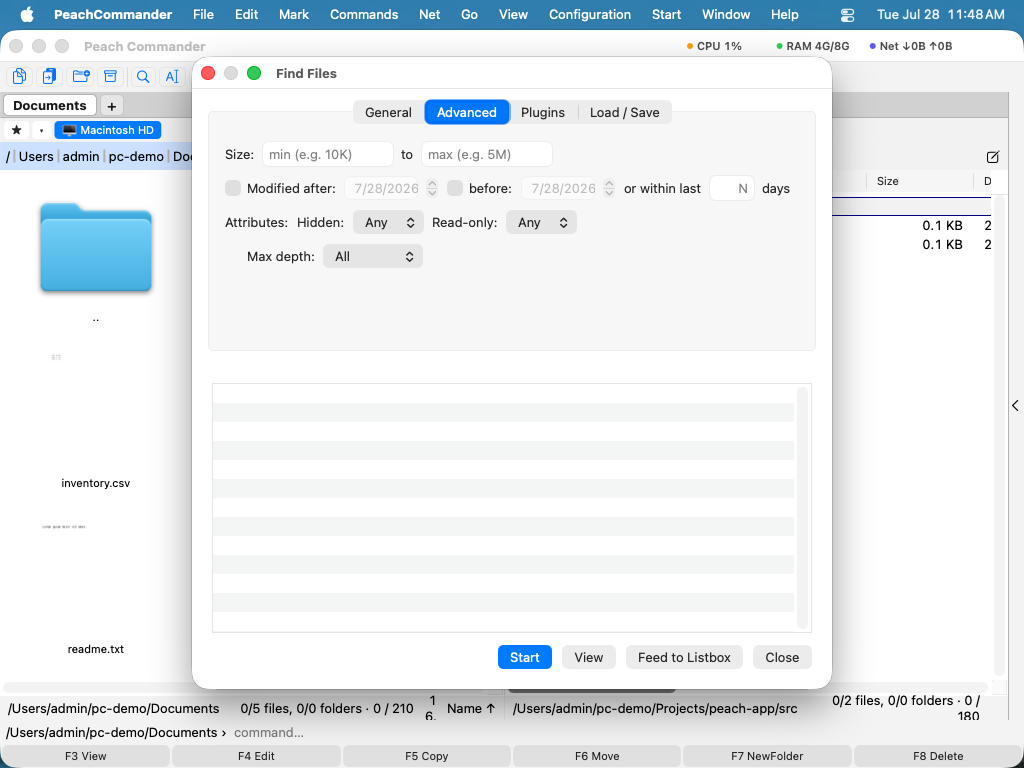 Regex, hex, whole-word, encoding awareness, and size/date/attribute filters — including inside archives.
Real power tools, built in
Multi-rename with regex, counters, and a live preview. Directory synchronize and compare (text and hex). A duplicate finder, checksums (CRC32/MD5/SHA), split/combine, base64/uu/hex conversion, and a background transfer manager with pause, resume, and bandwidth limiting.
Rename a few hundred photos with a regex and a counter and watch the preview update as you type; then queue a large copy in the transfer manager and pause, resume, or cap its bandwidth while you keep working elsewhere.
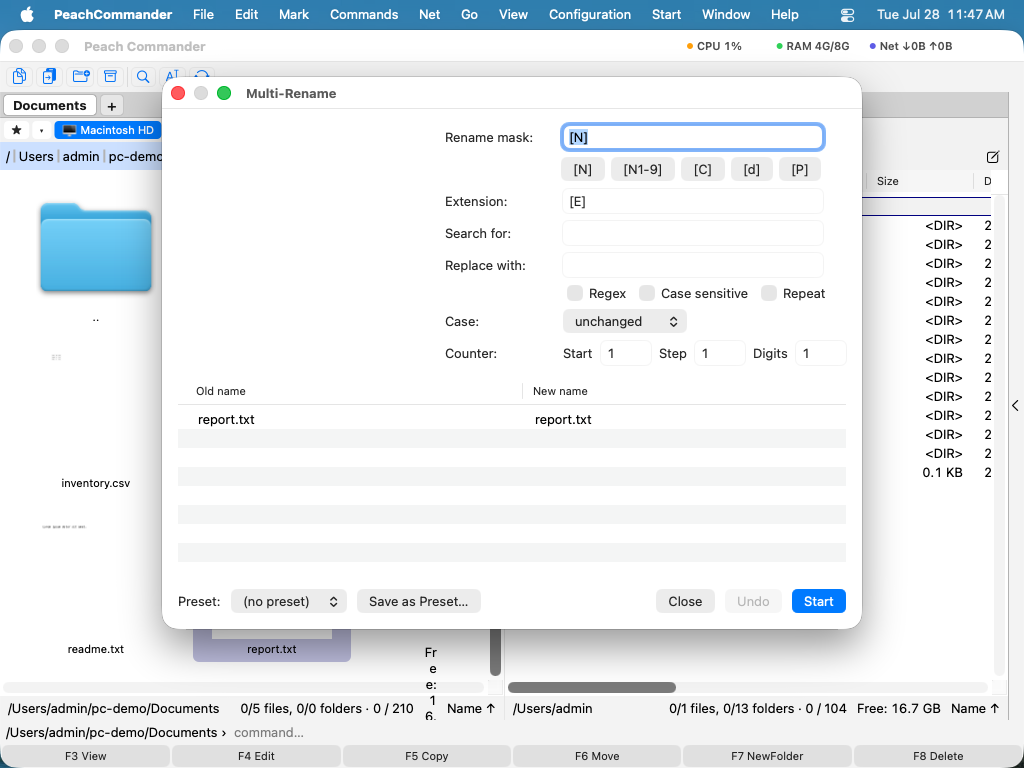 Build a rename rule from regex and counters and see the exact result before anything is written.
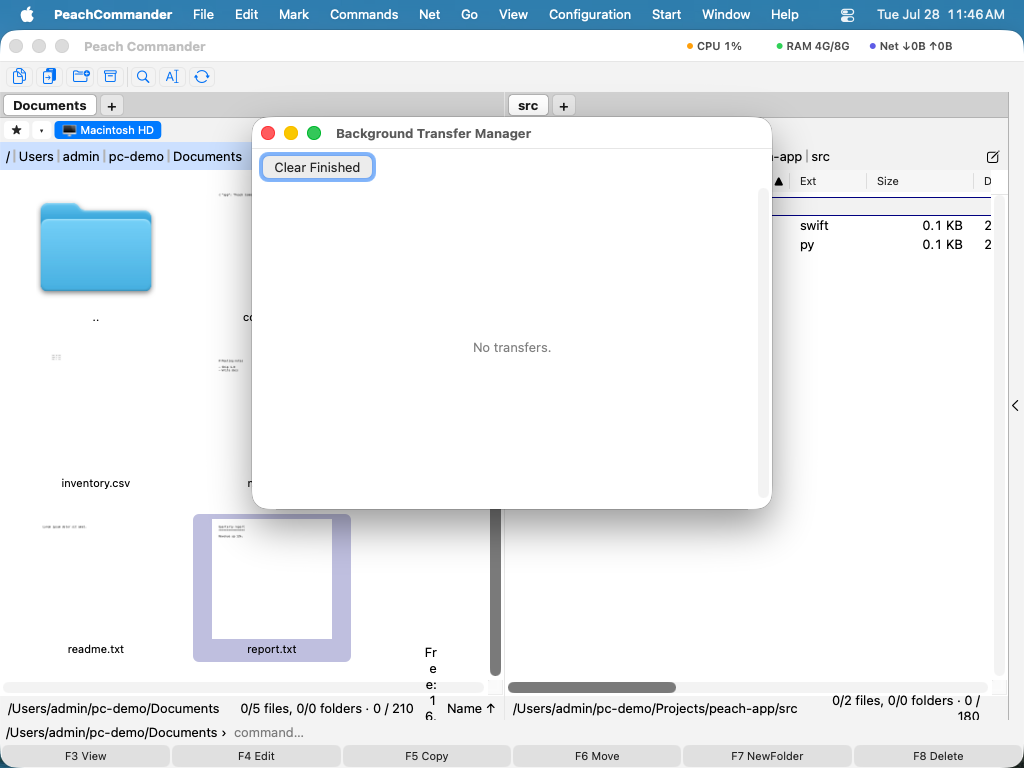 Queue long transfers and pause, resume, or bandwidth-limit them while you keep working.
Do it once, then put it on a button
Most repetition is not one action but a small sequence of them: make a folder for this month, move the invoices into it, tag what is left. Macros turn that sequence into a single command — and the quickest way to one is not to write it. Press Record Macro…, do the job once, press stop, and Peach Commander offers back exactly what happened in between as tickable steps.
Tick Follow the panels instead of these exact files and the recording generalizes itself: the files you used become "the selection", the folder you moved into becomes "the other panel". A macro recorded on three invoices this morning works tomorrow, in two different folders, on whatever you have selected.
 Nothing runs unannounced: the steps are resolved against your panels — real file names, not templates — and any one of them can be struck out.
It is deliberately not a scripting language. There are no conditions and no loops, because the plan you are asked to approve has to be a list you can read. Every macro is held to the most demanding thing in it, decided before the first step rather than four steps in — a macro that ends in a permanent delete is gated like a permanent delete. Each macro becomes an ordinary command, so it lands on a button, on a key, in the command browser and in your own menu file without anything having to be taught about macros.
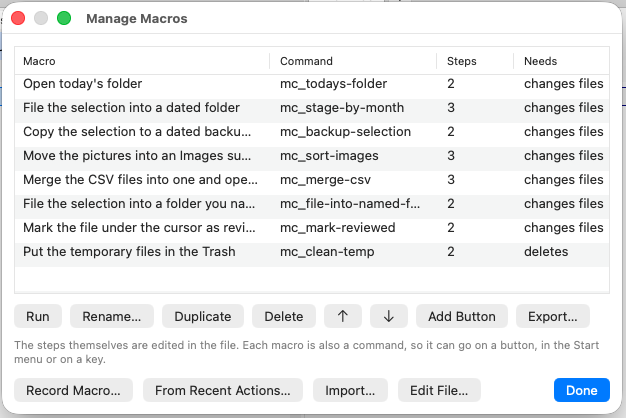 What each macro runs as, how many steps it has, and what it will ask permission for — visible before you put it on a key.
Eight worked examples ship with it, and the file is plain JSON you can diff and keep with your dotfiles. Start at the macro tutorial.
Built for macOS, not ported to it
Peach Commander is a native AppKit app that respects the platform end to end. Panels render pixel-perfect on Retina displays, follow your system light/dark appearance automatically, and hand off to the tools you already rely on — Quick Look, "Open With," Reveal in Finder, Finder tags, native Services, and the macOS Share sheet — instead of reinventing them. There is even a built-in editor with syntax highlighting and "Open Terminal here" when you want it.
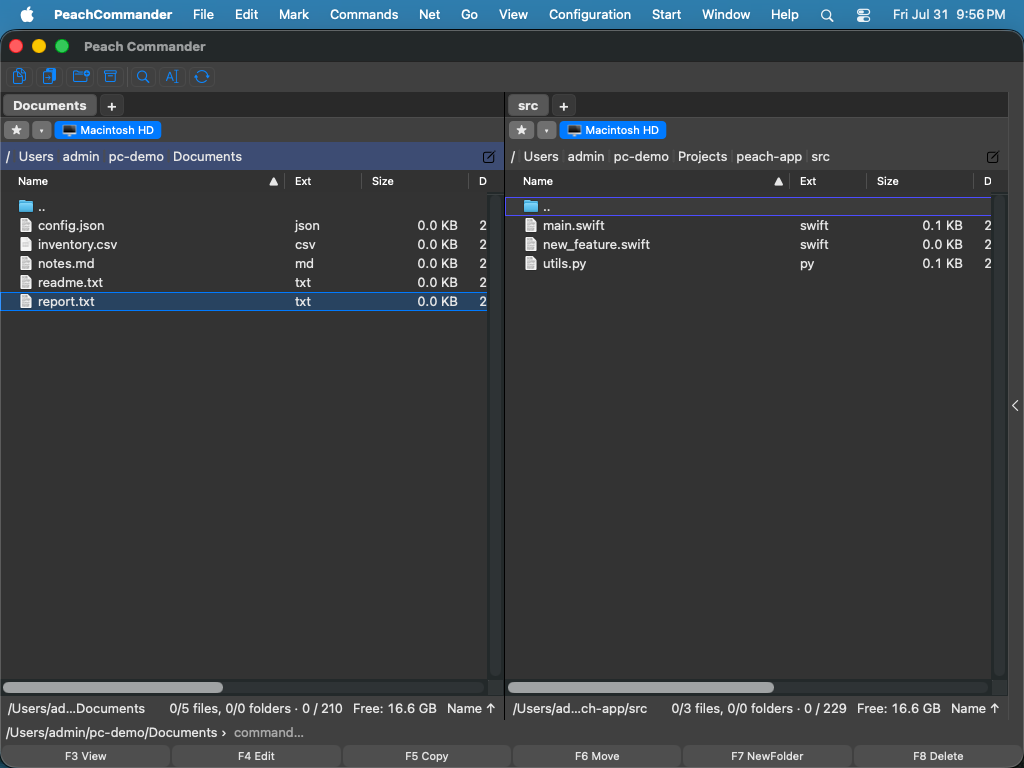 Full Retina, native light/dark appearance, and the same tags and Quick Look you know from Finder.
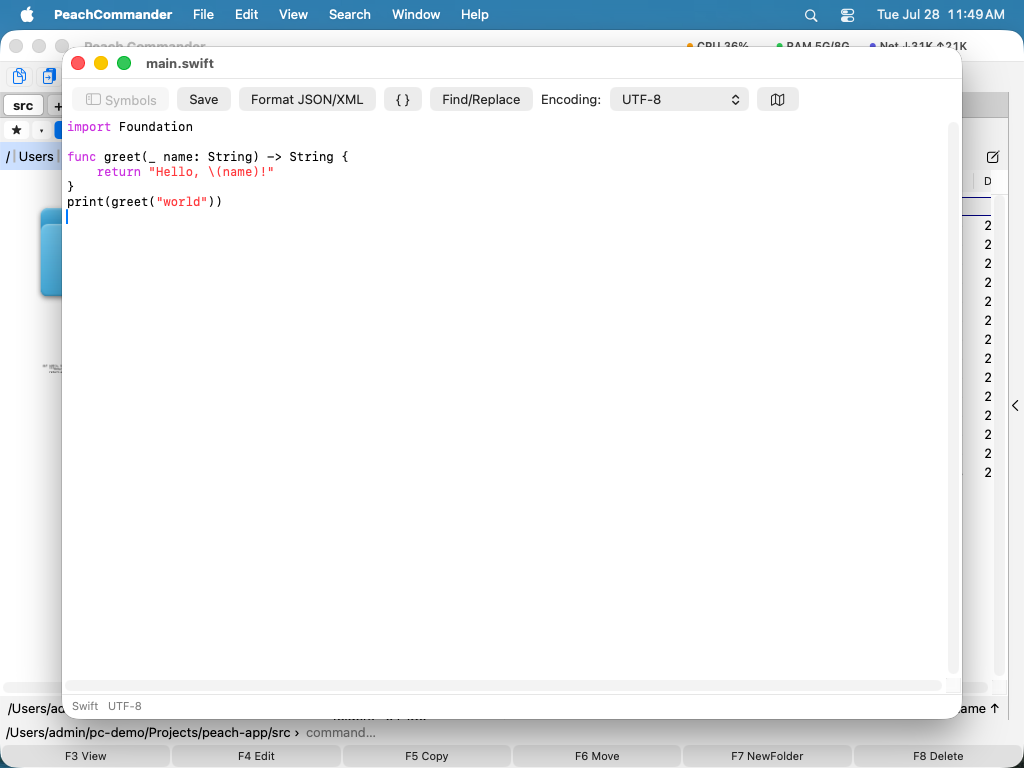 A built-in text/code editor with syntax highlighting — plus a hex viewer and the F3 lister.
And five kinds of plugin you can write yourself
The bundled set above is built on the same public interface you get: five plugin kinds — packers, file systems, viewers, content columns and whole docked views — over one C11 ABI, with a Swift/C SDK. Four of them mirror Total Commander's WCX/WFX/WLX/WDX, so an existing TC plugin can be source-ported rather than rewritten; the fifth has no TC equivalent and is how the Git panel, the terminal and the system monitor exist at all.
If that is what brought you here, the SDK overview is the place to start.
Make it yours
A button bar with sub-bars, two keyboard schemes (TC-classic and macOS-native) plus full rebinding, custom colors, fonts, and themes, named workspaces, and INI-based configuration — including importing your existing wincmd.ini.
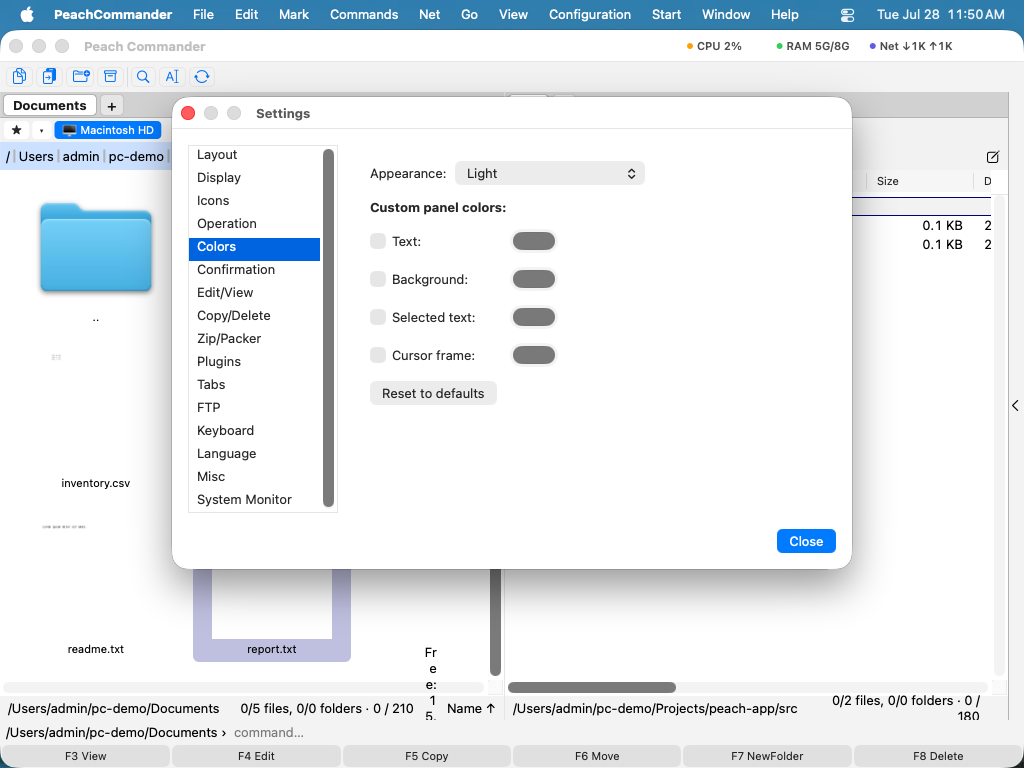 Custom colors, fonts, and themes — tune both light and dark to taste.
An homage: the Norton Commander palette
Before there were two panels on a Mac, there were two panels on a CGA screen. Norton Commander shipped in 1986 and taught a generation what a file manager is for — blue background, cyan file names, a bar you walked up and down with the arrow keys, function keys along the bottom. Forty years later the muscle memory is still there, and so is the layout: two panels, F5 to copy, F6 to move.
So we put the colors back. Pick Norton Commander in Settings ▸ Colors and Peach Commander comes up in the original CGA palette — #0000AA blue, #00AAAA cyan, #55FFFF for the cursor row, #FFFF55 for the files you have marked. Not an approximation: those are the actual 16-color CGA values.
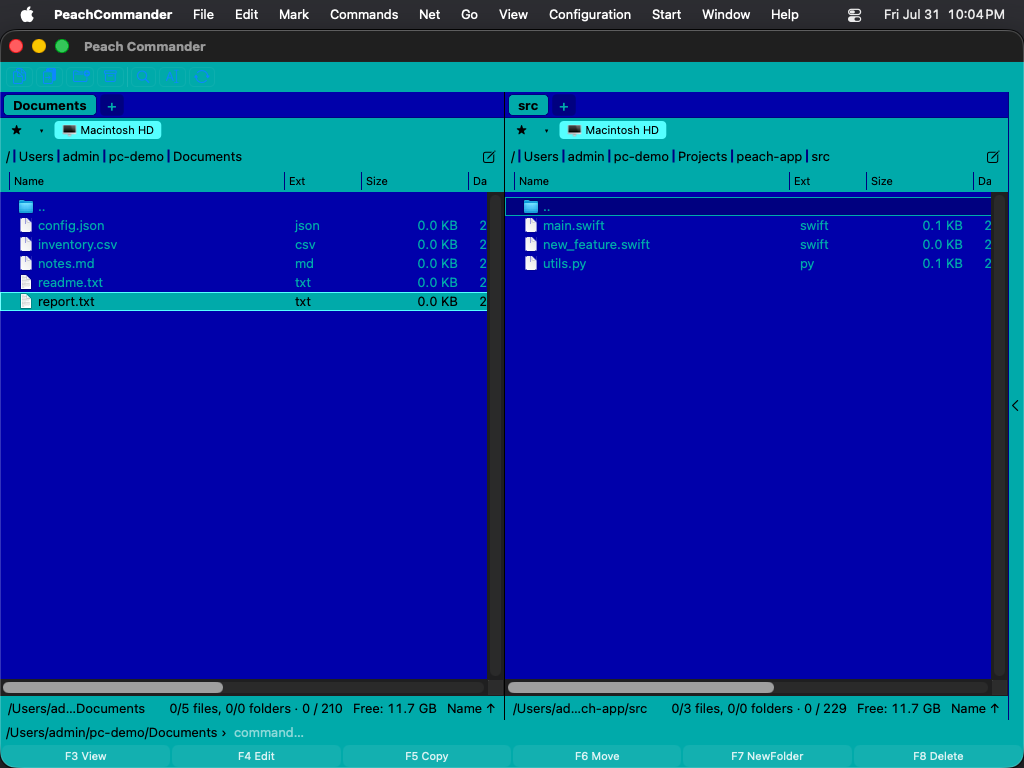 The Norton Commander palette. Same app, same speed — 1986 colors.
The cursor bar inverts to dark text on cyan, the way the original drew it, while marked files keep their yellow so you never lose track of a selection.
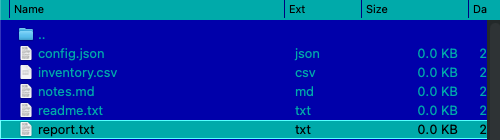 The cursor bar, inverted — and marked files still yellow.
It is a gimmick, and we mean that kindly. It is also colors only: no double-line box frames, no DOS raster font, and every keyboard shortcut, dialog and plugin behaves exactly as it does in any other theme. The default look is untouched — themes are something you opt into, never something that happens to you.
And it is not a special case in the code. Norton is one entry in a theme system you can extend: drop a small .ini in your themes folder, name the handful of colors you care about, inherit the rest, and it shows up in the Theme menu without restarting the app.
[Theme]
Name = My Midnight
Base = dark

[Colors]
ListBackground = #101020
ListText       = #C8C8E0
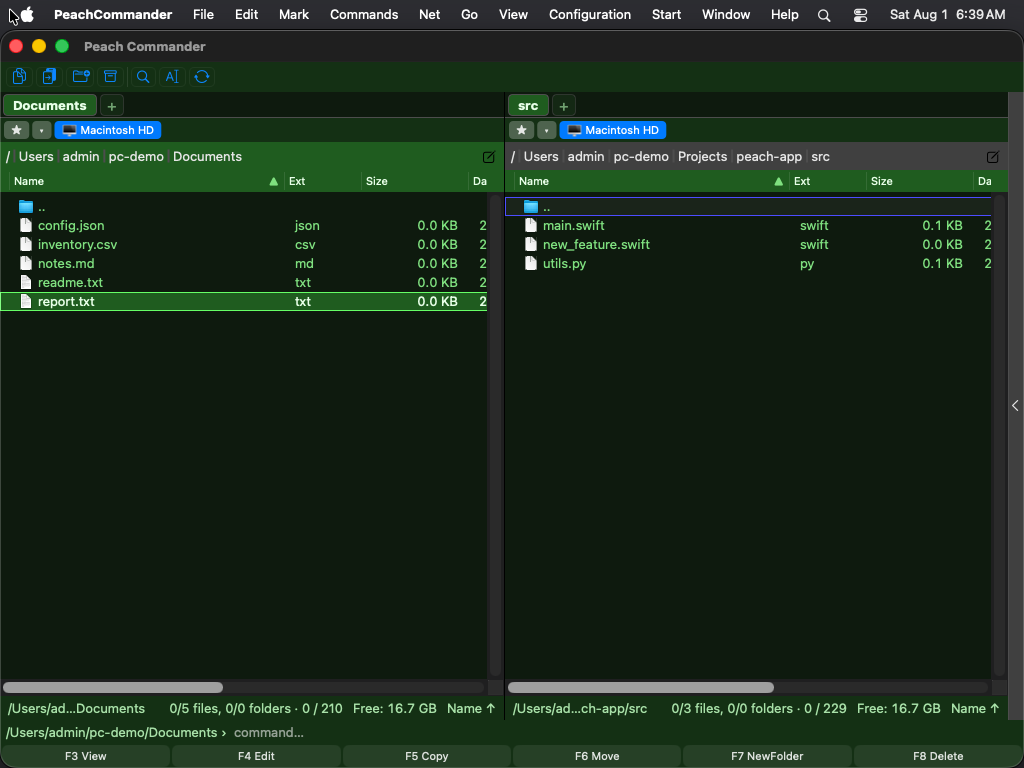 A theme from a file — that snippet, plus a dozen more lines, and nothing recompiled.
Four themes ship in the box. Alongside Light, Dark and Norton Commander there is Midnight, for when "dark" should mean something other than grey:
 Midnight — deep indigo panels, soft blue-grey text, amber for marked files.
Who it is for
- Developers and power users who live on the keyboard and move code, builds, and assets all day.
- Sysadmins and IT who need FTP/SFTP/WebDAV, checksums, sync, and batch operations in one place.
- People migrating from Total Commander who want the same two-panel muscle memory — including
wincmd.iniimport and a TC-classic key scheme — on the Mac. - Anyone who moves a lot of files and has outgrown drag-and-drop in Finder.
Top usage scenarios
- Copy and move large batches between two locations without leaving the keyboard.
- Push and pull files to remote servers over SFTP/FTP/WebDAV as if they were local.
- Browse, extract, and build archives — including encrypted and split ones — in place.
- Hunt down files or text across a whole tree, including inside archives.
- Rename hundreds of files at once, synchronize two directories, or find duplicates.
- Queue and manage long transfers in the background with pause, resume, and bandwidth limits.
- Record a routine you repeat — file this month's invoices, back up the selection — as a macro and run it from a button or a key.
Main feature groups
- Navigation: dual panels, tabs, path bar, drive bar, named workspaces, trackpad-swipe history, and a searchable command browser.
- File operations: copy, move, delete, and a background transfer manager with pause/resume/bandwidth limiting.
- Networking: FTP, FTPS, SFTP/SCP, WebDAV, SOCKS5 proxy, and a resuming HTTP(S) downloader.
- Archives: zip, 7z, the tar family, and rar — browse, pack, extract, AES-256, split volumes, edit-in-place.
- Search: content/full-text, regex, hex, encoding-aware, attribute filters, in-archive, Spotlight, saved templates.
- Power tools: multi-rename, synchronize, compare (text + hex), duplicate finder, checksums (CRC32/MD5/SHA), split/combine, base64/uu/hex.
- Viewers and editors: a built-in text viewer/lister and an editor with syntax highlighting, plus Quick Look.
- macOS integration: native Services, Finder tags, Share sheet, "Open With," Reveal in Finder, Open Terminal here, full Retina, light and dark.
- Automation: macros — a named sequence of file actions, recorded from what you just did, approved as a readable plan, and available as an ordinary command; plus AppleScript, Shortcuts, and your own scripts.
- Customization: button bar with sub-bars, two keyboard schemes plus rebinding, custom colors/fonts/themes, INI-based config with
wincmd.iniimport.
How it is different from Finder
- Two panels — source and target visible at once, not one window at a time.
- Keyboard-driven batch operations — copy, move, rename, and select without touching the mouse.
- Built-in FTP/SFTP/WebDAV — remote servers as browsable panels, no extra client.
- Archives as folders — step inside a zip or 7z and edit it in place.
- Deep search — regex, hex, encoding-aware, in-archive content search with saved templates.
- Plugins — extend the app itself with five plugin types and an SDK.
Privacy
Peach Commander is built to respect your data:
- Passwords live in the macOS Keychain only — never in plain-text config.
- Crash reports stay local — nothing is uploaded.
- No telemetry — the app does not phone home.
Download
Peach Commander is currently a preview / pre-1.0 release. It is honest, working software — but expect the occasional rough edge while we head toward 1.0:
- Distributed outside the App Store and not signed or notarized during the beta, so macOS blocks it on first launch. On macOS 15 and later you allow it once under System Settings ▸ Privacy & Security ▸ Open Anyway; on macOS 13–14 a right-click → Open is enough. The installation guide walks through both.
- Auto-update via Sparkle is planned but not yet enabled — for now, you update by downloading a new build.
- Universal binary: native on both Apple Silicon and Intel.
- Requires macOS 13 or later.
Disk images are built and attached automatically by the release workflow.
Every build is produced by the project's own release pipeline and attached to its GitHub release as a disk image. Prefer to compile it yourself? See installation & build — it needs Xcode and takes a couple of minutes.
- Getting started: installing Peach Commander · your first two-folder workflow
- Coming from Total Commander: migration guide, including
wincmd.iniimport - Extending it: write a plugin · developer onboarding
- Source and issues: the GitHub repository
- License: Apache 2.0 — free to use, modify and redistribute, including commercially. Third-party attributions are in
THIRD_PARTY_NOTICES.md.
Peach Commander is under active development. Expect rough edges, and please report what you find.