Uninstaller
Dragging an app to the Trash leaves its support files, caches, preferences, and containers scattered across your Library folders. The Uninstaller plugin removes an application and those leftovers: it finds everything the app left behind, shows you the list with a size for each, and moves it all to the Trash once you confirm. It's a plugin, so you can turn it off or remove it in Configuration ▸ Plugins….
Uninstall an app under the cursor
- Put the cursor on an application (
.app) in a panel. - Choose File ▸ Uninstall Application…, or right-click ▸ Uninstall Application…, or press Cmd+Shift+U.
- The review window opens, listing the app plus every related file it found, each labeled with its category, path, and size.
- Untick anything you want to keep, then click Move to Trash (or Delete Permanently).
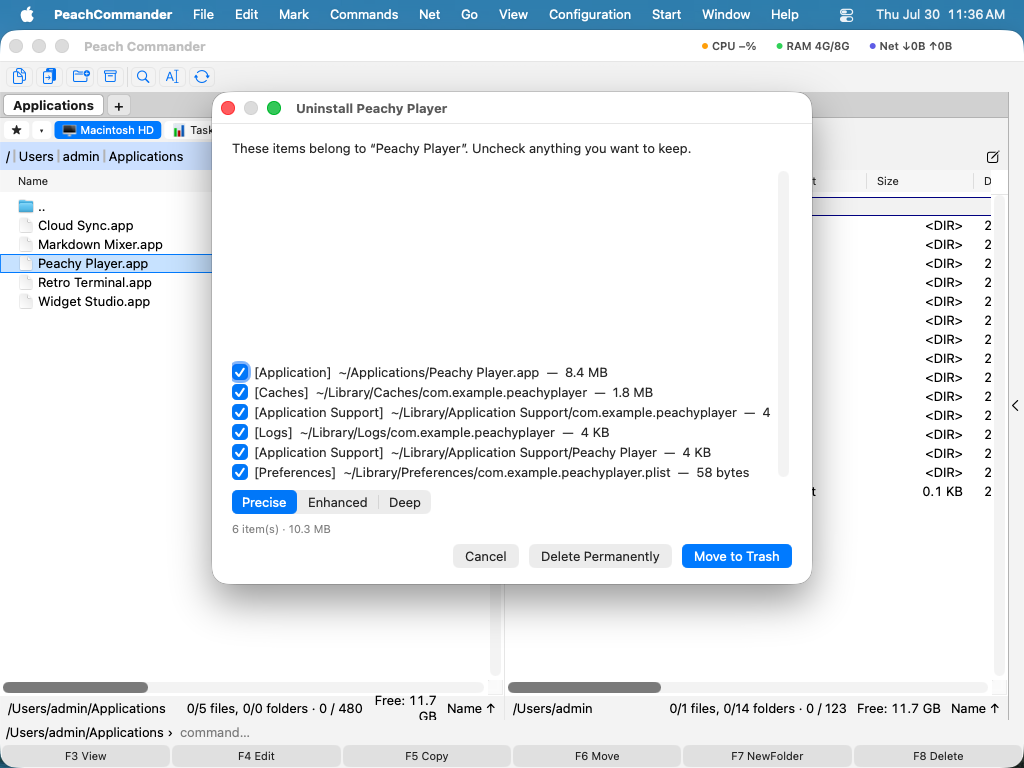 (Figure: review exactly what will be removed before anything is deleted.)
Browse all installed apps
Choose Commands ▸ Uninstall Application… to open a searchable list of the apps installed on your Mac, with each app's name, size, and install date. Select one (or several), click Uninstall…, and you land in the same review window. You can filter the list by typing in the search field.
Find leftover files
Choose Commands ▸ Find Leftover Files… to scan for support files, caches, and preferences that belong to apps you've already deleted. Review them the same way and clear them out. If nothing is found, the plugin tells you so.
How thorough to scan
The review window has a confidence control:
- Precise — files anchored to the app's bundle identifier. High confidence; pre-selected.
- Enhanced — adds name-matched files; left unticked so you can decide.
- Deep — Enhanced plus a Spotlight sweep for anything else mentioning the app; also left unticked.
Notes
- Nothing is deleted directly by the plugin — items go through the app's Trash or permanent-delete, exactly like any other file operation. Removing files in
/Libraryor/varmay require an administrator password. - Before removing, the plugin quits the running app and unloads its background (launchd) items, then offers to tidy up any now-empty vendor folders.
- If the app was installed with Homebrew, the plugin warns you and suggests
brew uninstall --caskso Homebrew stays in sync. App Store apps are noted too. - Enhanced and Deep matches are lower-confidence by design and start unticked — review them before removing. Some background items installed via the modern login-items API can't be removed here.