Settings
The Settings window is where you tailor Peach Commander to the way you work: which bars appear, how files are displayed, how copy and delete operations behave, the archive format used when you pack, tab behavior, FTP defaults, the display language, and more. Settings are grouped into pages so you can find an option quickly, and every change is saved automatically to your personal configuration folder.
Open Settings
- Choose Peach Commander > Settings…, or press Cmd+, (comma).
- You can also open the same window from Configuration > Settings… — the same entry, in the menu where you may expect to find it.
- Pick a page from the list on the left; the options for that page appear on the right.
- Adjust the controls. Changes take effect immediately unless a note on the page says otherwise.
- To go straight to an option, type into the search field at the top of the window. Matching settings from every page are listed with the page each one lives on, and choosing one opens that page with the setting highlighted. ↑/↓ move through the results, Return opens the highlighted one, and Esc leaves the search and puts back the page you came from.
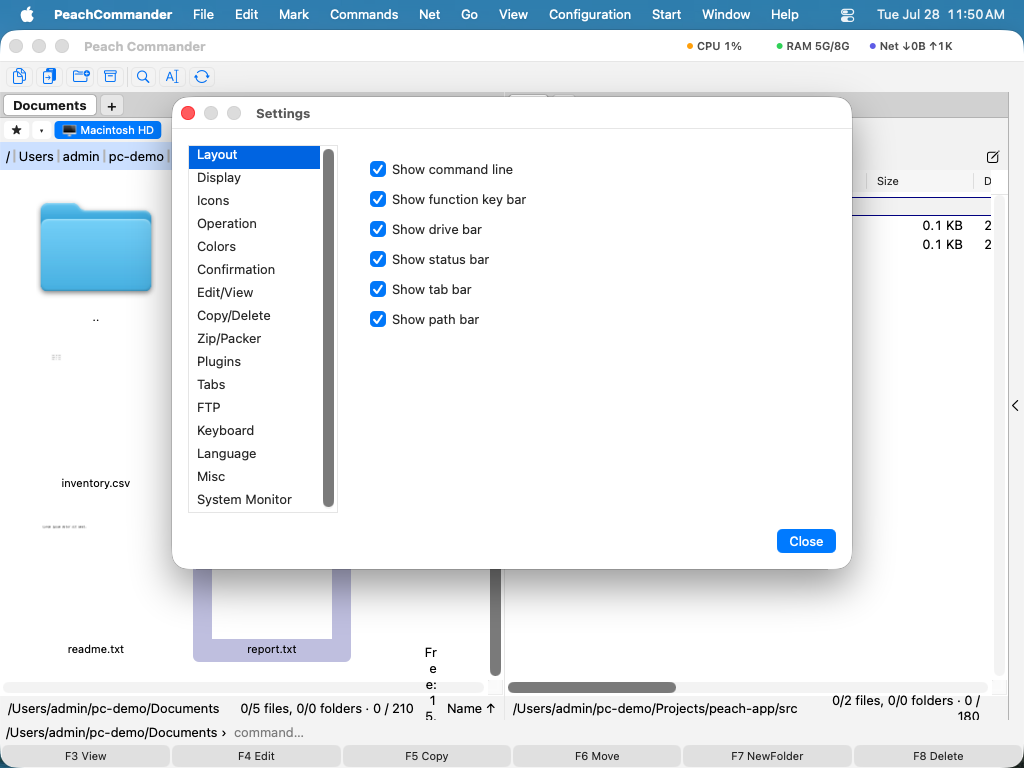 (Figure: The Layout page controls which bars are shown around the panels.)
The pages
The window has these pages, in order:
- Layout — show or hide the drive bar, tab bar, path bar, and status bar, and choose which pages the side panel offers.
- Display — how files and folders are listed, including the date format.
- Icons — icon appearance in the file lists.
- Operation — general behavior, such as what happens when you type in a panel (quick search versus the command line).
- Colors — custom panel colors, or leave them following the current theme.
- Confirmation — which actions ask you to confirm first, such as deleting.
- Edit/View — whether saving in the editor keeps a
.bakbackup copy, the programs used to edit and view files, per-type associations, and what a preview may cost on network locations and inside archives. - Copy/Delete — preserve file metadata, use fast cloning, copy only newer files, verify after copying, send deletions to the Trash, and set an optional speed limit.
- Zip/Packer — the default archive format and compression level used when you pack.
- Plugins — turn installed plugins on or off.
- Tabs — how folder tabs open and behave.
- FTP — network defaults such as the keep-alive interval.
- Keyboard — review and change keyboard shortcuts.
- Language — choose System default, English, or Deutsch.
- AI — configure the AI assistant: preferred model, cloud endpoint and key, autonomy, and the optional MCP server (see AI Assistant).
- Misc — open your configuration folder in the Finder.
Enabled plugins can add their own pages after the built-in ones — for example Disk Map and System Monitor — so their options live in the same window (see Plugins).
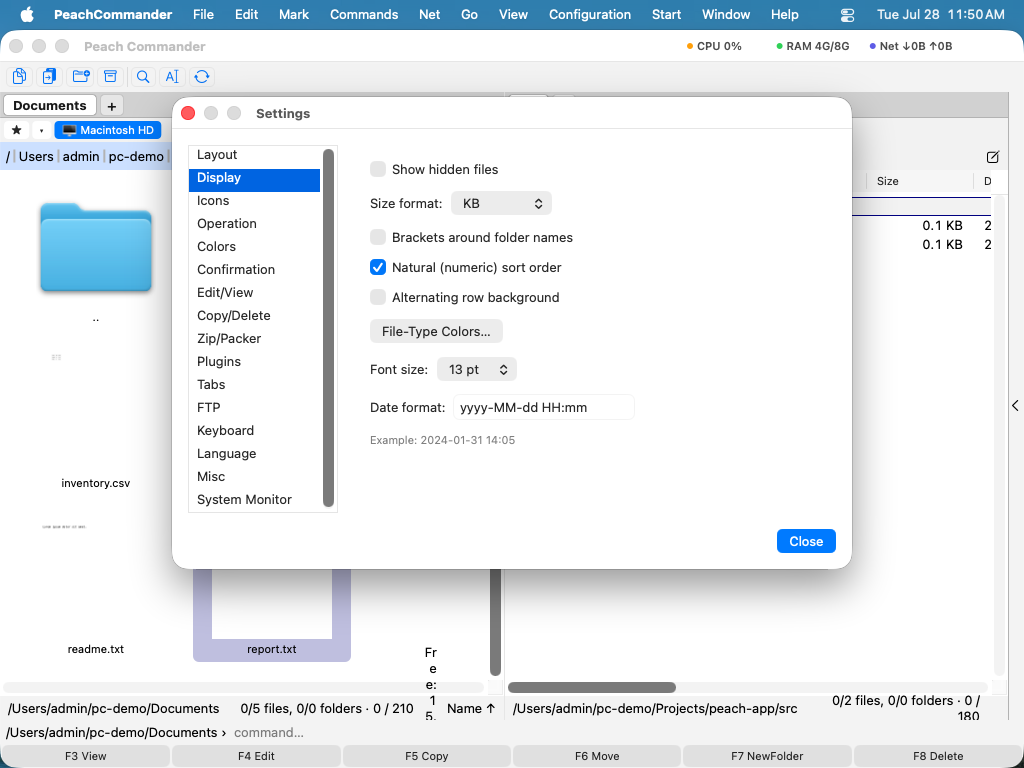 (Figure: The Display page controls how files and folders are listed.)
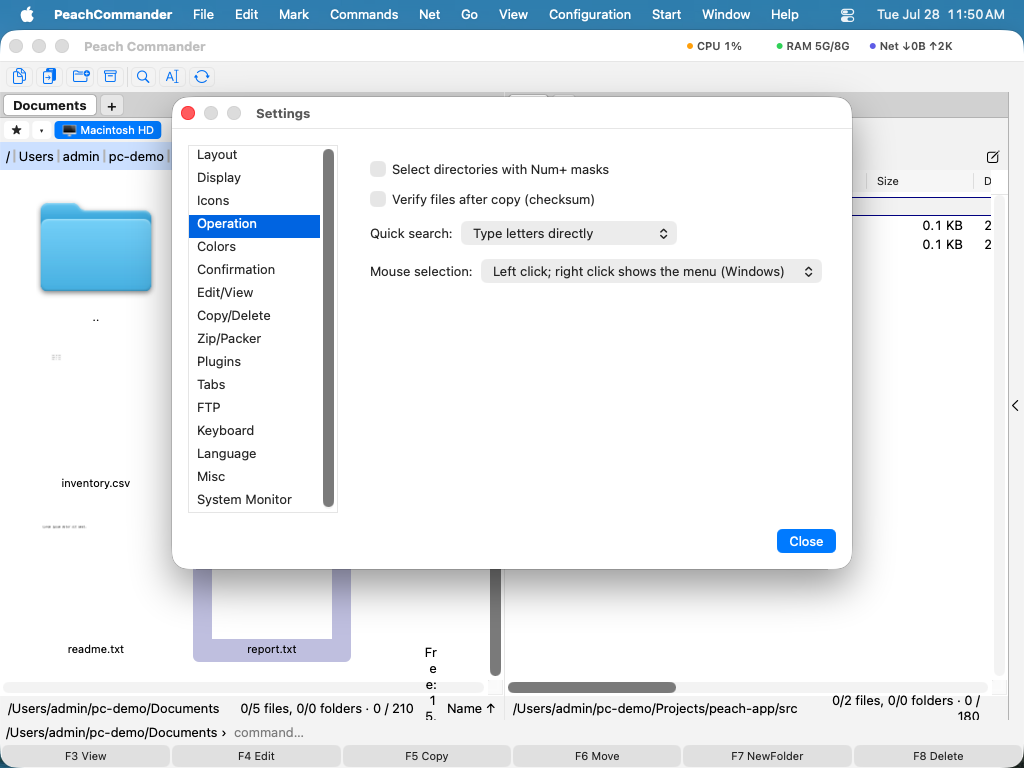 (Figure: The Operation page governs quick-search and mouse behavior.)
Where your settings are stored
Your configuration is kept in plain text files inside your personal Application Support folder, at ~/Library/Application Support/PeachCommander. To open it, go to the Misc page and click Open Config Folder. Saved FTP passwords are not stored in these files; they are kept securely in the macOS Keychain.
Settings are written as you change them. You can also force a save at any time with Configuration > Save Settings, and store the current window position and panel layout with Configuration > Save Position.
Bringing settings over from Total Commander
If you are moving from Total Commander on Windows, you can import your saved FTP sites. Choose Configuration > Import wincmd.ini… and select your Total Commander FTP configuration file. Your connections are added to Peach Commander in the same order they appeared there.
Shortcuts
| Action | Shortcut |
|---|---|
| Open Settings | Cmd+, |
Notes
- The Language page offers System default, English, and Deutsch. Changing the language takes effect only after you restart Peach Commander.
- Colors set on the Colors page override the theme; use Reset to defaults there to return to the theme's colors.
- Peach Commander stores its settings only in its own configuration folder, so your changes never affect other apps and are easy to back up by copying that folder.