The built-in terminal
Peach Commander can run a real shell inside its own window, in a strip across the bottom called the dock. It is your login shell — the one $SHELL names, or /bin/zsh if that is not usable — so your PATH, your aliases and your functions are all there, exactly as in Terminal.
This is not the same thing as Open Terminal Here, which launches Apple's Terminal app in the current folder and leaves you with two windows. The built-in one stays where your files are, and knows about them.
It is a plugin, so if you do not want it, turn it off or remove it in Configuration ▸ Plugins… and the dock goes with it.
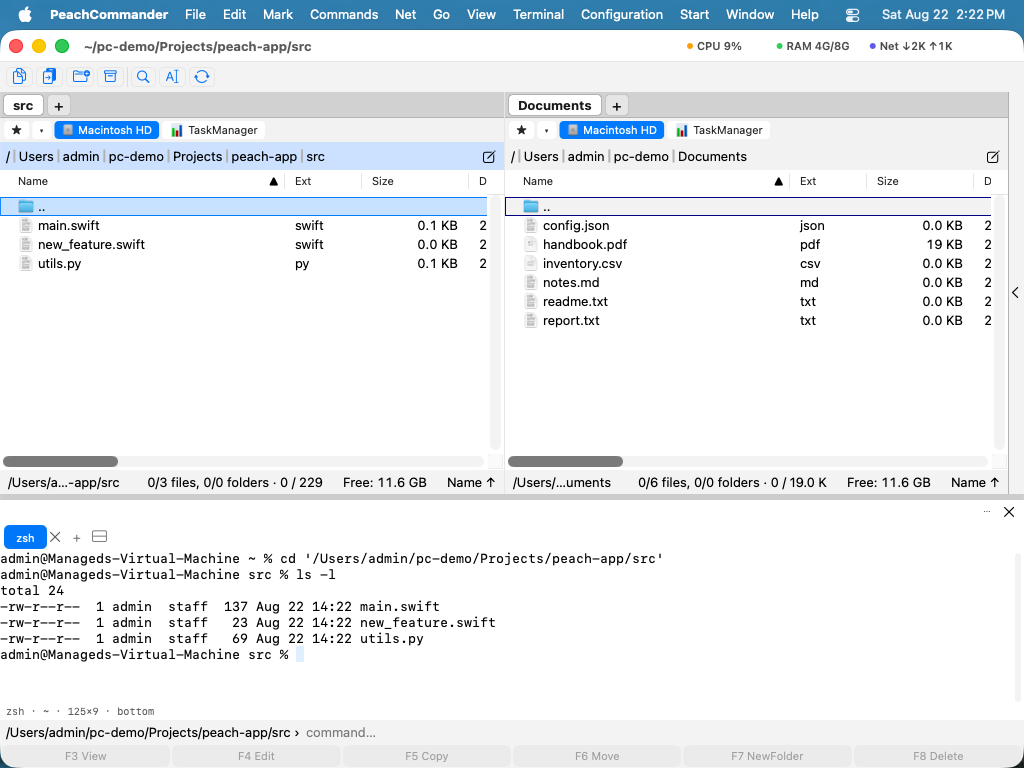 (Figure: the shell runs in the folder the active panel shows.)
Open it and move around
Press Ctrl together with the key to the left of the "1" to move the keyboard between the file panel and the terminal. That shortcut is bound to the key's position, not its character, so it is the same physical key whatever your layout calls it: the backtick on a US keyboard, ^ on a German one, @ on a French one.
Everything else is in the Terminal menu:
| Action | What it does |
|---|---|
| Show Terminal | Folds it away and brings it back; the tabs and whatever is running in them stay as they are |
| Switch Between Panel and Terminal | Moves the keyboard focus, without changing anything |
| New Terminal Tab | Another shell, in the same folder |
| Close the Terminal Tab | Closes it — and asks first, naming what is still running if anything is |
| Split the Terminal | Two shells side by side in the same tab |
| Go to the Panel's Folder | cds the terminal to where the active panel is |
| Insert the Selected File Names | Types the selected names at the prompt, quoted |
| Run the Command Line in the Terminal | Sends what you typed on the command line to the shell instead of running it invisibly |
While the terminal has the focus the function keys go to it, not to the file panel — F5 in a text editor inside the terminal has to reach the editor. The function-key bar says so rather than showing keys that will not fire.
Typing @, ~ and the brackets
On most keyboards outside the United States, @, ~, |, \ and the curly brackets are typed with the Option key. Those keystrokes reach the shell as the characters printed on the keys.
- The alternative is to treat Option as the Meta key, which is what Alt+B and Alt+F and the Emacs bindings want: the terminal then sends Esc before the key instead of the character. Switch it on under Configuration ▸ Plugins ▸ Terminal with Use Option as the Meta key.
- The change applies at once, to terminals that are already open as well as to new ones.
The bridge back to the panel
Cmd-click a path in the terminal's output and the panel goes there. A file from ls, a path in a compiler error, a name from git status — one click and you are looking at it.
It only acts when the word under the pointer really resolves to something that exists. Cmd-clicking prose does nothing rather than navigating somewhere arbitrary, and a plain click still selects text the way it always did.
Drop files on the terminal and their paths land at the prompt, quoted, ready for a command you are half way through typing.
Letting the panel follow the shell
Off by default: when you cd somewhere in the terminal, the panel stays where it is. Switch on Let the active panel follow the terminal in the terminal's settings page and it follows along instead.
This needs your shell's help, because a shell does not announce where it has gone. The settings page shows a short snippet to add to your ~/.zshrc and a button to copy it; it makes zsh report its working directory (the OSC 7 escape sequence) before each prompt. Without the snippet the setting is on and nothing follows, which is why the snippet sits right next to it.
Searching and scrollback
Cmd+F searches what the terminal has printed.
A terminal keeps 5,000 lines of scrollback by default — enough to scroll back through a compile. Change it on the settings page. Very large values are clamped, because a scrollback of fifty million lines is a memory problem whose cause is impossible to see from the outside.
Where it sits
The terminal opens in the dock across the bottom, because that is the shape it wants: a shell needs width, and the side panel at its default 300 points fits about 44 columns where the bottom of a 1200-point window fits 176.
You can still move it. Drag it to the side panel if that suits you better, or use the placement controls described in Plugins; moving it re-parents the same shell rather than starting a new one, so whatever is running keeps running. The commands in the Terminal menu follow it: they bring it up where it is, rather than opening the dock.
Tabs come back when you start the app again, in the folders they were in. What was running in them does not — a restart ends those processes, as it would in any terminal. Whether it was open when you quit comes back too.
When you quit
Closing the app closes the shells. Anything still running in them is ended, the way closing a Terminal window ends what is in it. Closing a single tab asks first as well, and names what is running in it when something is — a tab also holds everything the shell has printed, and the ✕ sits close to the next tab.