Filesystem Images
A filesystem image is a file holding an entire filesystem — the rootfs from a router update, an SD card copied byte for byte, a disk image from a device you are examining. The Linux Filesystem Images plugin opens one the way Peach Commander opens an archive: put the cursor on it, press Enter, and the panel is inside the filesystem. From there the lister, the search, and copying all work exactly as they do in a folder.
Nothing is ever written to an image. The plugin can only read.
Turn it on first
The plugin ships switched off. Open Settings ▸ Plugins, find Linux Filesystem Images, and enable it.
It is off by default because of how it finds images. Firmware is rarely named tidily — the file you want is called firmware.bin, rootfs.img, or just dump at least as often as .squashfs — so when a file's extension says nothing, the plugin looks at its first bytes to decide. That is a good trade if you examine device images, and pointless work if you never do. Enabling it is how you say which of the two you are.
A file that turns out not to be an image is left alone after that one look and opens the way it always would have.
What it can open
| Format | Where you meet it |
|---|---|
| SquashFS | The rootfs inside almost every router, camera, and set-top firmware |
| ext2, ext3, ext4 | The main partition of most embedded Linux devices |
| Btrfs | NAS volumes and newer Linux systems, including snapshots |
| JFFS2, UBIFS | Raw flash on older and current embedded hardware |
| cramfs, initramfs | Boot filesystems and long-lived legacy devices |
| FAT12, FAT16, FAT32 | SD cards, USB sticks, and the EFI partition of any modern PC |
| exFAT | SD cards and drives above 32 GB |
| NTFS | Windows volumes, including compressed files |
Disk images with several partitions
An image copied off a whole device usually has a partition table rather than a single filesystem. Such an image opens as one folder per partition — 1-rootfs, 2-esp — and you step into whichever one you want. Both MBR and GPT partition tables are read, and where the table records partition names, those names are used.
A partition the plugin cannot read still appears, as an empty folder named after its type. If a device has three partitions, you should be able to see that it has three.
Firmware with no partition table
A firmware file pulled off a router or a camera usually has no partition table at all. It is a vendor header, a bootloader, a kernel and a rootfs written one after another at offsets recorded nowhere. Such a file opens as one entry per part, each named by the offset it begins at: 0x00230044-squashfs is a filesystem to step into, 0x00030040-kernel.uimage is a file to copy out.
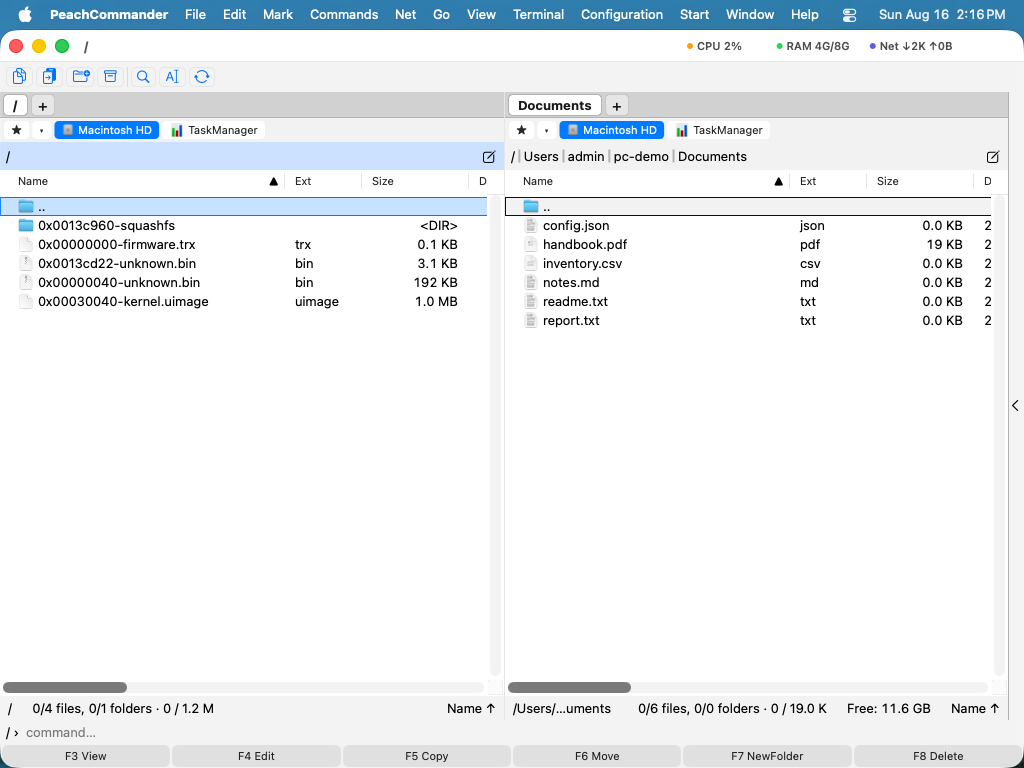
The parts are found by searching the file for the filesystems themselves and then opening each one to see whether it is really there. A byte pattern that matched by chance costs a moment and is discarded rather than becoming an invented entry, and a file that turns out to hold no filesystem at all is still declined and opens the way it always would have.
The same applies to whatever lies outside the partitions of a partitioned image. A Raspberry Pi keeps its bootloader in the megabytes ahead of partition 1, and U-Boot on most ARM boards sits at a fixed offset in that same unclaimed space. Those runs are listed beside the partitions so you can see them and copy them out.
Writing down the layout
Commands ▸ Scan Image Layout saves what the scan found as a text file next to the image and puts the cursor on it: every region with its offset, its size and what it turned out to be, along with the partition table if the image has one. That table is usually the thing a teardown or a ticket actually wants, and rebuilding it by walking a panel and copying numbers by hand is tedious work.
The report also shows what the panel leaves out, such as the small alignment gaps between partitions, and it names the board a U-Boot kernel was built for when the image records it.
Working inside an image
Everything you already know applies. Press F3 to view a file, F5 to copy files out to a real folder, and use Find Files to search the image's contents. Walk out of it the way you leave an archive.
Symbolic links are shown with their name, and copying one out gives you a small text file holding the link's target rather than a real link — an image cannot be allowed to place a link pointing anywhere on your own disk.
When an image will not open
The plugin tells you why rather than reporting a broken file, because the two lead you somewhere different:
- A Btrfs volume using RAID0, RAID10, RAID5, or RAID6, or one spanning several devices. The data is spread across disks, and most of it is not in the file you have.
- A raw NAND dump that still contains its spare area. The image is fine; it was copied with the error-correction bytes left in. Copy it again with
nanddump --omitoob. - An encrypted ext4 or NTFS volume, which cannot be read without its keys.
- An unclean ext filesystem still opens, but with a marked entry at the top of its root warning that the contents may be out of date. The filesystem was copied while in use, and the newest changes are in a journal this plugin does not replay. Run
e2fsckon a copy if the details matter.
Notes
- An image is read once and remembered, so stepping back into one is immediate.
- Very large images are read as they are needed rather than loaded whole; a listing is capped at two million entries.
- Searching an image for embedded filesystems happens only when it has neither a partition table nor a filesystem at its start, so an ordinary image opens exactly as quickly as it always did.
- The plugin adds one menu command and no settings of its own beyond the switch that turns it on.