File utilities
Beyond copying and moving, Peach Commander includes a set of everyday file utilities for verifying that files are intact, reclaiming disk space, breaking large files into smaller pieces, and converting files to and from text-safe formats. You reach all of them from the File menu, and they act on whatever you have selected in the active panel (or the item under the cursor when nothing is selected). This topic covers checksums, the duplicate finder, split/combine, encode/decode, and calculating occupied space.
Create or verify checksums
Checksums let you confirm that a file downloaded or copied without corruption, or hand a recipient a way to check the copy they received.
- Select the files you want to fingerprint.
- Choose File ▸ Create Checksums…, pick an algorithm (CRC32, MD5, SHA-1, SHA-256, or SHA-512), and save the checksum file.
- To check files later, select the checksum file and choose File ▸ Verify Checksums…. Peach Commander recomputes each hash and reports any file that does not match.
Checksums stream directly over the current location, so you can create or verify them even for files inside archives or on an FTP server.
Find duplicate files
The duplicate finder locates identical files scattered across folders so you can remove the extra copies.
- Select the folders (or files) you want to scan.
- Choose File ▸ Find Duplicates…. Peach Commander compares candidates and groups files that are byte-for-byte identical.
- Review each group, mark the copies you no longer need, and delete them.
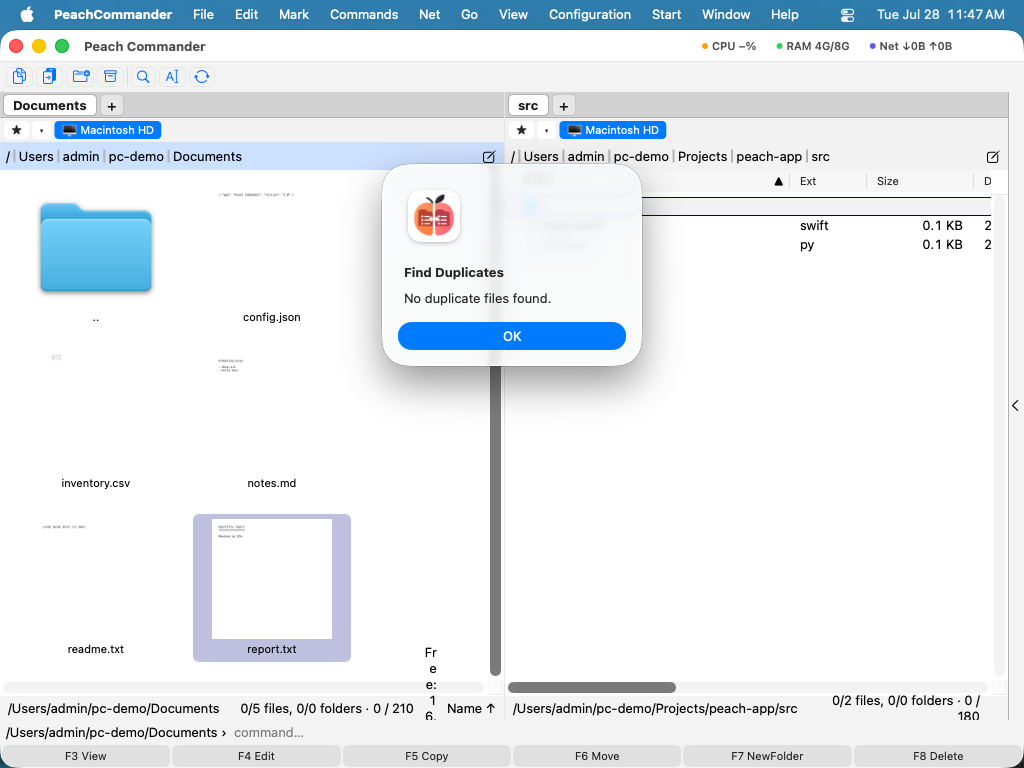 (Figure: The duplicate finder groups identical files so you can keep one and remove the rest.)
Split and combine files
Splitting breaks one large file into a numbered series of smaller parts — handy for storage or transfer limits. Combining reassembles them.
- To split, select a file and choose File ▸ Split File…, then set the part size. The parts are written to the other panel's folder.
- To reassemble, select the first part and choose File ▸ Combine Files…. The original file is rebuilt from the numbered pieces.
Encode and decode
Encoding turns a binary file into plain text so it survives channels that only carry text (for example, older email or paste boxes). Decoding reverses it.
- Select a file and choose File ▸ Encode…, then pick a format — MIME (Base64), UUE (uuencode), or XXE.
- To restore the original, select the encoded file and choose File ▸ Decode…. The format is detected automatically.
Calculate occupied space
To see how much room a folder or selection actually uses on disk, select the items and press Ctrl+L (File ▸ Calculate Occupied Space…). Peach Commander adds up every file inside, including subfolders, and shows the total.
Shortcuts
| Action | Key |
|---|---|
| Calculate occupied space | Ctrl+L |
Notes
- Checksums, split/combine, and encode/decode are aimed at more advanced tasks, but each is a single dialog with sensible defaults.
- When a utility produces new files (split parts, an encoded file, a checksum list), they are written to the folder shown in the other panel — set that panel to your intended destination first.
- Deleting duplicates is permanent depending on your delete settings; review each group carefully and keep at least one copy of anything you still need.