Copying files
Peach Commander is built around two side-by-side panels: one holds the files you are working with, the other is the destination. Copying takes whatever is selected in the active panel and puts a duplicate in the folder shown in the other panel, leaving the originals in place. This is the fastest way to duplicate files and folders between two locations without dragging.
Copy a selection to the other panel
- In one panel, open the folder that contains the items you want to copy.
- In the other panel, open the folder where the copies should go.
- Select the files and folders to copy. If nothing is selected, the item under the cursor is used.
- Press F5. The copy dialog opens, showing the destination path already filled in.
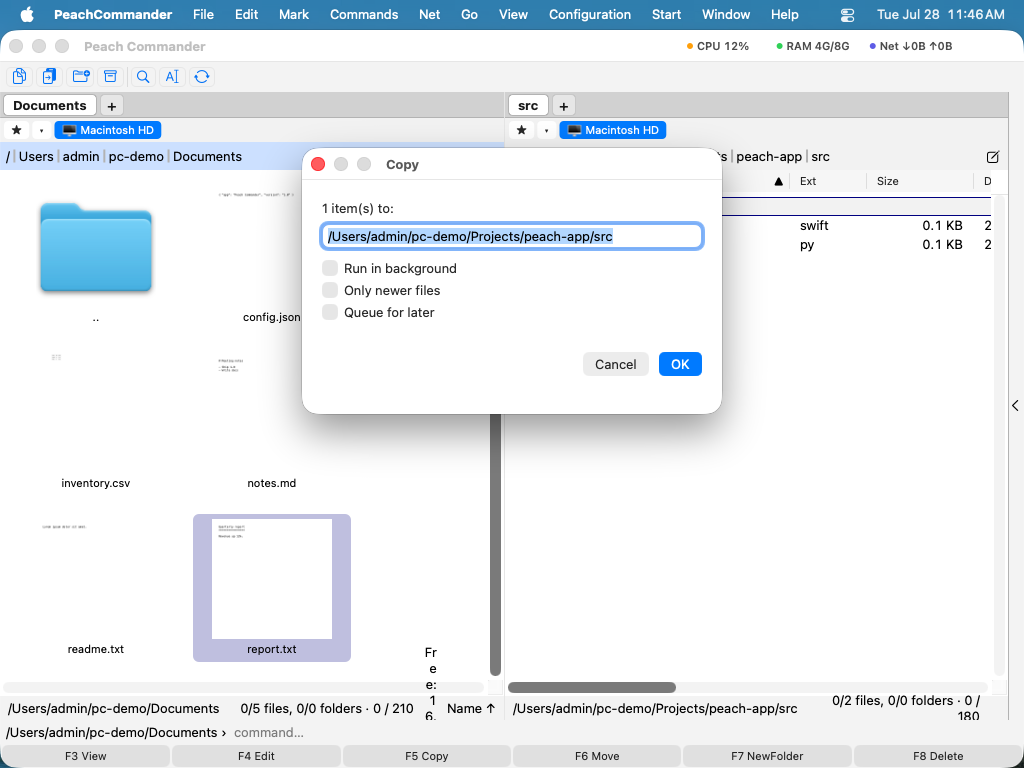 (Figure: The copy dialog. The target path points at the other panel; use the options to fine-tune the copy.)
- Adjust the destination if needed, then confirm to start copying.
Copy options
Before you confirm, you can change how the copy behaves:
- Only newer files — skips any item whose copy already exists and is the same age or newer, so only changed files are updated.
- Preserve metadata — keeps dates, permissions, and other file attributes on the copies. This is on by default.
- Speed limit — caps the transfer rate so a large copy does not saturate your disk or network connection.
- Rename mask — type a wildcard pattern in the target field (for example
*.bak) to rename items as they are copied.
You can also send the job to the background queue instead of watching it — see Background transfers.
Progress
A progress window shows the current file and the overall job with separate bars, plus the transfer speed. You can pause and resume at any time, or send the running copy to the background transfer manager to keep working while it finishes.
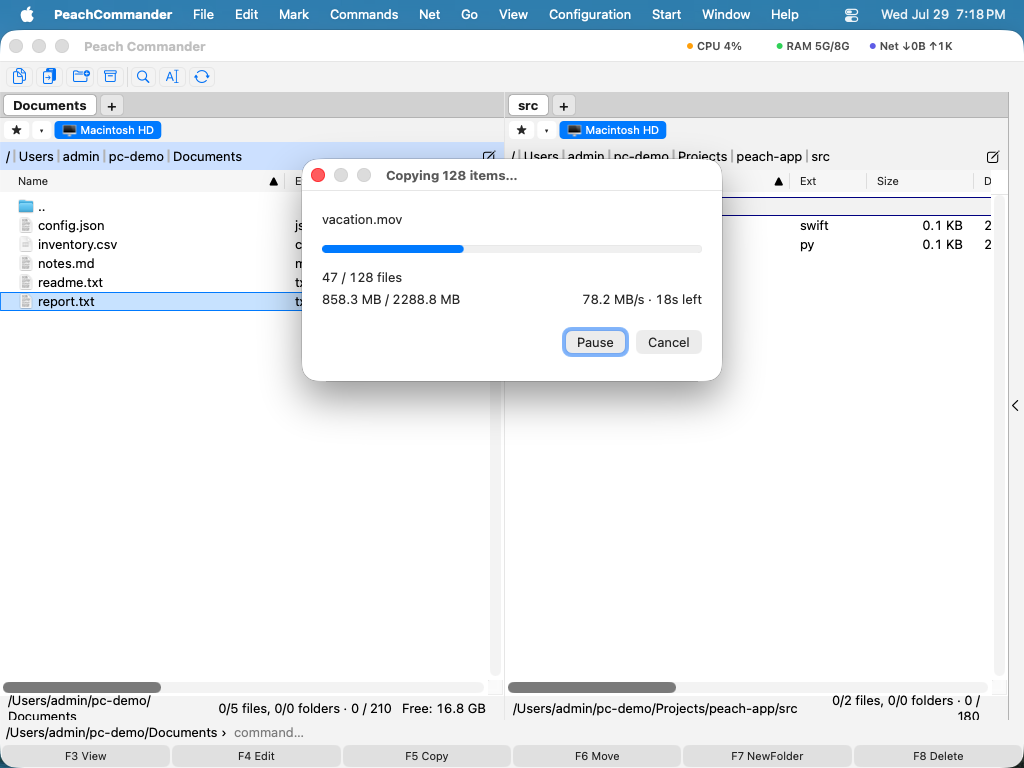 (Figure: The progress dialog shown during a copy or move.)
Handling files that already exist
If a copy would replace an existing file, Peach Commander stops and asks what to do. A preview of both files helps you decide.
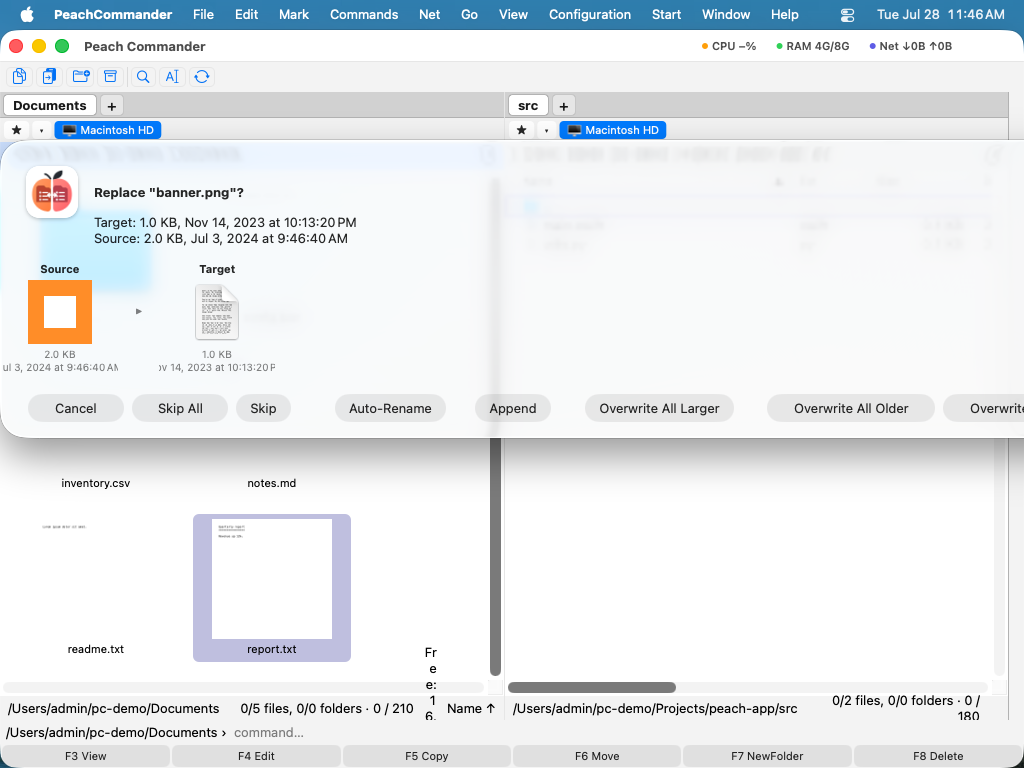 (Figure: The overwrite dialog compares the existing file with the one being copied.)
Your choices include:
- Overwrite the existing file, or Overwrite all to apply that to every remaining conflict.
- Skip this file, or Skip all remaining conflicts.
- Rename the incoming copy automatically so both files are kept.
- Append the incoming data to the end of the existing file.
- Overwrite only when the source is newer or larger than the existing file.
Shortcuts
| Action | Key |
|---|---|
| Copy selection to the other panel | F5 |
| Copy in the same folder (make a renamed duplicate) | Shift+F5 |
| Open the background transfer manager | Cmd+Shift+B |
Notes
- Copying between two locations on the same disk uses a fast clone when the disk supports it, so large files copy almost instantly and use little extra space.
- Folders are copied with everything inside them.
- To move files instead of copying them, use F6. To watch or manage queued jobs, open the background transfer manager with Cmd+Shift+B.