Comparing & synchronizing
When you keep two copies of the same folder — a working folder and a backup, a laptop and a network share, a project and its archive — Peach Commander helps you see exactly what changed and bring the two sides back in step. You can synchronize two directories, compare individual files line by line, and inspect files byte by byte when you need certainty down to the last character.
Synchronize two directories
- Open the folder you want to sync in the left panel and the folder to compare it against in the right panel.
- Choose Commands ▸ Synchronize Dirs…. The two folder paths are filled in from your panels.
- Set how thorough the comparison should be: include subfolders, compare by content (not just by date and size), or ignore the modification date.
- Add a filter mask (for example
*.jpg;*.png) if you only want to sync certain files. - Review the result grid. Each row shows a file on the left, a direction arrow in the middle, and the matching file on the right. The arrows tell you what will happen: → copies left to right, ← copies right to left, and = means the two are identical.
- Adjust individual rows if you disagree with a suggested direction, then click the synchronize button to carry out the changes.
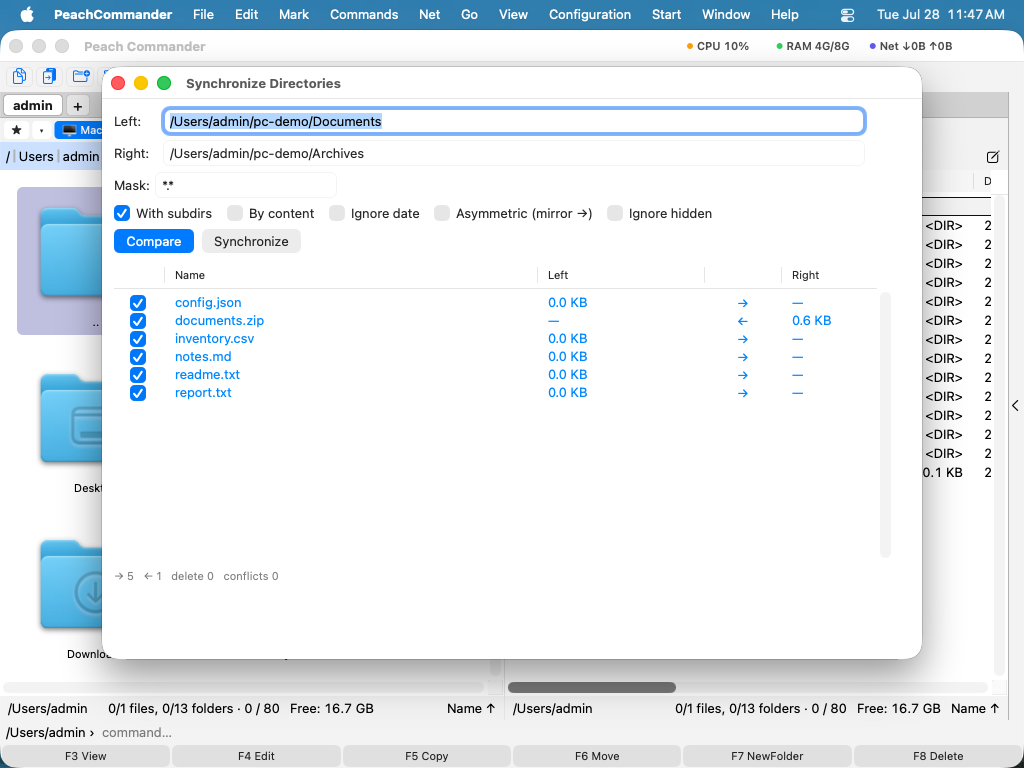 (Figure: The Synchronize Dirs window compares both sides and proposes a copy direction for each file.)
Right-click a row to look at the files behind it. Compare opens the two sides next to each other, while View Left and View Right open one side on its own in the viewer — which is the answer for a row that exists on one side only, where there is nothing to compare. Entries that cannot apply to the row you clicked are greyed out instead of doing nothing. A file inside a .zip or on a server is unpacked or downloaded into a read-only temporary copy first, so the original is never touched. That also applies to Compare, so a folder can be compared against an archive or a server — and the merge and save buttons stay switched off for such a side, because what is open there is the copy.
Compare two files by content
- Select one file in each panel (or two files in the same panel).
- Choose File ▸ Compare by Content….
- The two files open side by side with their differences highlighted. Use the next/previous controls to jump between changed blocks.
- If you turn on edit mode, you can adjust either file directly and save your changes.
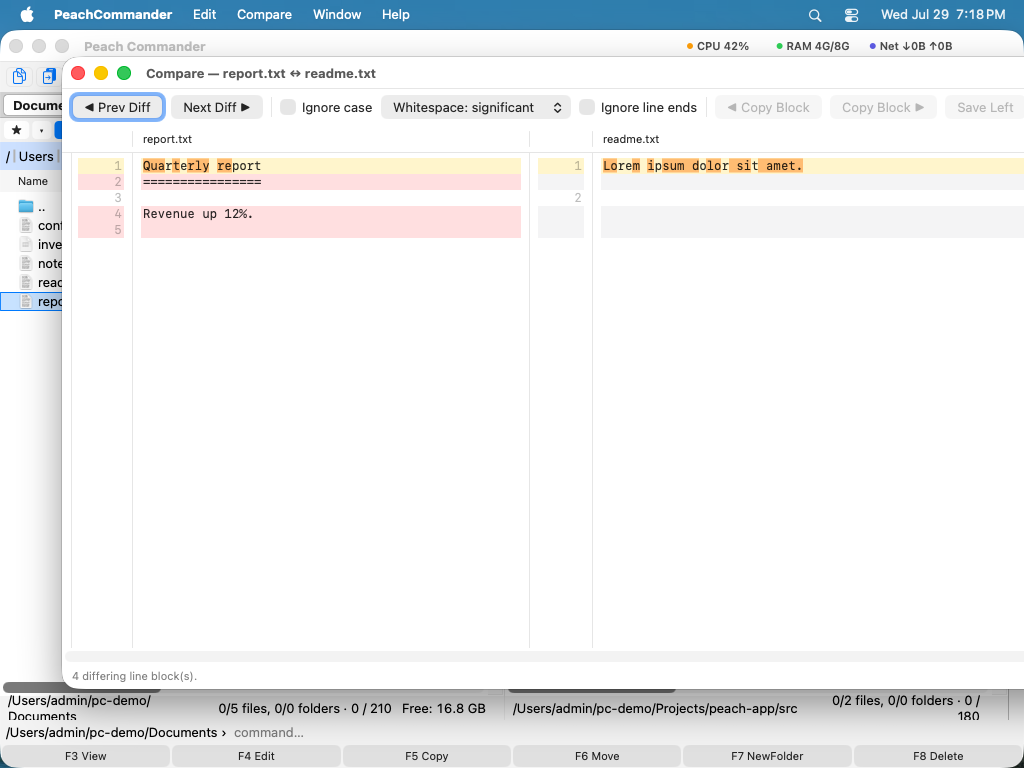 (Figure: Comparing two text files; changed lines are highlighted on both sides.)
When the two files have no differences at all, the window says so in a coloured band across the top, rather than leaving you to conclude it from a table with nothing highlighted in it. The band also appears, in a warning colour, when a file could not be read at all — the case where a verdict about differences would be a claim about a comparison that never happened. The byte-by-byte comparison says the same thing for the same reason: two files it cannot open are not two identical files.
Compare files byte by byte
When two files look the same but you need to prove they are truly identical (or find the one byte that differs), use the binary comparison. It shows both files in a hex view with mismatching bytes marked, which is ideal for verifying downloads, checking encoded data, or confirming an exact copy.
Compare directory listings
To spot differences between two open folders at a glance, choose Mark ▸ Compare Directories (Shift+F2). Peach Commander marks the files that differ or are missing on the other side, so you can act on them with the usual copy, move, and delete commands.
Filter what a synchronisation includes
The mask field holds one include list over file names. For what it cannot express, Filter… beside it opens a sheet with three tabs. Whatever you set there applies to the next comparison, and the button then says how many criteria are active — a filter you cannot see is how a backup ends up incomplete while the window reports that it is done.
- Exclude takes patterns separated by
;or|. A name without a slash matches at any depth (*.tmp), a trailing slash means a folder and everything in it (node_modules/), and a pattern containing a slash matches the relative path (src/*/generated). Case is ignored. - Size and date judge a pair as a whole: if either side falls outside the range, the whole pair is left out. That is deliberate. Applied to one side only, an exclusion would make the pair look one-sided and turn into a copy in the wrong direction.
- Within the last N days is measured from each comparison, not from when a preset was saved, so a saved job keeps meaning "the last month".
- The Plugins tab asks a content plugin about the side a file would be copied from. It needs a real file, so it is offered only when both sides are folders on this Mac.
An excluded folder is not deleted in mirror mode either — a mirror removes only what it actually compared. The status line says how many entries the filter held back, next to what the run will do. A filter is saved and loaded with the sync preset it belongs to.
Keep two folders the same, both ways
The two original modes cannot tell one thing apart: a file that is on one side only is either new here or deleted there, and they look identical. So the symmetric mode copies it — delete something on your laptop, synchronise, and it comes back from the backup — and the mirror mode deletes, but only in one direction, so anything you did on the target side is lost.
Two-way (remember) answers that by keeping a record of what both folders looked like the last time they agreed. With that record a deletion on one side can be carried to the other.
- The first run of a pair has no record, so it behaves exactly as before and deletes nothing. It writes the record. The mode does its work from the second run on.
- A deletion carried over is shown in its own colour with a
⇒🗑arrow and is not ticked. It is the one row that comes from the app's memory rather than from anything you can see in the two folders, so you arm it yourself. Clicking the arrow offers the other answers: copy the file back instead, or leave both sides alone. - Changed on one side and deleted on the other is a conflict, never a deletion. So is a file that changed on both sides.
- Nothing is deleted on the strength of an absence the comparison could not confirm — an unreadable folder, or one the filter held back, proves nothing about what is inside it.
- Two folders on this Mac only. Not a server and not an archive: a deletion in an archive rewrites it, a deletion on a server is permanent, and this mode is not the one to try that with.
Memory… in the window lists every pair the app remembers, marks the one you are looking at, and lets you forget any of them — after which the next comparison of those folders behaves like a first one again. Nothing is ever forgotten on its own: a folder on an unmounted disk is not gone, only unplugged.
The record lives with the app's settings, so moving one of the folders means the pair has no history any more — and a run without a history deletes nothing, which is the way that failure should point.
What a run did, and what of it can be taken back
Every synchronization is written down. Runs… in the window lists them newest first — when, which two folders, which mode, and how many files were copied, deleted or kept back — and shows what happened to each file in the run you select.
That list is what makes the Trash usable. A file this Mac deleted went to the Trash, and the run
recorded where, which matters more than it sounds: the Trash renames on collision, so a second
notes.txt lands as notes.txt 11-17-15-028.txt, and looking for it by name finds the wrong one.
Show in Trash points the Finder straight at the item.
Put Back… moves the files a run deleted out of the Trash to the paths they were deleted from. Each one is checked first, and anything that does not hold is refused with its reason rather than forced:
- Something is at that path again. It is left alone — a put-back is never allowed to overwrite.
- The item is not in the Trash any more, or it was removed permanently rather than put there.
- The side was an archive or a server. An archive is rewritten whole, and a server has no Trash, so nothing was kept.
- The folder the run wrote to is gone, or is not the same folder any more — a reused mount point, say. Then the whole run is refused rather than any part of it acted on.
- It has already been put back. The record keeps that, so a second attempt does nothing.
- Or the record itself is one this version cannot act on — written by a newer version of the app, or naming a path outside both folders. Rare, and refused rather than guessed at.
A copy cannot be taken back. Removing one would mean deleting a file you may have edited since, which is the opposite trade from putting a deletion back, so the app does not offer it — the run tells you which files it copied and you can delete them yourself. A file that was overwritten is the one real gap, and it is now a small one: on this Mac the version that was replaced goes to the Trash like a deleted file, so Show in Trash finds it. Into an archive, onto a server, or onto a volume with no Trash it cannot, and the confirmation says so before the run.
The last 200 runs are kept, or 64 MB of them, whichever comes first; past that the oldest fall away one at a time as new ones arrive, and Forget and Forget All clear them on the spot. A very large run — more than 20,000 files — keeps every problem and everything it put in the Trash but not the copies that went through, and says so instead of leaving you to notice. Its deletions can still be put back: what was left out is the copies, and a copy could not be taken back anyway.
Forgetting changes nothing about the folders; what goes is the record of what was done, and with it the offer to put anything back. Unlike the two-way memory, this is thrown away automatically — losing the memory of a pair would change what the next run does, while losing the record of a run only takes away an offer.
Shortcuts
| Action | Shortcut |
|---|---|
| Compare directory listings (mark differing files) | Shift+F2 |
| Compare by content | File ▸ Compare by Content… |
| View one side of a synchronize row | Right-click the row ▸ View Left / View Right |
| Synchronize directories | Commands ▸ Synchronize Dirs… |
Notes
- By content vs. by date/size. A quick comparison matches files by size and modification date, which is fast but can be fooled when timestamps differ for identical files. Turn on by content for a reliable result at the cost of reading every file.
- Subfolders and filters. The synchronize window can descend into subfolders and can be limited with a filter mask, so you can sync just the file types you care about.
- You stay in control. Synchronizing never runs on its own — you review the proposed directions in the result grid and can change any of them before anything is copied. Esc stops a comparison that is running, and closes the window when nothing is.
- Presets. Frequently used synchronize setups can be saved and reused so you don't re-enter the same options each time. A preset also carries what the result grid shows — the direction filter and Hide identical — and the window opens on the preset you used last. A Default preset is there from the first time you open the window; save over it to make it your own.