Tutorial: Find files fast
This tutorial walks you end to end through the Find Files window using one realistic goal: you have a project folder full of code and configuration, and you need to track down every place a particular setting — the database host db.internal.example — appears. You will start with a simple name search, switch to searching inside files with a regular expression, narrow the results by size and date, look inside a zipped backup, and finally push the matches into a panel so you can act on them all at once.
You do not need any of the steps below to follow the ones after them — but done in order they build a complete search workflow you can reuse for any "where is this thing?" task.
This is a hands-on tutorial. For the reference description of every field and option, see Finding files. For narrowing the current folder without a dialog, see Quick search & filter.
Before you start
Point one panel at the top of the folder you want to search. In this example that is your project root, for instance ~/Projects/acme-api. Find Files searches the folder shown in the active panel and all of its subfolders, so starting at the project root means you cover the whole tree.
Step 1 — Open Find Files and search by name
- Click the panel showing
~/Projects/acme-apiso it is the active panel. - Choose Commands > Find Files…, or press Cmd+Shift+F.
- On the General tab, in Search for, type a name mask. To find only configuration files, type:
*.conf;*.yml;*.env
Separate several masks with a semicolon; each one uses * for any characters and ? for a single character.
4. Confirm the start folder shown is your project root.
5. Click Start. Matches stream into the results list as they are found.
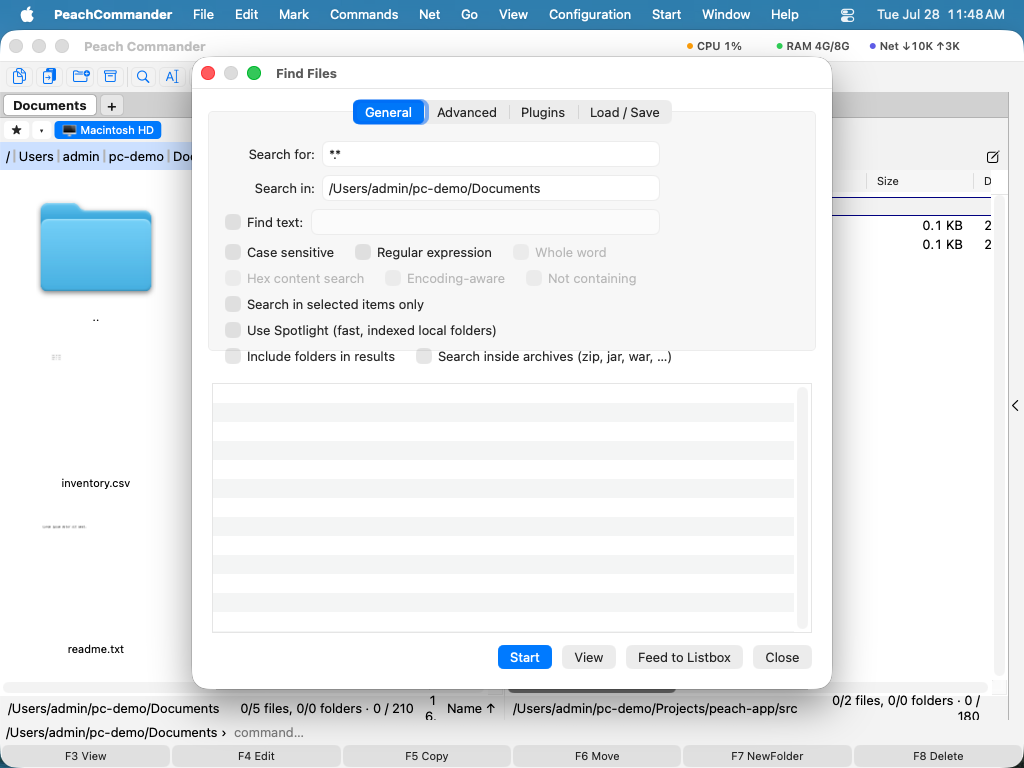 The General tab: search by name mask across a folder and its subfolders.
You now have a list of every config-style file in the project. Double-click any result to jump to it in the panel, or select one and press F3 to open it in the built-in viewer. This is useful, but it only tells you which files could hold the setting — not which ones actually mention db.internal.example. That is the next step.
Step 2 — Search by text content with a regular expression
Now let the search read the contents of files instead of just their names.
- Back on the General tab, turn on Find text.
- In the text field, you could type the literal host name — but you want to catch a few variations (an optional port,
db.internal.exampleordb.internal.example:5432). Turn on Regular expression and type:
db\.internal\.example(:\d+)?
The backslashes make each . mean a literal dot, and (:\d+)? optionally matches a colon followed by a port number.
3. Leave Search for set to your name mask from Step 1 so only config files are read, or clear it to * to read every file in the project.
4. Click Start.
The results list now shows only files that actually contain a match. Select a result and press F3 to open the viewer; the viewer's own find (see Finding files) lets you jump to the matching line.
A few things worth knowing while you work:
- Other content options sit next to the regex switch: Case sensitive, Whole word, Hex content search (match raw bytes), and Not containing (find files that lack the text — handy for spotting configs that were never updated).
- Content search reads whole files in local folders. On network locations very large files are skipped — roughly 16 MB, or 64 MB when a regular expression is used.
Step 3 — Narrow by size and date on the Advanced tab
Suppose the project also contains huge generated logs that happen to mention the host, and you only care about hand-edited config touched in the last work sprint. Filter them out.
- Switch to the Advanced tab.
- Under Size, set a range so the giant logs drop out — for example a maximum of
2M. You can write sizes as10K,2M,500(bytes), and so on. - Under the modified date controls, either set a date range or ask for files changed in the last N days — enter
14to keep only files touched in the past two weeks. - Click Start again to re-run with the new filters.
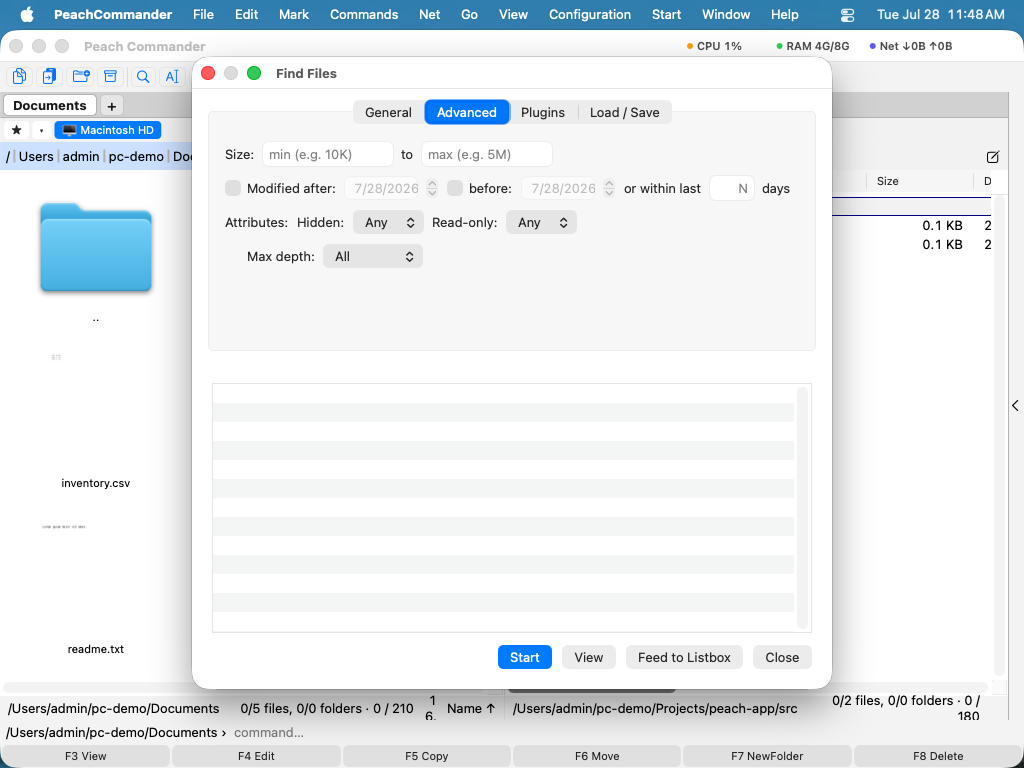 The Advanced tab: trim results by size and modification date.
The results are now short and relevant: recently edited, reasonably sized files that contain the database host. The General and Advanced settings apply together, so you can combine the name mask, the regex, the size cap, and the date window in a single search.
Step 4 — Look inside a zipped backup
Your project keeps a backups/ folder with zipped snapshots, and you want to know whether the old host string is still buried in one of them.
- Return to the General tab.
- Turn on Search inside archives.
- Keep Find text and your regular expression from Step 2.
- Click Start.
Find Files now opens each zip-family archive (zip, jar, war, and similar) it encounters and searches the files inside, descending up to four levels of nested archives. Matches found inside an archive appear in the results list like any other file. To browse a hit in context, open the archive itself — Peach Commander lets you step into archives as if they were folders (see Working with archives).
 Peach Commander opens archives like folders, so a match inside a zip is easy to inspect.
Step 5 — Send every match into a panel
You have found everywhere db.internal.example lives. Now act on the whole set at once — for example, to copy them somewhere for review.
- With results showing, click Feed to Listbox.
- The active panel is replaced by a temporary list containing every result.
- Treat that list like any folder: select all with Cmd+A (or use the Mark menu), then press F5 to copy the set into the other panel, or F6 to move it. Press Tab to switch panels first if you need to aim the copy at a specific target.
Because the results behave like a normal panel, all the usual operations apply — copy, move, delete, rename, or open. See Copying files for the copy and move dialogs.
Bonus — a near-instant search with Spotlight
When you just need to find files by name across indexed local folders, and you do not need regular expressions or archive contents, turn on Use Spotlight on the General tab. Spotlight queries the macOS index instead of scanning files, so results are almost immediate. The trade-off: it ignores regular expressions, subfolder-depth limits, and the selected-items-only scope, and it covers indexed local folders only — leave it off for network locations or pattern-heavy searches.
Save the search for next time
Searches you run often are worth keeping.
- Set up the patterns and options you want.
- Open the Load / Save tab and choose Save as Template….
- Give it a name (for example, "config host references").
- Next time, pick it from the template list instead of retyping everything.
Recap
You searched by name mask, then by file contents with a regular expression, narrowed by size and date, reached inside a zip archive, and fed the whole result set into a panel to act on it. The same five-step pattern — name → content → narrow → archives → hand off — handles almost any "find this everywhere" task.
Related
- Finding files — full reference for every Find Files field and option
- Quick search & filter — narrow the current folder without a dialog
- Working with archives — open and browse zip, 7z, tar, and rar files
- Copying files — the copy and move dialogs (F5 / F6)