Editing files
When you need to change a file rather than just look at it, Peach Commander opens it in a built-in editor. Text and code files open in a full editor with syntax highlighting, find and replace, an outline of the symbols in your code, and a minimap for quick navigation. Binary files can be opened in a separate hex editor, where you can inspect and change individual bytes. You never have to leave the app to make a quick edit.
Edit a text or code file
- In either panel, move the cursor to the file you want to change.
- Press F4, or choose File ▸ Edit. The file opens in the editor window.
- Make your changes. If the file is a recognized programming or data format, keywords, strings, and comments are colored automatically.
- Press Cmd+S (or click Save) to write your changes. Saving replaces the file; if you want the previous contents kept beside it, switch backups on in Settings ▸ Edit/View.
To start a brand-new text file at the current location, press Shift+F4.
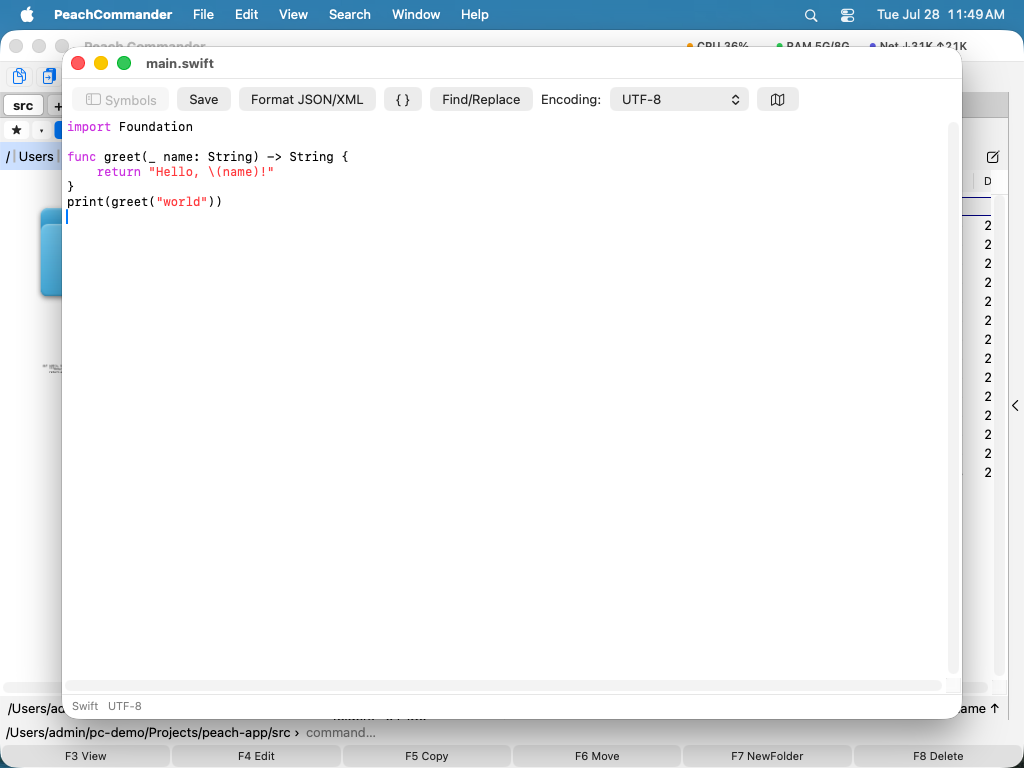 (Figure: The editor with syntax highlighting, the symbol outline on the left, and the minimap on the right.)
If the file belongs to root — an entry in /etc, a launchd plist, a web server's config — saving offers to do it as administrator: macOS asks for authorization the usual way, the content is handed over through a private temporary file rather than a command line, and the file keeps its own owner and permissions instead of quietly becoming yours.
If the file cannot be written, you are told when you open it rather than when you try to save: the title carries a lock and the status line says which obstacle it is — owned by another user, permissions that deny writing, a locked file, a read-only volume, or protection by the system. Only the first of those can be settled by authorizing the save, and only that one offers it; for the others the offer would cost you a password and fail anyway.
The gutter shows line numbers, with the line you are on brighter than the rest; the button beside the encoding menu hides it. A wrapped line is numbered once, so the number always means the same line a compiler error or a review comment means.
Find, replace, and navigate
- Press Cmd+F to open the find bar. To replace text, open the find bar and switch it to the replace view, or click Find/Replace in the toolbar.
- For a regular expression, use Search ▸ Find with Regular Expression… (Ctrl+Cmd+F) or Replace with Regular Expression… (Ctrl+Opt+Cmd+F).
^and$match the start and end of a line, and in the replacement$1stands for the first capture group — so(\w+) (\d+)replaced with$2=$1turnsalpha 11into11=alpha. Tick In selection only to keep the change inside the text you selected; Replace All rewrites every match as a single step you can undo with Cmd+Z. - Find Next (Cmd+G) follows whichever search you used last, plain or pattern. A pattern that will not compile is reported in the dialog rather than quietly finding nothing.
- Click Format to re-indent the file into a clean, readable layout. See Formatting a file below for which file types this covers. The button is greyed out when nothing can format the file you have open.
- Click Symbols (or press Cmd+Shift+O) to show a sidebar that lists the classes, functions, and methods in your code — or, for a JSON, YAML or XML file, its keys and elements. Click an entry to jump straight to it. See Work with JSON, YAML and XML for what else that structure is good for.
- Press Cmd+L to jump to a specific line.
- Press Cmd+\ to jump between a bracket and its matching partner.
- Click the map button to show or hide the minimap, a scaled overview of the whole file you can click to scroll.
- Use the Encoding menu in the toolbar if the file was saved in something other than the default text encoding.
Work with JSON, YAML and XML
These three formats get their own treatment, because a configuration file is navigated by structure and not by line number.
The Symbols sidebar lists the keys of a JSON or YAML file and the elements of an XML file, nested the way the document is. An element is named by its id, name or key attribute where it has one, so twenty <server> entries are told apart. A list shows its entries as [0], [1], and where each entry starts with a key, that key is shown too — [0] name. The filter field above the list finds a key by name in a file of any size, and the status line always shows the path to whatever the cursor is inside.
A broken file still gets an outline down to the point where it breaks, which is when you most want one.
The Structure menu — in the menu bar while the editor is in front — moves you around that structure:
- Go to Enclosing Node (Ctrl+Cmd+Up) moves out to the block that contains the cursor: from
image:to the service it belongs to. - Go to First Child (Ctrl+Cmd+Down) moves in.
- Go to Previous / Next Sibling (Ctrl+Cmd+Left / Right) moves between entries at the same level, stepping over the whole block in between — from one server to the next without scrolling past forty lines of settings.
- Select Enclosing Node (Ctrl+Cmd+A) selects the block the cursor is in. Press it again and the selection grows to the block around that one, so you can select exactly one service, or exactly one element, without dragging.
- Copy Structural Path (Ctrl+Cmd+C) copies the cursor's position as an expression the format's own tools take:
.services.web.ports[0]for JSON and YAML, which is whatjqandyqexpect, and//server[@id='web-1']/portfor XML, which is an XPath. Keys that are not plain words are quoted for you —."content-type", not.content-type, which injqmeans something else entirely. - Validate Document (Ctrl+Cmd+V) checks the file and puts the cursor on the problem, with the reason in the window title. It reports what nothing else in the toolchain will: a duplicate key, which every JSON parser accepts silently while quietly discarding one of the two values, and a trailing comma, which Apple's own parser accepts and Python, Go and
jqrefuse.
Long files are read by collapsing what you are not working on. Fold Node (Option+Cmd+Left) collapses the block the cursor is in — the nearest one that has a body, so pressing it on a single line collapses the mapping around it — Unfold Node (Option+Cmd+Right) opens it again, Fold Top Level (Option+Cmd+Up) collapses everything at the outermost level for an overview of the whole file, and Unfold All (Option+Cmd+Down) restores it. The line carrying the key or the tag stays visible and is marked, so a collapsed block is visibly collapsed; the line numbers skip what is hidden. Nothing is removed from the document — the text is only not drawn, so saving, undo and Find are unaffected, and Find still finds text inside a collapsed block. Putting the cursor inside a fold opens it, and any edit opens everything: a fold is a pair of positions, and inserting text moves them.
The same menu carries the transformations, which rewrite the whole document — or, when text is selected, just that text — in one undoable step: Minify (one line) for a JSON body that has to fit into a curl command, Sort Keys Recursively so that two exports of the same settings diff to nothing, Escape as JSON String and Unescape JSON String for the daily chore of putting a certificate, a script or a whole JSON document inside a JSON field, and Convert JSON to YAML. Minifying keeps the key order and the exact spelling of every number, because 1.0 and 1 are not the same version; sorting deliberately does not, since sorting is a reordering. Escaping applies to any file, not just JSON. There is no YAML to JSON, and that is a decision: it would need a YAML parser the system does not have, and a wrong guess about an anchor or a quoted true turns a config file into a different config file.
For JSON and XML the file is checked by a real parser. For YAML there is no parser on the system, so the check covers the mistakes that can be found without one — a tab used for indentation, which YAML forbids outright, indentation that lines up with nothing, a duplicate key, an unterminated quote — and says so instead of claiming the file is valid.
Filter through a shell command
Click Filter… (or press Shift+Cmd+) to send the selected text through a command and replace it with whatever the command prints. With nothing selected, the whole document goes through. This turns the tools you already know into editor commands: sort -u to remove duplicate lines, jq . to make a JSON payload readable, column -t to line up a table, base64 -d to decode a blob, openssl x509 -noout -text to read a certificate.
The command runs in your login shell, so your PATH, your aliases, and your functions work exactly as they do in Terminal, and pipes and quoting mean what you expect them to. It runs in the folder of the file you are editing, so relative paths resolve where you would expect. The commands you have used are remembered and offered in the dropdown the next time.
If the command fails, your text is left untouched and the command's own error message appears in the status line — a jq syntax error never ends up pasted into your file. A command that prints nothing empties the selection, which is exactly what filtering with grep is for, and Cmd+Z brings it back. A command that never finishes is stopped after twenty seconds.
Sort, deduplicate and clean up lines
The Lines menu — in the toolbar, and in the menu bar while the editor is in front — applies the edits that come up again and again, with no command typed and no tool installed:
- Sort A→Z or Z→A, comparing numbers by value, so
file9comes beforefile10. - Reverse the order of the lines.
- Remove duplicate lines, keeping the first of each and leaving the rest in their original order.
- Remove blank lines, including the ones that only look empty because they hold spaces.
- Trim trailing whitespace — the invisible difference that makes a diff noisy.
- Keep only, or remove, the lines containing a piece of text you type.
With text selected, each of these works on the selected lines; the selection is grown to whole lines first, because sorting half a line means nothing. With nothing selected they work on the whole document. Each one is a single undo step, so Cmd+Z takes back the whole operation.
Line endings sit next to the Encoding menu: LF for Unix and macOS, CRLF for Windows, CR for classic Mac OS, and (mixed) when one file contains more than one kind — often the reason a script fails with an error that makes no sense. Pick another one to convert the whole file in one undoable step. The line operations never change the terminator on their own: sorting a CRLF file leaves it CRLF.
Formatting a file
Click Format in the editor (or use the same command in the viewer) to re-indent the file. Peach Commander picks a formatter based on the file's extension and shows which one it used in the status line, for example formatted (jq) — so you can always tell what shaped the result.
Works out of the box for JSON, XML, SVG, plists, HTML, INI-style configuration, and YAML. YAML is a special case: it is tidied rather than re-indented, because in YAML the indentation is the structure, and rewriting it without a real YAML parser could change what the file means. Trailing spaces go, stray tabs in the indentation become spaces, runs of blank lines collapse — and anything inside a block scalar (| or >) is left exactly as it is, because whitespace is content there.
Better formatters take over automatically. If you have one of these installed, Peach Commander uses it instead, because a dedicated tool usually matches what the wider ecosystem expects — and for configuration formats it keeps your comments:
| Install | and you get |
|---|---|
yq or prettier |
full YAML formatting, comments preserved |
taplo |
TOML |
sqlformat or sql-formatter |
SQL |
prettier |
Markdown |
jq |
JSON, in the conventional style |
xmllint |
XML and SVG |
If a file type has no formatter, the Format button is greyed out and the menu entry disabled. Trying anyway tells you why — "taplo is not installed" reads differently from "Not valid JSON".
Use your own formatter
To format a file type Peach Commander does not know, or to use a different tool, create formatters.ini in the configuration folder — one section per extension:
[swift]
tool = swiftformat
args = --quiet stdin

[sql]
tool = /opt/homebrew/bin/sqlfluff
args = format -
tool is an executable name (looked up like your shell would) or an absolute path; args are passed as-is. The file's text goes in on standard input and the formatted text is read back from standard output, so any well-behaved command-line formatter works. Your entries win over everything else. A commented template is created for you on first launch, so you can simply open the file and fill it in.
Plugins can contribute formatters too — see Plugins.
Edit a file byte by byte
- Select the file in a panel.
- Choose File ▸ Edit as Hex (or right-click the file and choose Edit as Hex).
- Type hex digits to overwrite bytes, or use the arrow keys to move through the file. Backspace and Delete remove bytes.
- Press Cmd+S to save. As in the text editor, the previous contents are only kept if you switched backups on.
The strings in the file you are editing
The hex editor has the same Strings panel as the viewer: every readable run of text in the file, in four encodings at once, and a click puts the caret and the selection on it.
- It reads the bytes as you have edited them, not as they are on disk, so the offsets keep pointing at the right place after an insert has shifted everything below it.
- The list follows your edits: change a byte and it is rebuilt a moment after you stop typing.
- It is described in full under Viewing files, and behaves the same way here.
Shortcuts
| Action | Key |
|---|---|
| Edit file | F4 |
| Create and edit a new text file | Shift+F4 |
| Save | Cmd+S |
| Find | Cmd+F |
| Show/hide symbol outline | Cmd+Shift+O |
| Go to line | Cmd+L |
| Jump to matching bracket | Cmd+\ |
| Go to enclosing node (JSON/YAML/XML) | Ctrl+Cmd+Up |
| Go to first child | Ctrl+Cmd+Down |
| Go to previous / next sibling | Ctrl+Cmd+Left / Right |
| Select enclosing node | Ctrl+Cmd+A |
| Copy structural path | Ctrl+Cmd+C |
| Validate document | Ctrl+Cmd+V |
| Fold / unfold node | Option+Cmd+Left / Right |
| Fold top level / unfold all | Option+Cmd+Up / Down |
| Filter the selection through a command | Shift+Cmd+\ |
| Undo / redo (hex editor) | Cmd+Z / Cmd+Shift+Z |
Notes
- Syntax highlighting covers JSON, C, C#, Java, JavaScript, TypeScript, Python, and Rust. Other file types still open and edit normally with basic coloring, but detailed highlighting is only available for the supported languages.
- The outline covers the supported programming languages plus JSON, YAML and XML — including the XML-based formats such as
.plist,.svg,.csprojand.storyboard. The structural navigation, path and validation commands apply to JSON, YAML and XML. - The symbol outline and Go to Line features apply to the text editor. The hex editor is meant for binary inspection and byte-level edits, not for text.
- Neither editor keeps a backup unless you ask for one. Switch on “Keep a backup copy (.bak) of the previous contents when saving” in Settings ▸ Edit/View, and the first save writes the original beside the file as
name.bak, so an accidental change is easy to undo.