Selecting files
Before you copy, move, delete, or pack anything, you first tell Peach Commander which items to act on. The item your cursor sits on is always the current item, but you can also mark one or many files and folders so a command runs on all of them at once. Marked items stand out with a distinct name color in the panel.
Mark files and folders
- Click a row to move the cursor to it. A single click selects just that one item.
- To mark several items at once, hold Cmd and click each one, or hold Shift and click to mark a range.
- To mark the item under the cursor and step down in one motion, press Insert. Press it repeatedly to mark a run of consecutive items quickly. The Spacebar also toggles the current item's mark (and shows a folder's size).
- To mark everything in the panel, choose Mark > Select All (Ctrl+Num+), or press Cmd+A. Choose Mark > Unselect All (Ctrl+Num-) to clear all marks.
Select or unselect by a pattern
- Choose Mark > Select Group… (Num+) to add items whose names match a pattern, or Mark > Unselect Group… (Num-) to remove matching items from the current marks.
- Type a wildcard mask. Use
*for any characters and?for a single character. Separate several masks with a semicolon, and list exceptions after a vertical bar — for example*.jpg;*.pngmarks all images, and*.*|*.bakmarks everything except backup files.
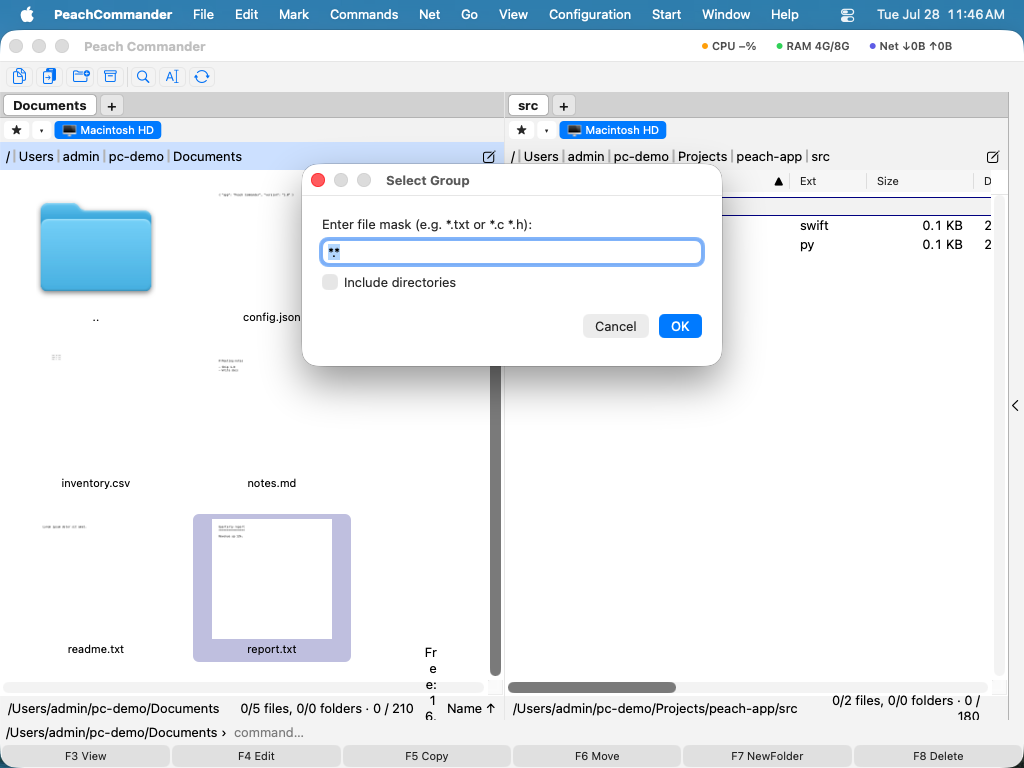 (Figure: Marking files by a wildcard mask.)
Invert, same extension, and restore
- Invert Selection (Num*, Mark menu) flips every mark: marked items become unmarked and vice versa — handy for "everything except these".
- Select All with Same Extension (Alt+Num+, Mark menu) marks every file that shares the extension of the item under the cursor, so one keystroke grabs all
.pdffiles, for example. - Restore Selection (Num/, Mark menu) brings back your previous set of marks — useful if a command cleared them or you marked the wrong group.
Shortcuts
| Action | Key |
|---|---|
| Toggle mark, move down | Insert |
| Toggle mark (current item) | Space |
| Select all / Unselect all | Ctrl+Num+ / Ctrl+Num- |
| Select all (alternative) | Cmd+A |
| Select group by mask | Num+ |
| Unselect group by mask | Num- |
| Invert selection | Num* |
| Select all with same extension | Alt+Num+ |
| Restore previous selection | Num/ |
Notes
- Marks and the cursor are independent: moving the cursor with the arrow keys does not change what is marked.
- The parent-folder entry (
..) can never be marked. - Select Group, Unselect Group, and Invert Selection match on the file name, so you can include or leave out folders depending on the dialog's options.
- After a copy, move, or delete finishes, items that were handled successfully are unmarked automatically, while any that failed stay marked so you can retry them.