Disk Map
Disk Map is a built-in plugin that shows, at a glance, what is using space in a folder or on a whole volume. It scans the folder you choose and draws every item sized in proportion to the space it actually occupies on disk, so the biggest space hogs stand out immediately. You can drill into folders, see how your scan reconciles against the volume's free, purgeable, and hidden space, and clean up right from the map.
Start a scan
- In the active panel, go to the folder (or volume) you want to measure.
- Choose Commands ▸ Disk Map: Analyze Current Folder.
- The Disk Map view opens on the right and scans in the background, showing a running count of items and bytes. Large folders finish in a few seconds — the scan reads directory metadata in bulk and works across several CPU cores.
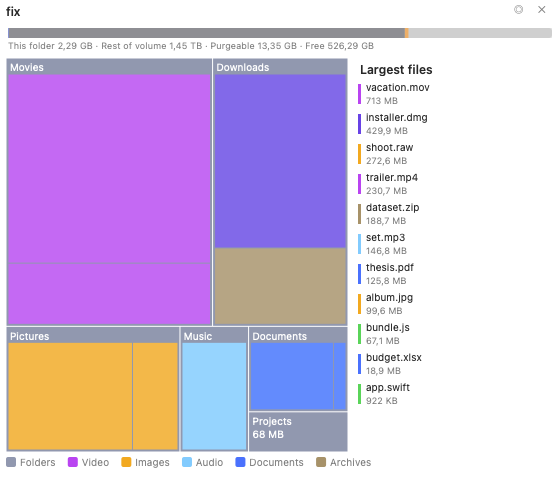 (Figure: The treemap view, coloured by file category, with the volume bar on top and the largest-files list on the right.)
Read the map
- Each block (treemap) or ring segment (sunburst) is sized by the item's actual on-disk size, so the picture matches what the Finder and the system report.
- Blocks are coloured by file type — video, images, audio, documents, code, archives, apps, disk images — with a legend along the bottom. You can switch to a size heatmap in the settings.
- Click a folder to drill into it; the breadcrumb at the top shows where you are, and the ◂ button steps back up.
- Hover over any block to see its full path, size, and item count.
Two views: treemap and sunburst
Disk Map offers two visualizations, and you can switch between them with the ◎ / ▦ button in the header or on the settings page:
- Treemap — nested rectangles, densest for spotting the single largest files.
- Sunburst — concentric rings (one per folder depth) around the current folder, best for seeing how space is distributed across a deep tree.
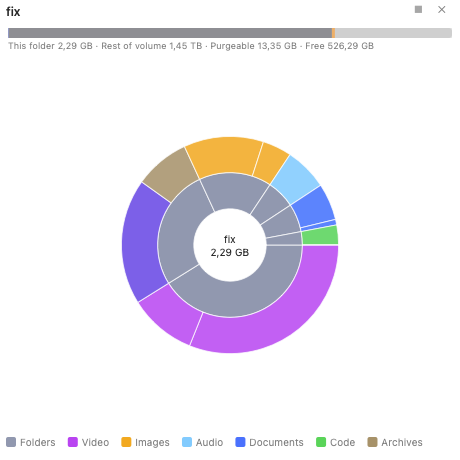 (Figure: The sunburst view — the inner disc is the current folder and each ring is one level deeper.)
The volume bar
The bar across the top reconciles your scan against the whole volume:
- Scanned / This folder — how much the analysed folder occupies.
- Hidden (at the volume root) or Rest of volume (for a subfolder) — everything not in this scan, including system-protected folders, other users, and snapshots.
- Purgeable — space macOS can reclaim automatically, mostly local Time Machine snapshots and caches.
- Free — space available right now.
When the volume has local snapshots, the bar shows a · N snapshots (ⓘ) affordance; click it for a read-only list, with a hint to manage them in Disk Utility or Time Machine. Disk Map never deletes snapshots itself.
Largest files
Turn on Show the largest-files list to see the biggest files in the current folder ranked by size, each with a colour chip for its category. Click one to highlight it on the map.
Clean up from the map
Right-click any block for actions:
- Open in Left Panel / Open in Right Panel — reveal the item in a file panel.
- Reveal in Finder.
- Move to Trash — delete just that item; the map updates without a full re-scan.
To remove several items at once, use the Collector: right-click ▸ Mark for Collector on each item, then click the 🗑 N button in the header to move everything you marked to the Trash in one confirmed step.
Settings
Disk Map adds its own page to the Settings window (Configuration ▸ Settings ▸ Disk Map):
- Chart style — treemap or sunburst.
- Color coding — by file type (category) or by size (heatmap).
- Stay on the starting volume — don't cross into other mounted disks.
- Show the volume bar and Show the largest-files list.
Changes apply to an open Disk Map immediately.
Notes
- Disk Map measures allocated (on-disk) size and counts hard-linked files only once, so its totals line up with the volume's used space rather than overcounting.
- By default the scan stays on the starting volume, so it won't wander into other mounted disks or network shares.