Downloading from a URL
Peach Commander can fetch a file straight from an HTTP or HTTPS web address into the active panel, without opening a browser. Paste a link, confirm the name it will be saved under, and the download runs on its own — with resume if the connection drops, batch downloads for many links at once, and optional checksum verification so you know the file arrived intact.
Download a file
- Open the panel folder where you want the file to land.
- Choose Net > Download from URL, or press Cmd+Shift+U.
- Paste the web address into the URL(s) box. If you copied a link first, it is filled in for you.
- Check the Save as name — it is suggested from the link and you can edit it freely.
- Click Download.
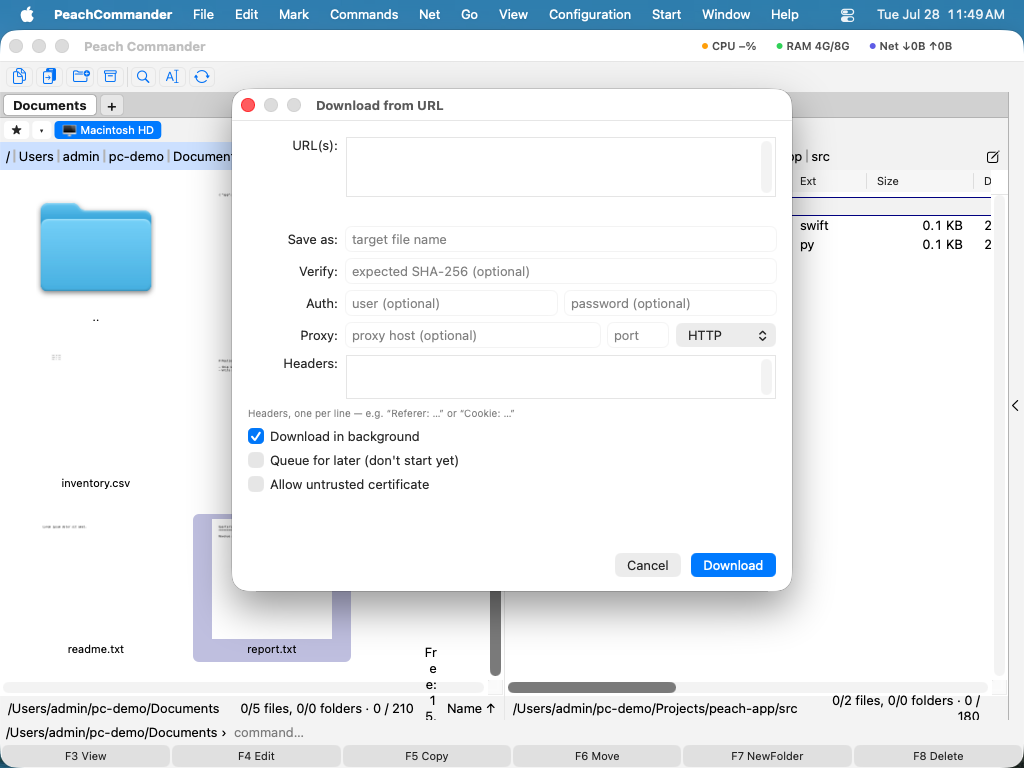 (Figure: The download dialog — paste a link, edit the name, and set optional verification, credentials, headers, or a proxy.)
By default the download runs in the background, so you can keep working in the panels while it transfers. Turn off Download in background to wait for it, or turn on Queue for later to set it up without starting it yet.
Download several files at once
Paste one web address per line in the URL(s) box. When more than one link is present, each file's name is derived automatically from its link, and the per-file Save as and Verify fields are turned off.
Resuming an interrupted download
If a transfer is cut off, Peach Commander keeps what it has already received in a temporary .part file. Starting the same download again resumes from where it stopped whenever the server supports it, rather than starting over. The .part file is renamed to the final name only once the download finishes successfully.
Shortcuts
| Action | Shortcut |
|---|---|
| Download from URL | Cmd+Shift+U |
Tips
- Verify the file. For a single download, paste an expected SHA-256 checksum into the Verify field. After the transfer, the file's checksum is compared against it so you can trust the file matches what the publisher listed.
- Sign-in required? Enter a user name and password in the Auth fields for sites that use basic authentication. For token-based access, add an
Authorization: Bearer …line in the Headers box. - Custom headers. Add one header per line in the Headers box, for example
Referer: …orCookie: …, for links that only work with specific request headers. - Proxy. Route the download through an HTTP or SOCKS5 proxy by filling in the Proxy host, port, and type.
- Untrusted certificates. Only turn on Allow untrusted certificate for a site you trust that uses a self-signed certificate; it disables the normal HTTPS security check for that download.
- Note: the shortcut used to be Cmd+Shift+D, which Go > Desktop also uses — so one of the two never fired. Downloading moved to Cmd+Shift+U (U for URL) and Desktop keeps Cmd+Shift+D, as in the Finder.