Macros
A macro is a named sequence of file actions — create a folder, move the selection into it, tag what is left — that you can run again with one click. It is not a scripting language: there are no conditions and no loops, and that is deliberate. A macro is a list you can read, and read is what you have to be able to do before you approve it.
Everything a macro does goes through the same machinery the assistant uses, so a macro cannot do anything you have not permitted, each of its steps appears in the action log, and a step that can be taken back still can be.
One window: Configuration ▸ Macros…
Everything about macros is behind that one entry: the list of them, the two ways to make one, and the way into the file. There is nothing else in the menu to choose between.
The quickest way in: record one
You do not have to write a macro from scratch, and you do not have to work out afterwards where it began.
- Configuration ▸ Macros… ▸ Record Macro…. The window steps aside and a small panel appears saying a recording is running, counting the steps as they happen.
- Do the job once — copy, move, rename, delete, make folders and files. Work normally; the recorder is not in the way.
- Stop and Save….
- The steps come back ticked. Untick anything that was only setting things up, give the macro a name, and leave Also add a button for it on.
- Tick Follow the panels instead of these exact files if the macro should work on whatever is selected next time. The rows change as you tick it, so you can see what you are about to save.
Save Macro, and the button is in the bar. That is the whole loop.
Discard Recording throws the recording away and saves nothing. Nothing is recorded before you press Record, and nothing after you stop — that is the point of having both ends.
A recording survives a restart. If Peach Commander stops while one is running — you quit, or it crashes — it comes back with the recording, says so, and you carry on or discard it.
If you would rather have it on a key or a button, the command is cm_MacroRecord; it starts a recording and stops the running one.
The other way in: from what already happened
From Recent Actions…, in the same window, builds a macro out of the last things that happened instead of recording new ones — useful when you have just done the job and only then thought of making it a macro.
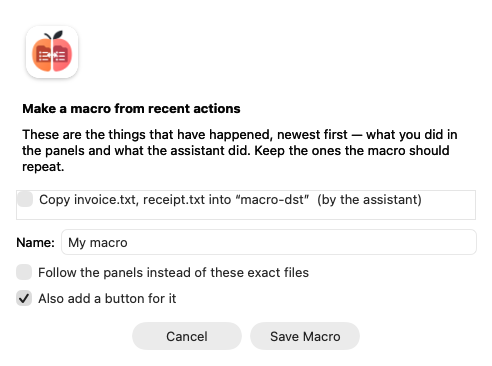 What has already happened, offered as the steps of a new macro.
The list holds both: what you did in the panels (F5, F6, F7, F8 and a rename) and what the assistant or another macro did. Each row says which, because after a session with both, the same two files can appear in each. Here the rows start unticked — "everything I did in the last half hour" is rarely the macro you mean.
This one needs the history. What you do by hand is read back out of the global history, so if you have switched that off (Settings ▸ Misc ▸ Record a global history) this list has nothing of yours in it and says so. Record Macro… does not depend on it.
What is not offered. Packing an archive, and anything else the app records only by name, cannot be turned into a step — there is no shape for it to take. Those rows are shown greyed out with the reason rather than left out, so a list of five that offers three does not read as having missed two. And unless you ask otherwise, the paths are the ones that actually ran: a recorded macro repeats that copy, not "a copy like it".
Follow the panels is how you ask otherwise. Files that all came from one folder become the selection; a folder that is one of the two panels becomes that panel, and a folder inside one keeps its tail — so a recorded "move these four invoices to Documents/2026-08" becomes "move what is selected to 2026-08 on the other side", and works tomorrow in two different folders. Anything under neither panel is left as the path it is, because there is nothing to fold it into. The option is only offered when it would change something.
The examples that come with it
The first time you open Edit File…, the file is seeded with eight worked examples. They are ordinary macros — change them, or delete the ones you do not want — and each carries a comment saying what it does and what to change:
| Macro | What it does |
|---|---|
| Open today's folder | Creates today's date folder in the active panel and goes into it. Run it again tomorrow. |
| File the selection into a dated folder | Selects every PDF, makes a year-month folder on the other side, moves them in. |
| Copy the selection to a dated backup folder | Copies what you have selected into a dated folder on the other side. |
| Move the pictures into an Images subfolder | One mask, one subfolder, in the folder you are already in. |
| Merge the CSV files into one and open it | Shows how a step uses what an earlier step produced. |
| File the selection into a folder you name | Asks you for the folder when it runs. |
| Mark the file under the cursor as reviewed | Tags it and date-stamps its comment — one file, not the selection. |
| Put the temporary files in the Trash | A deleting macro, and the one to try the permission gate on. |
Each of them becomes a command, so you can put any of them on a button or a key without writing anything.
Managing them
Configuration ▸ Macros… is the list: what each macro is called, its command name, how many steps it has, and what the permission gate will ask for — so "this one deletes" is visible before you put it on a key. From there you can run, rename, duplicate, reorder, delete, export and import. Hovering a row shows its steps.
Run is how you try one you have just recorded, without first closing the window to go and find the command. It goes through the same plan and the same confirmation as every other way of running a macro — this window has no privileges of its own.
Export… writes the selected macro to a file of its own, and Import… adds macros from files somebody sent you — which is what one file per macro is for. An import never replaces: a macro whose id is already taken gets a free one (backup arriving beside your own becomes backup-2), and you are told which ids the new ones ended up with, because the button you make has to name the right one.
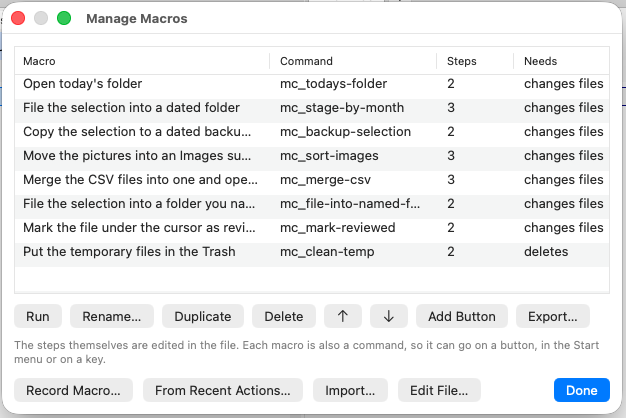 What each macro is called, what it runs as, and what it will ask permission for.
Reordering is not decoration: the file's order is the order the Command Browser and the button-bar picker list them in.
Deleting offers to take the buttons with it, and that is worth knowing even if you never use this window: a macro removed by hand leaves its button and its key behind, and pressing either then does nothing — the app now says the macro is gone rather than staying silent, but the button is still yours to remove. A key or a menu entry has to be taken out where it was set.
The steps are not edited here. Edit File… hands over to the editor for that, for the same reason the feature has no form: a step is a tool name and its arguments, which is what JSON is.
Editing macros by hand
Edit File… opens the selected macro's own file — macros/<id>.json in your configuration folder, seeded with the examples above the first time. With nothing selected the folder itself is shown in the panel, where F3 reads one and F4 edits one. A macro is a list of steps, and each step names a tool and its arguments:
{
  "id": "stage-by-month",
  "title": "File the selection into a dated folder",
  "icon": "calendar",
  "steps": [
    { "tool": "set_selection", "arguments": { "mask": "*.pdf" } },
    { "tool": "make_directory", "arguments": { "path": "%T/%{date:yyyy-MM}" } },
    { "tool": "move", "arguments": { "sources": "%S", "destination": "%T/%{date:yyyy-MM}" } }
  ]
}
Saving reloads the macros immediately, and says so if something is wrong: a misspelled tool name, a required argument left out, two macros sharing an id. A macro with a mistake in it is not run and not put on a button — you are told which macro and what is wrong with it, while the editor is still open.
To see which tools exist and what they take, use Configuration ▸ Command Browser…, or ask the assistant for list_macros.
Placeholders
The bare letters are the same ones the button bar and the Start menu use, so there is nothing new to learn if you have made a button:
| Placeholder | Means |
|---|---|
%P |
The active panel's folder |
%T |
The other panel's folder |
%N |
The file under the cursor |
%S |
The selected files — a list, which is what copy, move and move_to_trash take |
%{date:yyyy-MM} |
The date the macro started, in that format |
%{1.destination} |
One named value out of step 1's result — here, the file merge_files wrote |
%{1} |
The whole result of step 1, when that step produced a path or a list of paths outright |
%{ask:Folder name} |
Asks you when the macro runs. %{ask:Folder name=Archive} starts the field with Archive |
The braces are for the extras because the letters are already taken: %M means "the name under the cursor in the other panel" everywhere else in the program, so a month could not be spelled that way.
Use the named form for step results. Most tools report what they did as several values rather than as one — merge_files reports where it wrote the file, how many it merged and how many rows resulted — so %{2.destination} is the usual spelling and a bare %{2} only works for a tool that returns a single path. A name that is not there, or that is not a path, stops the macro rather than being guessed at.
A % in a file name is a %. Nothing a step produces, and no name out of a panel, is read as a placeholder in turn — so a file called 50%Netto.pdf passes through macros unchanged. To put a literal % in a template you wrote, double it: %%.
Asking for a value
%{ask:…} is how a macro takes something it cannot know in advance — the commonest macro of all is "move the selection into a folder I name", and without it the folder would have to be wired in.
You are asked before the plan appears, and the answers are already in it: the rows say "Move the selection into “Rechnungen”", not "into whatever you are about to type". Cancelling the question cancels the macro; nothing has been proposed, let alone run.
The same question written twice is asked once and used in both places, so two steps that name the same folder cannot disagree. Text after the first = is what the field starts out holding. The wording is yours — it is shown exactly as you wrote it, in whatever language you wrote it in.
An answer is a value, never a template: typing 50%Netto gives you a folder called 50%Netto.
A macro that asks cannot be run by an external agent over MCP — there is nobody there to ask, and taking the defaults silently would be answering on your behalf. It is refused, and says so.
%S is the one place a macro differs from a button: on a button the selection becomes a list of words for a command line, here it becomes the list of full paths the file tools take.
A step whose %S or %{1} comes out empty stops the macro rather than running with nothing to act on. A move with no files is not a smaller move — it is a request that no longer says anything, and reporting success for it would be a lie.
Running a macro
Each macro becomes a command called mc_<id>, so it appears by itself in:
- Configuration ▸ Command Browser…
- Configuration ▸ Edit Shortcuts… — put it on a key
- The button-bar editor's command picker
- Your
.mnumenu file andusercmd.ini, if you use those - The assistant, which can run it by name
Before a macro that changes anything runs, it shows you its steps as a list and waits. You can strike out a step you do not want; what is left is what runs. A macro that only reads runs without asking. Striking one out takes the steps that depend on it with it — a macro is a sequence, and the step that fills the folder cannot run without the step that creates it: those rows switch themselves off and grey out. Put the step back and they come back, except any you struck out yourself, which stay struck out.
 The steps, resolved against your panels — every one of them strikeable.
Anything that can be seen to be wrong before the macro starts — a tool that does not exist, a missing argument, a step that would run another macro — stops it before the first step, not after the third. If a step fails once it is running, the macro stops there rather than carrying on — step two of a macro usually assumes step one happened, and moving files into a folder that was not created is not a partial success. The report names the step, says what went wrong and says how many steps had already been carried out; each of them is in the action log with its own way back, where it has one.
What a macro is allowed to do
A macro is held to the most demanding thing in it. A macro whose steps only read is treated as a read; one that ends in a permanent delete is gated like a permanent delete — before any of it runs, not four steps in.
A step that runs a command is judged by what that command does, not by the fact that it is a command — so a macro that runs cm_DeleteReal is a deleting macro and is shown to you as one. A macro cannot run another macro, by either spelling.
Granting nothing extra is the default. If a macro contains a step your permissions do not allow — a shell command, a script — the whole macro is refused and told you why, and nothing happens.
Undo
Each step is logged on its own, so undo after a macro takes back its last step, not the whole macro. There is no macro-wide undo, because several tools have no inverse at all and a button offering one would be lying about those.
Where things are saved
- Your macros are in
macros/in the configuration folder, one<id>.jsoneach — plain files you can diff, keep with your dotfiles and send to somebody. Amacros.jsonfrom an earlier version is moved across on first launch and renamedmacros.json.migrated; nothing reads it afterwards. - Buttons a macro added are ordinary button-bar entries in
default.bar, so removing one is the same as removing any button.
Next steps
- Automation (AppleScript & Shortcuts) — driving Peach Commander from a script, and running your own scripts as macro steps.
- The button bar — where the button a macro added ends up.
- Keyboard & shortcuts — putting a macro on a key.