Connecting to FTP & SFTP
Peach Commander can browse remote servers as if they were ordinary folders. Once connected, one panel shows the remote files and you copy, move, rename, and delete them with the same keys you use locally. It speaks plain FTP, secure FTPS, and SFTP/SCP over SSH, so you can reach anything from a classic web host to a hardened SSH server. Saved connections live in the connection manager, and passwords are kept safely in your macOS Keychain rather than in the connection itself.
Connect to a server
- Open the Net menu and choose FTP Connect… (Ctrl+F) to open the connection manager.
- Pick a saved connection from the list and click Connect, or click New to create one. Use folders in the list to group connections.
- For a quick one-off connection, choose Net > FTP New Connection… (Ctrl+N) and type the address directly.
- Enter your password when prompted; tick the option to save it and it goes into your Keychain for next time.
- When you are finished, choose Net > FTP Disconnect (Ctrl+Shift+F).
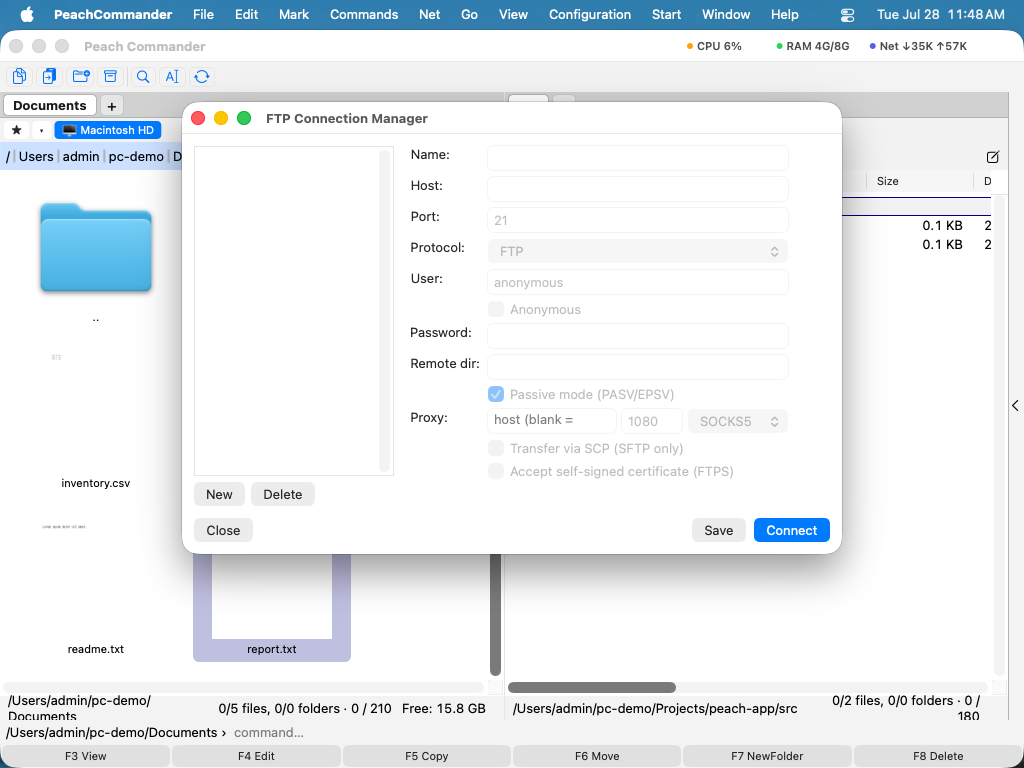 (Figure: The connection manager holds your saved servers; use New, Edit, and Delete to manage them.)
When you set up a connection you can choose the protocol (FTP, FTPS with explicit AUTH TLS, implicit FTPS on port 990, or SFTP/SCP), passive or active mode, the remote and local starting folders, text encoding, and an optional keep-alive interval to stop idle servers from dropping you. For SFTP you can authenticate with your SSH agent, a password, or a private key file, and you can choose SCP for transfers. Unknown SSH host keys are trusted on first use; if a known server's key ever changes, the connection is refused to protect you from tampering.
The FTP console
To see exactly what the server is saying, open the FTP console from the Net menu. It shows a live log of the control channel (your password is masked) and lets you type raw FTP commands to the server.
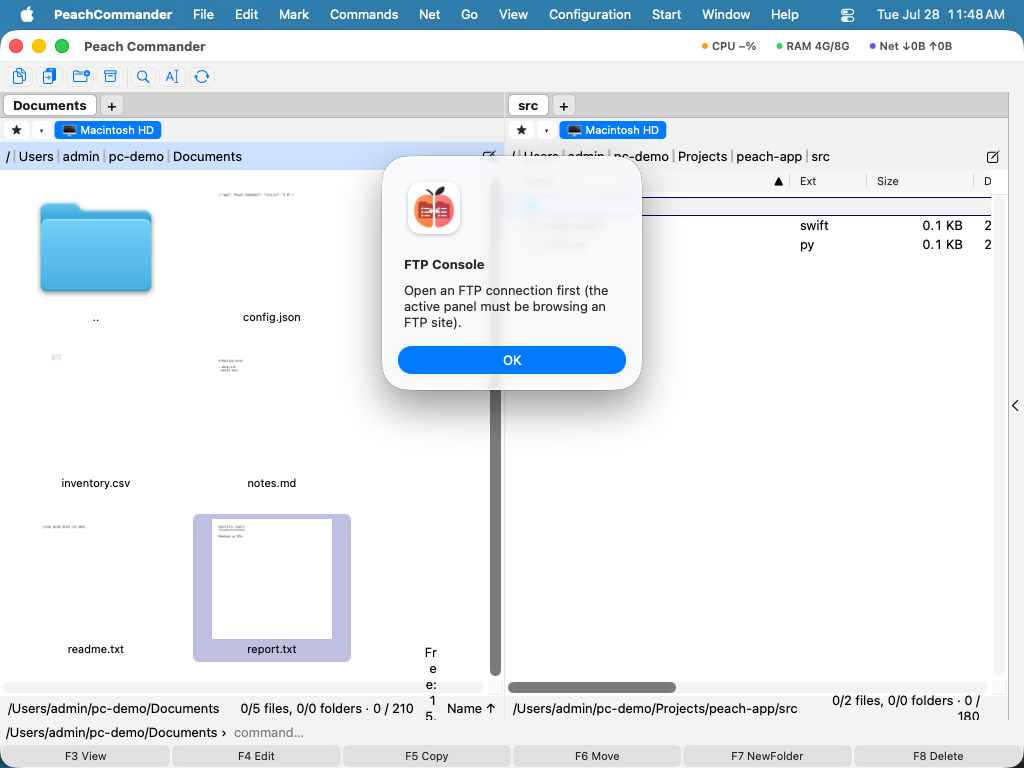 (Figure: The FTP console logs every exchange and accepts raw commands, which is handy for troubleshooting.)
Shortcuts
| Action | Shortcut |
|---|---|
| Open connection manager | Ctrl+F |
| New connection | Ctrl+N |
| Disconnect | Ctrl+Shift+F |
| Change transfer mode | Ctrl+Shift+M |
Notes
- An interrupted download resumes where it stopped: if the file is already partly there and the server accepts a restart, only the missing tail travels. A server that declines simply starts the file over. An upload resumes the same way, when the file on the server is shorter than the one being sent.
- For FTPS servers with a self-signed certificate, turn on the option to accept an untrusted certificate in that connection's settings.
- A SOCKS5 proxy can be set per connection for plain FTP. Routing an encrypted FTPS connection through a proxy is not supported.
- Existing FTP connections from Total Commander can be imported.
- SCP is used only for transferring files; listing, renaming, and deleting always go over SFTP.