Finding files
When you need to track down files anywhere on your Mac — by name, by what they contain, or by size and date — use the Find Files window. It searches one or more folders (and their subfolders), can look inside text files and archives, and lets you send everything it finds straight into a panel so you can act on the results as if they were an ordinary folder.
Find files by name
- In the panel showing the folder you want to search, choose Commands > Find Files… (or press Cmd+Shift+F).
- On the General tab, type a name pattern in Search for. You can use wildcards such as
*.pdforreport_*.docx. To search several folders at once, list them in the start-folder field separated by a semicolon (;). - Click Start. Matches appear in the results list below as they are found.
- Double-click any result to jump to that file in the active panel, or select a result and click View (F3) to open it in the built-in viewer.
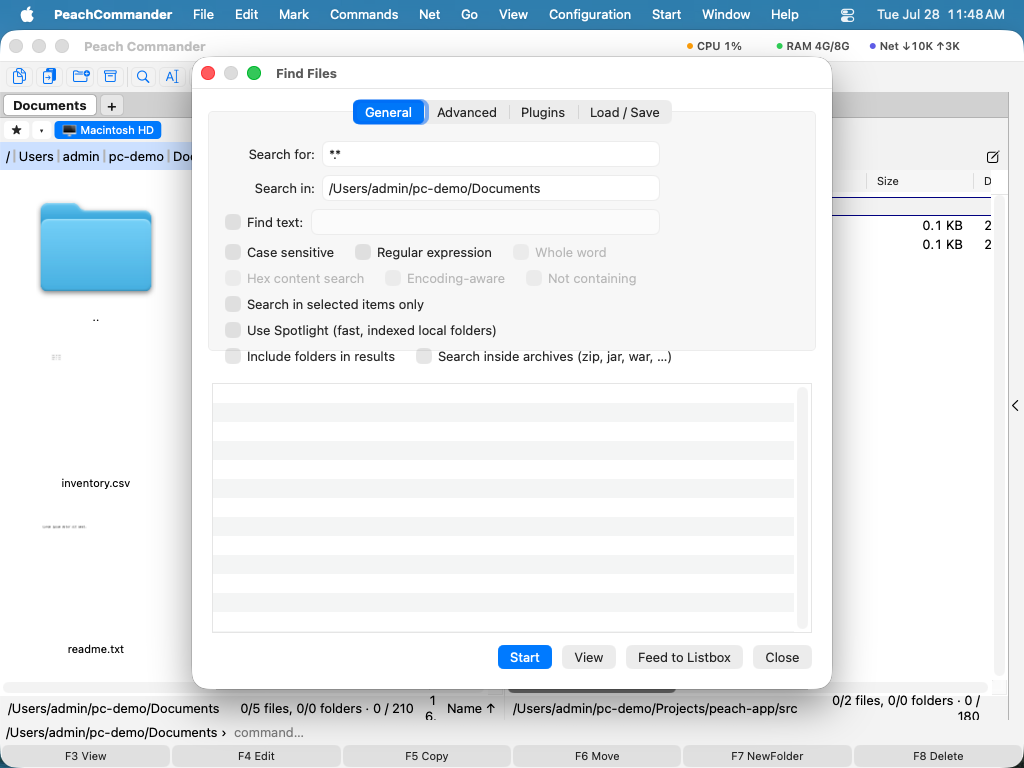 (Figure: The General tab — search by name pattern across one or more folders.)
Search by content, size, and date
- To search inside files, type the text into Find text on the General tab — anything in that field is searched for, and an empty field searches by name only. Options let you make it Case sensitive, match only a Whole word, treat the text as a Regular expression, do a Hex content search, or find files that are Not containing the text.
- Switch to the Advanced tab to narrow results by Size (for example
10Kto5M), by modified date range, or to files changed in the last N days. - Turn on Search inside archives to look inside the archives the search finds — the same formats you can open with Enter, including any a packer plugin adds. Anything the search could not look into is reported when it finishes — an archive it could not open, one that needs a password, one too large or too deeply nested, and a folder it could not read. The count is next to the number of hits, and the list names each one with the reason. This matters more than it sounds: a search that quietly walks past something reads exactly like "what you are looking for is not there".
- To limit the search to what you already picked, turn on Search in selected items only before starting.
- Turn on Also search file comments and the text is looked for in each file's comment as well as in its contents. That is how you find a file again by what you wrote about it — "the customer's original", "superseded by the 2026 export" — when nothing of the sort appears inside the file. A result found that way shows the comment instead of a line of the file, and no line number, because the match is not in the file's text. Case sensitivity, whole word and regular expressions apply to a comment exactly as they do to contents; a hex search does not, since a comment is text somebody typed. Not containing stays consistent: a file is listed when the text is in neither its contents nor its comment. If the Notes plugin is switched on, its note is available as a content field, which you can filter on under Plugins — see Working with plugins.
- Some plugins can turn a file into text that the file itself does not contain — the decompiler plugin turns a
.classinto Java source. Turn on Search text provided by plugins and those files are searched as that text instead of as their own bytes, so a phrase from the source is found in a compiled class. The option only appears when such a plugin is installed, and it is slower: producing the text can mean running a decompiler once per file.
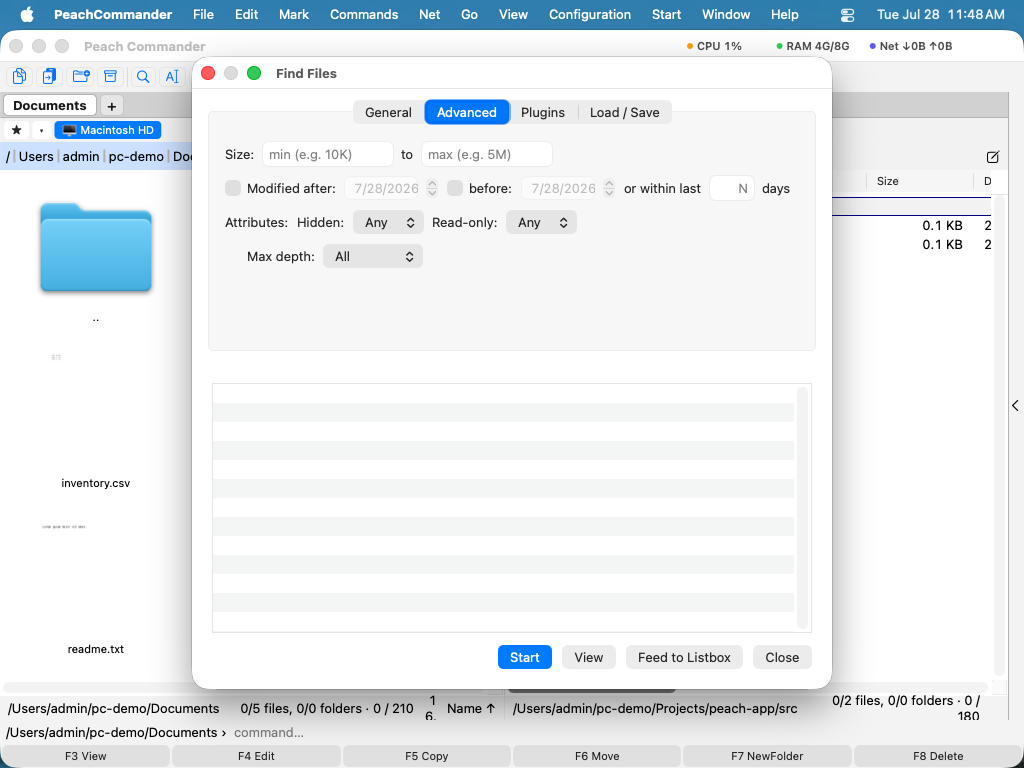 (Figure: The Advanced tab — filter by size, date, and other attributes.)
If you have plugins that add content fields (such as image dimensions), the Plugins tab lets you require a field to match a condition — for example, only images wider than 1000 pixels.
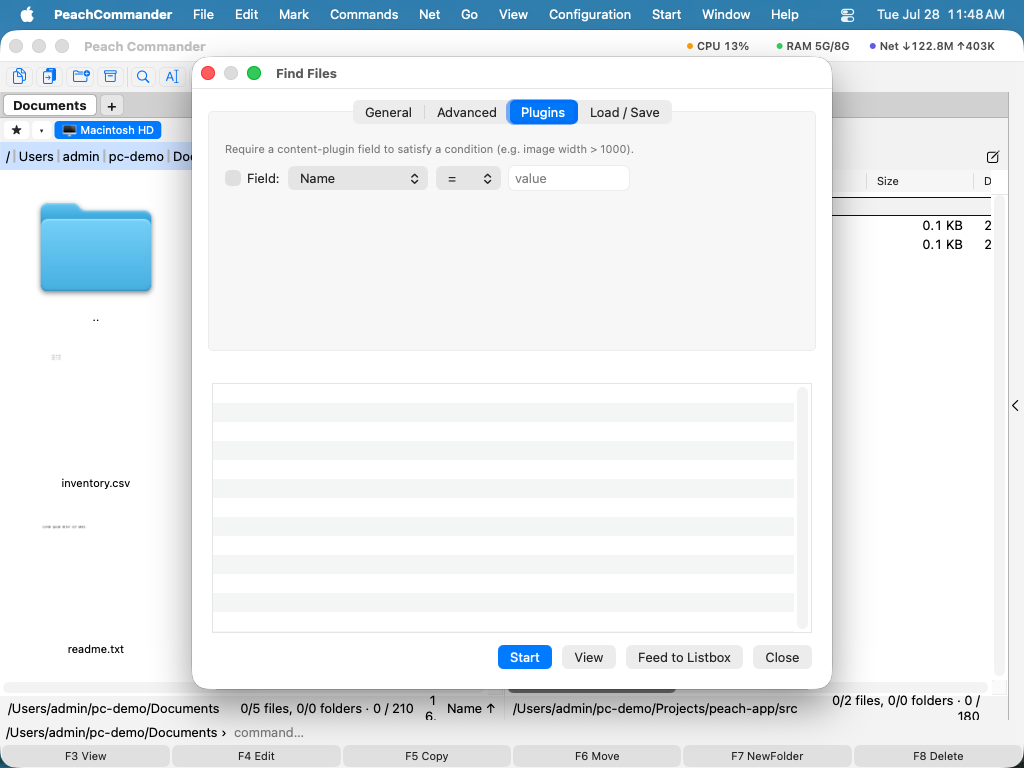 (Figure: The Plugins tab — match on plugin-provided content fields.)
Fast searches with Spotlight
For local folders that macOS has already indexed, turn on Use Spotlight on the General tab for near-instant results. Spotlight searches the index instead of scanning files, so it ignores regular expressions, subfolder depth limits, and the selection-only scope.
Reuse and hand off your results
- Feed to Listbox places every result into the active panel as a temporary list, so you can copy, move, or delete the whole set at once.
- On the Load / Save tab, choose Save as Template… to store the current search (patterns and options) and pick it again later from the template list.
- Search for, Search in and Find text each remember the last 20 entries you searched with, most recently used first — click the arrow at the end of the field to pick one again. The same term used twice moves back to the top rather than appearing twice, and the lists survive closing the window and quitting the app. Clear History… on the Load / Save tab forgets all three; saved templates are not affected.
Shortcuts
| Action | Shortcut |
|---|---|
| Open Find Files | Cmd+Shift+F or Option+F7 |
| Start / stop the search | Start button in the window |
| View the selected result | F3 |
Notes
- Content search reads whole files for local folders and for archives; on network locations very large files are read only in part (roughly 16 MB, or 64 MB when using a regular expression).
- Searching inside archives descends up to four levels of nested archives.
- Include folders in results also lists folders whose names match, not just files.
- Spotlight covers indexed local folders only; for network locations or pattern-based matching, leave it off and let Find Files scan.