Welcome to Peach Commander
Peach Commander is a fast, keyboard-driven file manager for macOS in the classic dual-panel tradition. Instead of a single window, it shows two folders side by side, so copying, moving, and comparing files is a matter of pointing one panel at the source and the other at the destination. It is built for people who want to keep their hands on the keyboard and move through files quickly. Think of it as a power tool that works alongside Finder rather than replacing it: use Finder for casual browsing and Quick Look, and reach for Peach Commander when you have real work to do with lots of files.
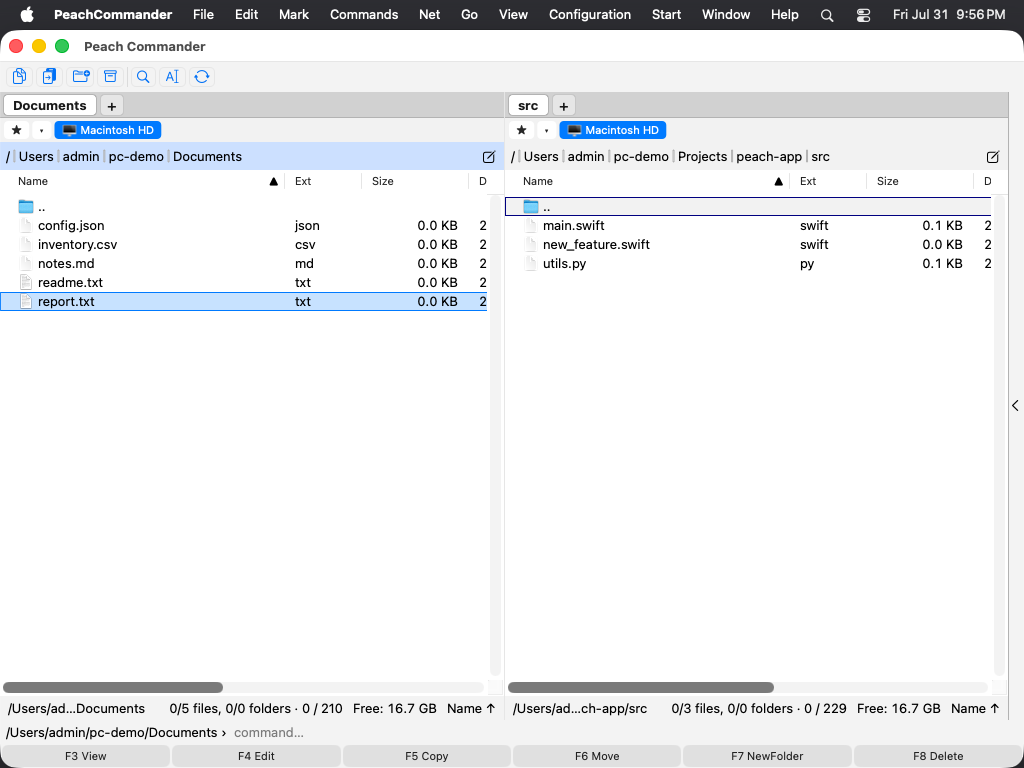 (Figure: The two-panel layout — one folder on the left, another on the right, with the active panel highlighted.)
Getting started
- Open Peach Commander. The window opens with two panels, each showing a folder.
- Click a panel, or press Tab, to make it the active panel. Only the active panel shows a cursor.
- Use the arrow keys to move the cursor, and press Enter to open the folder under the cursor.
- Point the second panel at wherever you want files to go. In most file operations, the active panel is the source and the other panel is the destination.
- Select one or more files, then use the function keys along the bottom (F5 to copy, F6 to move) to act on them.
The two panels are independent: each has its own folder, view, and sort order, so you can line up exactly the two locations you need to work between.
Shortcuts
| Action | Keys |
|---|---|
| Switch the active panel | Tab |
| Swap the two panels | Ctrl+U |
| Copy selected files to the other panel | F5 |
| Move selected files to the other panel | F6 |
Tips
- By default the two panels sit side by side. You can also stack them vertically (one above the other) from the View menu.
- Each panel can be resized by dragging the divider between them; both panels keep a comfortable minimum width.
- New to a two-panel file manager? Start with the next topics: Interface overview explains every part of the window, and Navigating covers moving between folders quickly.
- You can open this help at any time from Help ▸ Peach Commander Help (Cmd+?), and search it from the field at the top of the Help window.
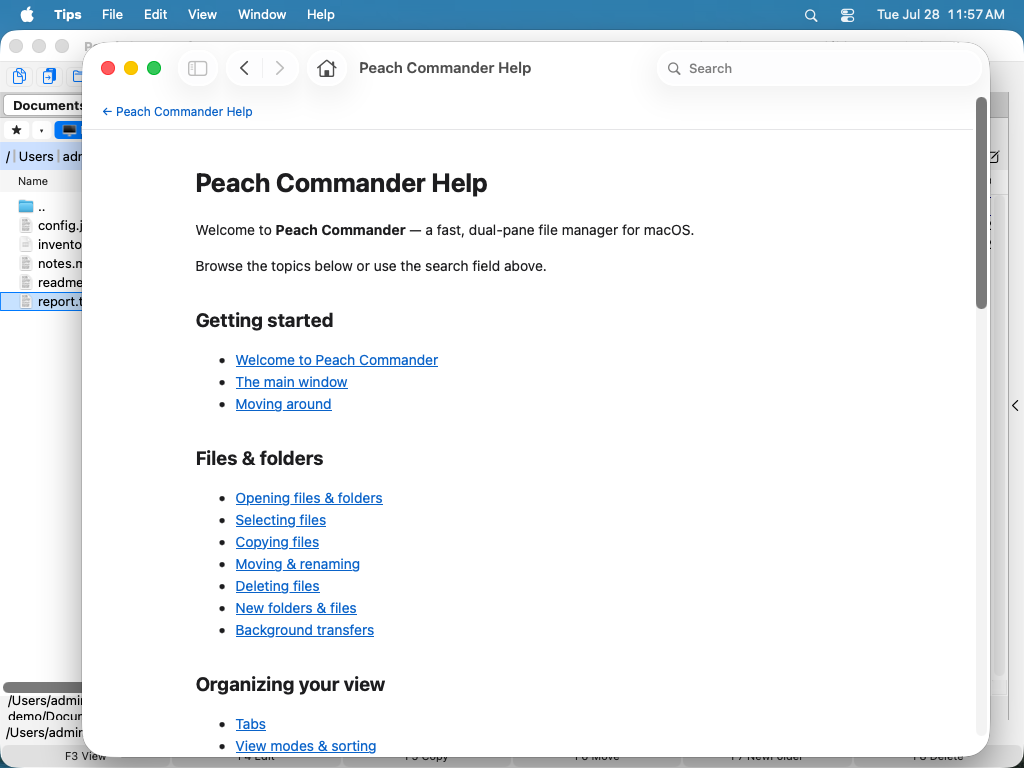 (Figure: The built-in help opens in macOS Help Viewer, with a searchable table of contents.)