Moving & renaming
Moving relocates files and folders instead of duplicating them, and renaming changes their names without touching their contents. Because Peach Commander shows two panels side by side, moving is just a matter of picking what you want in one panel and sending it to the folder open in the other. You can also rename an item in place, or give moved items new names on the fly using a wildcard mask.
Move files to the other panel
- In the source panel, open the folder that holds the items you want to move, and open the destination folder in the other panel.
- Select the file or folder to move. To move several at once, select them all first (see Selecting files).
- Press F6, or choose Files > Move.
- Check the target folder shown in the dialog and click OK (or press Return) to start the move.
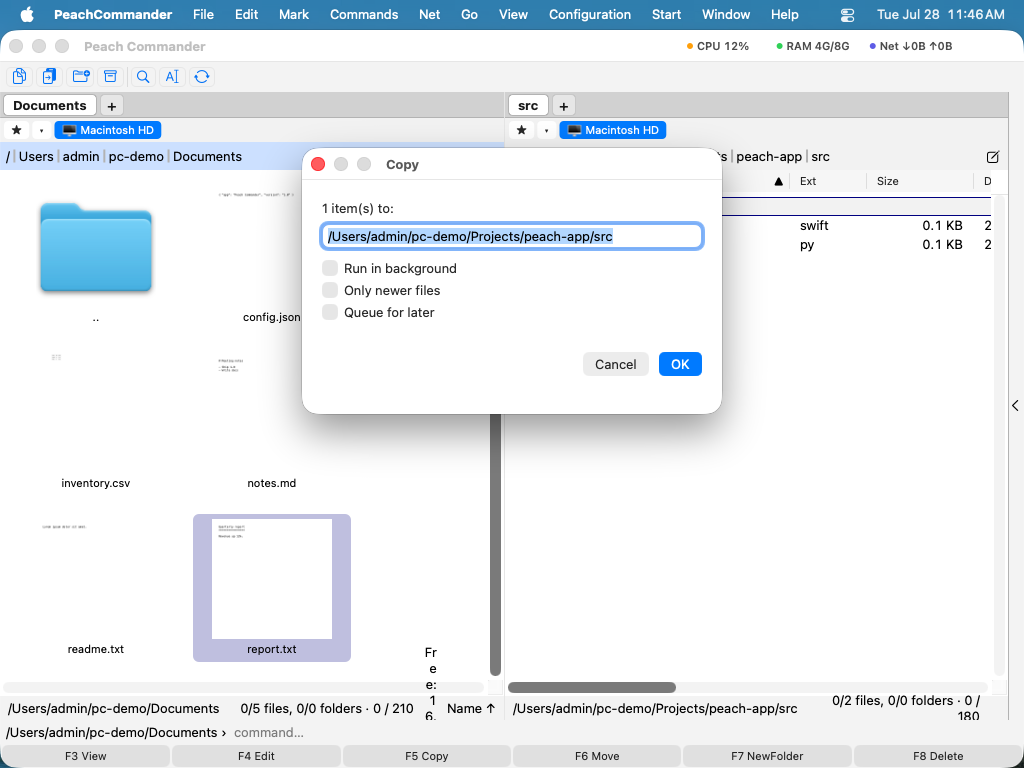 (Figure: The move dialog uses the same target field as copy — type a path, or add a wildcard mask to rename as you move.)
Moves on the same drive happen almost instantly. When the destination is on a different drive, Peach Commander copies the items and then removes the originals only after every file has arrived safely.
Rename in place
- Select a single file or folder.
- Press Shift+F6, or choose Files > Rename.
- Edit the name directly in the panel, then press Return to confirm or Esc to cancel.
Rename while moving
The target field in the move dialog accepts a wildcard mask, so you can rename items as they move:
- Select the items and press F6.
- In the target field, add a name mask after the destination folder, for example
/Users/you/Archive/*_backup.*. *stands for the original name and.*for the original extension. Confirm to move and rename in one step.
Shortcuts
| Action | Shortcut |
|---|---|
| Move to the other panel | F6 |
| Rename in place | Shift+F6 |
Tips
- The move dialog offers the same options button and background-queue checkbox as copying, so you can queue large moves and let them run in the background.
- Moving within the same drive is a fast in-place operation, so it is safe for very large folders. A cross-drive move takes longer because the data is copied first, then the source is deleted.
- To rename many files at once with numbering, search-and-replace, or patterns, use the Multi-Rename Tool instead (see Multi-rename).