Keyboard & shortcuts
Peach Commander is built to be driven from the keyboard. It ships with two ready-made shortcut schemes and lets you rebind any command to the keys you prefer. If you're coming from a classic dual-panel file manager, you can keep the keys you already know; if you'd rather use familiar Mac combinations, switch to the macOS scheme with one click. A searchable command browser lets you discover everything the app can do and run any command by name.
Switch keyboard schemes
- Open Settings (Cmd+, or Configuration > Settings…) and pick the Keys page.
- Choose a scheme from the Scheme menu:
- TC Classic (the default) keeps the traditional keys, with Ctrl-based combinations such as Ctrl+R to refresh a panel.
- macOS Native maps the same actions onto familiar Mac keys where it makes sense, for example Cmd+C to copy files and Cmd+F to search.
- The change takes effect immediately across the menus and shortcut bar. Edit Shortcuts… sits right below, because individual rebindings layer on top of whichever scheme you picked.
Customize shortcuts
- Choose Configuration > Edit Shortcuts…, or click Edit Shortcuts… on the Keys page in Settings.
- Find a command using the search field, then select its row.
- Click Record… and press the key combination you want. It's assigned right away.
- If that combination was already used by another command, a notice tells you which command it was taken from.
- Use Clear to remove a command's shortcut, or Restore Defaults to discard all your changes and return to the scheme's original keys.
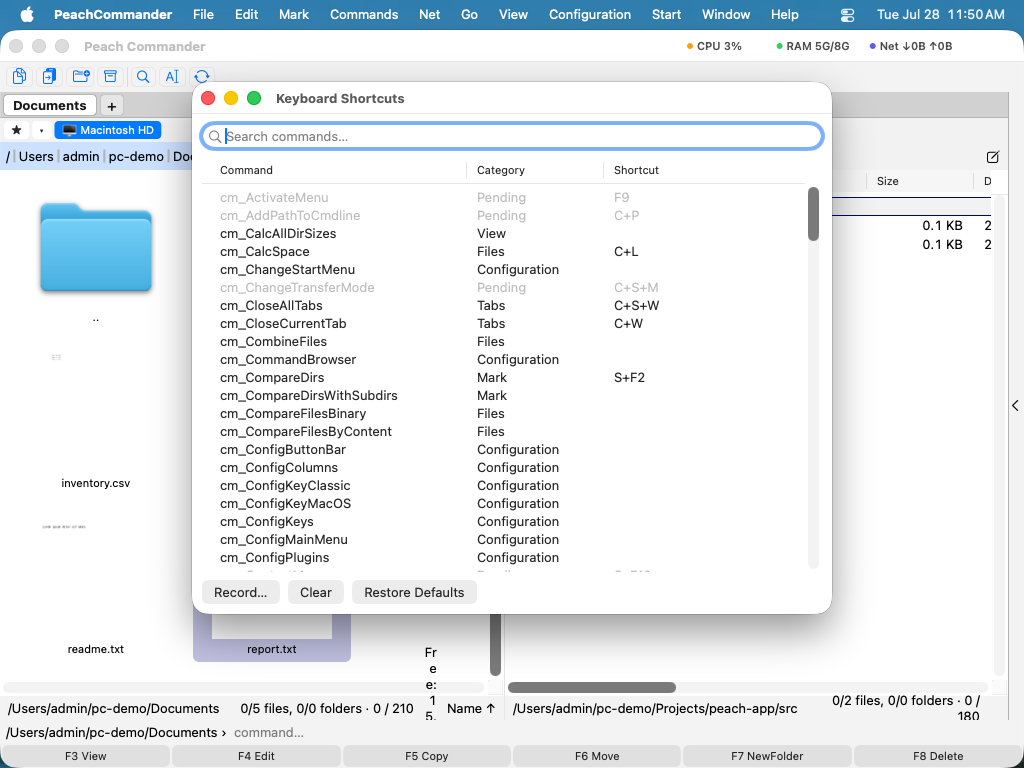 (Figure: Search for a command, then use Record, Clear, or Restore Defaults to change its shortcut.)
Browse all commands
- Choose Configuration > Command Browser….
- Type in the search field to filter by name, category, or description.
- Double-click a command, or select it and click Run, to carry it out on the active panel.
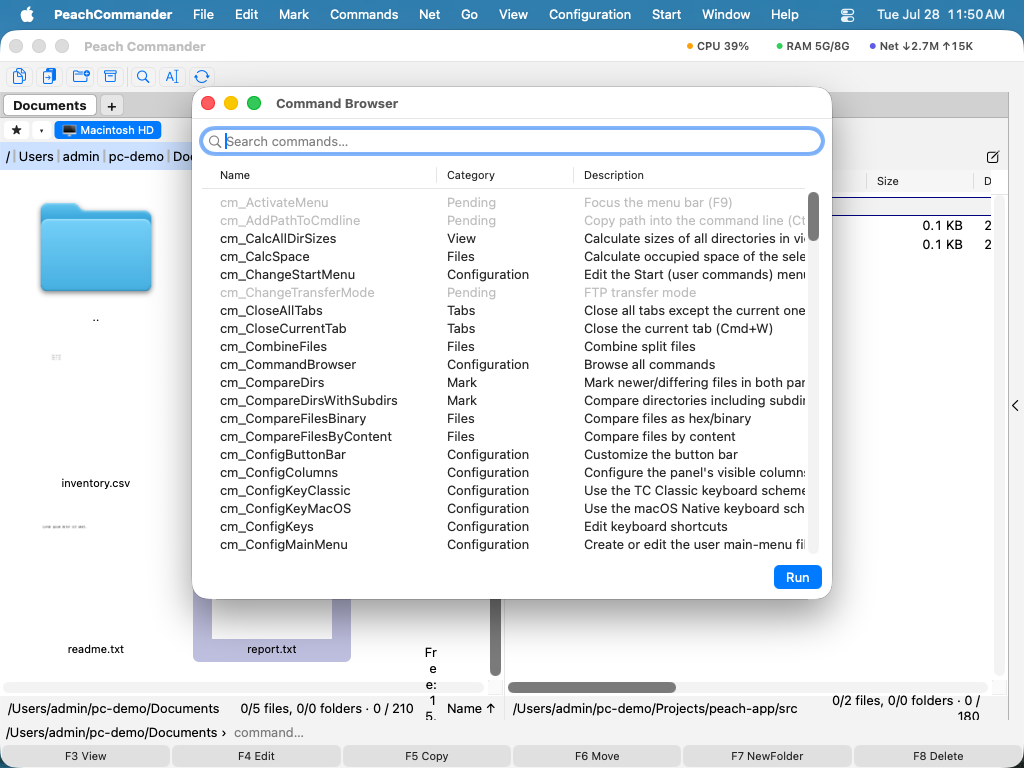 (Figure: Every command in one searchable list, with a short description of each.)
Shortcuts
| Action | Menu path |
|---|---|
| Choose a scheme | Settings > Keys > Scheme |
| Edit shortcuts | Configuration > Edit Shortcuts… |
| Browse all commands | Configuration > Command Browser… |
| Refresh the active panel | F2 (also Ctrl+R) |
Notes
- Your custom shortcuts are saved automatically and layered on top of the active scheme. Switching schemes keeps your personal overrides.
- Commands that aren't available in the current context appear dimmed in both the shortcuts editor and the command browser.
- To use the function keys (F1–F12) directly, turn on Use F1, F2, etc. keys as standard function keys in System Settings > Keyboard. Otherwise, hold the Fn key along with the function key.